Planning assistant: from one goal to assigned actions
Say what's ahead; it asks a few short questions and then proposes up to fifteen actions with subtasks, due dates, priorities and owners from the project's members, for you to edit, then create and assign with one confirmation.
Open in Flowra/selectPlanning assistant
GoalTwo-week campaignBy whenTwo weeksWhoSpread across project membersSuggestions5 actions · 9 subtasksNo action is created until you tap “Create and assign tasks”.
What this is wired to
Where it is and who sees it
On a workspace's Actions page, once a project is picked, the “Assistant” button at the top of the page opens the “Planning assistant” popup, with the project's name under its title. Only the space's owner and editors see this button, and the server checks the same; a viewer only watches. Each project has its own conversation, and switching projects starts a fresh one.
- In a workspace, open “Actions”
- Pick a project
- Press the “Assistant” button
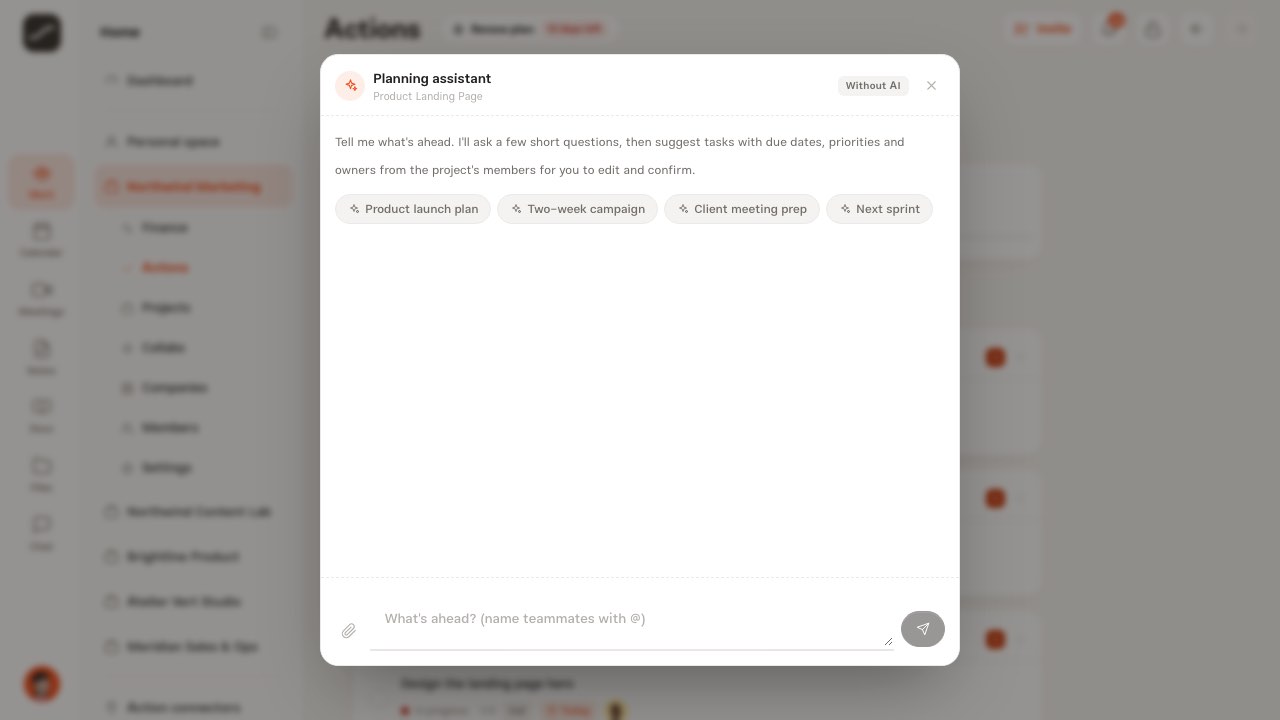
Goal, people and attachments
Write the goal in your own words or tap one of the suggestions: a product launch plan, a two-week campaign, preparing a client meeting or the next sprint. Every teammate you name with @ shows up already picked in the team question. Attach a brief, meeting notes or a task list, or paste its text, so the plan is built from exactly that.
Questions
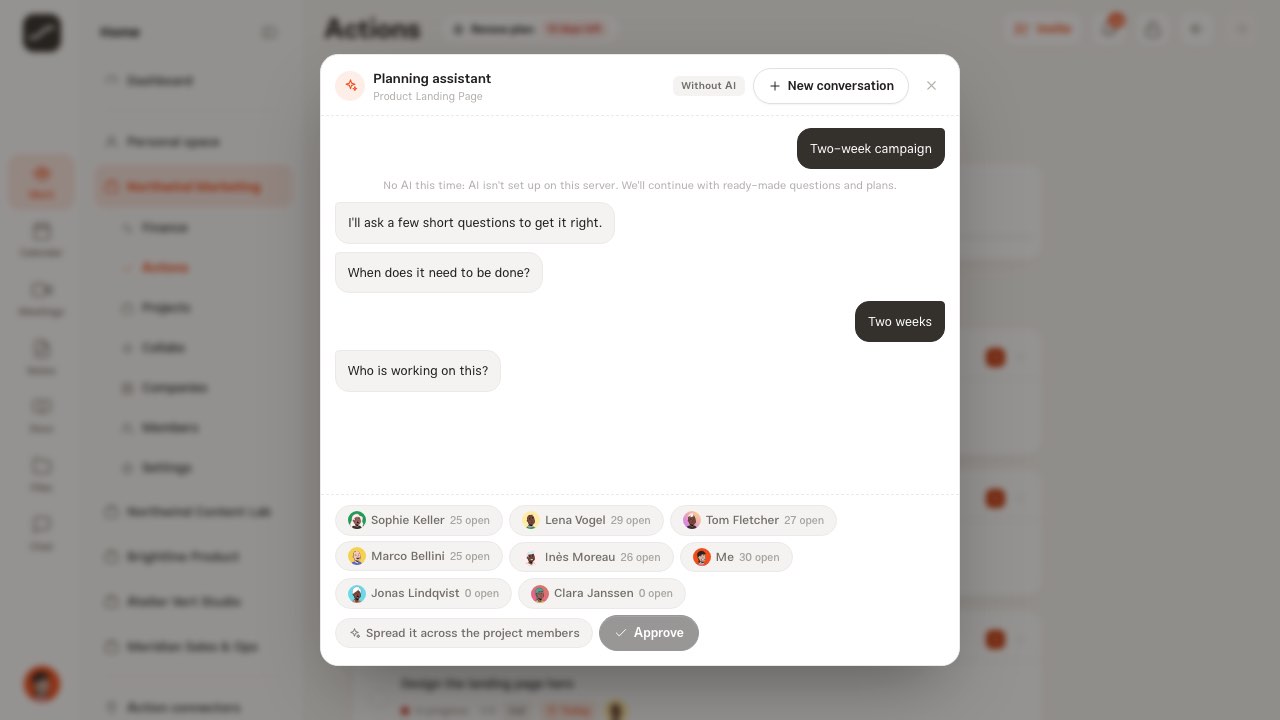
With AI, the assistant asks up to three questions about the goal itself. Then it always asks its own three, because their answers are numbers and names, not text: “When does it need to be done?” with one week, two weeks, one month, “No fixed deadline” or a date of your choice; “Who is working on this?” with the member list and each person's count of open tasks, or “Spread it across the project members”; and “What's the overall priority?”.
Without AI, the same three questions come, plus one last one: “Anything else the plan should include?”. Then the plan is built from the template of the closest kind of work: a launch, a campaign, a client meeting, a sprint or a general plan.
Draft Plan
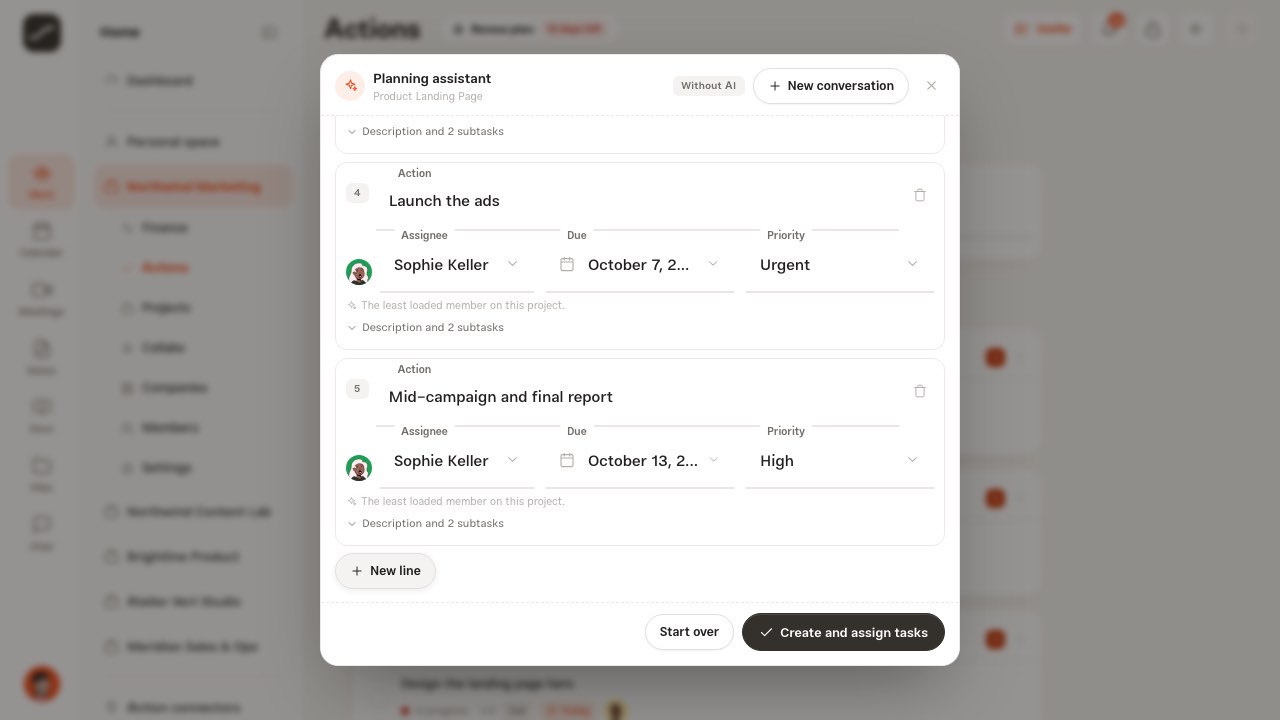
The draft holds up to fifteen actions. Each row has a title, due date, priority and owner, with a line saying why this person, and under it a description button that opens the description and up to eight subtasks. Edit the title and description right there, drop a subtask, delete a row or add one with “New row”. “Start over” clears the conversation.
- Review the rows
- Change any row's owner, due date or priority
- Delete extra rows or make a new one
- Tap “Create and assign tasks”
How owners are picked
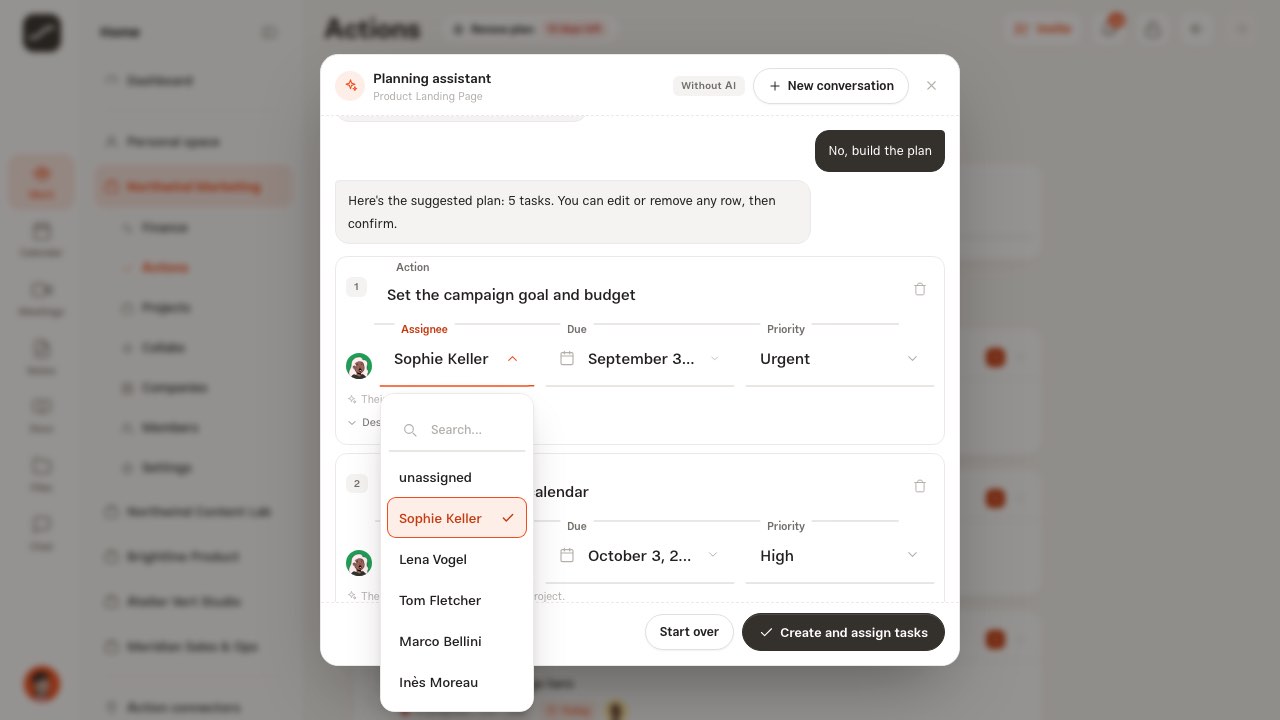
The owner is picked from the people who can see this project: the project's members, its manager, and members of the space whose access covers the project. If you picked people in the team question, only from among them. Each task asks for certain role and skill words, and each person's role and skills, from the project and from their card in My network, are weighed against them; then each person's open tasks, and the tasks this same plan has already given them, are subtracted from their score. So the work goes to someone who fits and is least busy.
In a ready-made plan, the reason line is one of these two: “Their role and skills fit this task” or “The least loaded member on this project”. With AI, the model sees the same list and the same counts, and a row left without an owner is filled by the same rule. Each row's owner list also has “unassigned”.
Due dates, deadline and calendar
Due dates are laid out up to the deadline you gave, and none falls after it. Without a deadline, a ready-made plan takes the usual span for that kind of work: a month for a launch, a week for a client meeting and two weeks for the rest, and the due dates are spread across that span starting tomorrow.
The planning assistant doesn't read anyone's working hours, leave or meetings, and doesn't send approval requests either; assigning is direct, just as in the action form. Glance at the calendar before you confirm and change the rows' due dates. For work with a time of day, like a meeting or a recurring schedule, use the calendar assistant, which checks clashes and working hours.
Create and assign
“Create and assign tasks” makes each row through the same path as any other action: in this project and its company, with history, a notification for the owner and the action card in your chat with them. Each action's description also has a line saying it was made with the planning assistant and for which goal. At the end, the assistant says how many actions were made and how many were assigned to members.
Every plan has its own ID and every row a unique key, so pressing confirm again, or two popups at once, never makes anything twice. A plan holds at most fifteen actions.
On the board and in the calendar
New actions land in the “Ready to start” column, because an action with an owner and a due date is ready to start; if that column is hidden on the space's board, they land in the first visible column. From there they're moved, edited and closed like any other action, and every action with a due date shows on its day in the calendar.
Planning again
A plan is made once, and after that the actions belong to the board. If the work changes, press “New conversation” and give the new goal: a new plan adds new actions and leaves the earlier ones alone. Close or cancel actions you no longer need on the board.
With AI or without it
If the operator's AI switch, the Prime plan or the service key is missing, or the service doesn't respond, the assistant doesn't stop: it moves ahead with ready-made questions and plans, and its label reads “Without AI”. If the model's answer can't be read, a ready-made plan is offered and it says so. When everything is in place, the label reads “With AI” and the answers come in your own language.
On phones
On a phone, the same button sits at the top of the board, and the popup becomes a full-height sheet from the bottom. The draft rows stack one under another, each with its due date, priority and owner, and the confirm button is at the bottom of the sheet.