Meetings
A meeting in Flowra is more than a link: attendance, recording, the room chat, meeting docs and whatever comes out of it are all connected to that meeting.
Open in Flowra/meetProduct meeting
Present5 people, liveRecordingScreen plus microphoneRoom chat14 messages, keptMeeting docsMeeting minutesSummary3 actions extractedThe recording is shared with every participant.
What this is wired to
What a meeting is in Flowra
Every meeting is one record with a host, participants, a time, a length and a venue. That same record is what sits on everyone's calendar, whose invitation arrives in chat, whose room holds live presence, which keeps the recording and the transcript, and which the actions and minutes point back to.
A meeting belongs to no workspace; it belongs to its host and the people invited. That is why you can invite anyone you know in Flowra, and only those people can see the meeting.
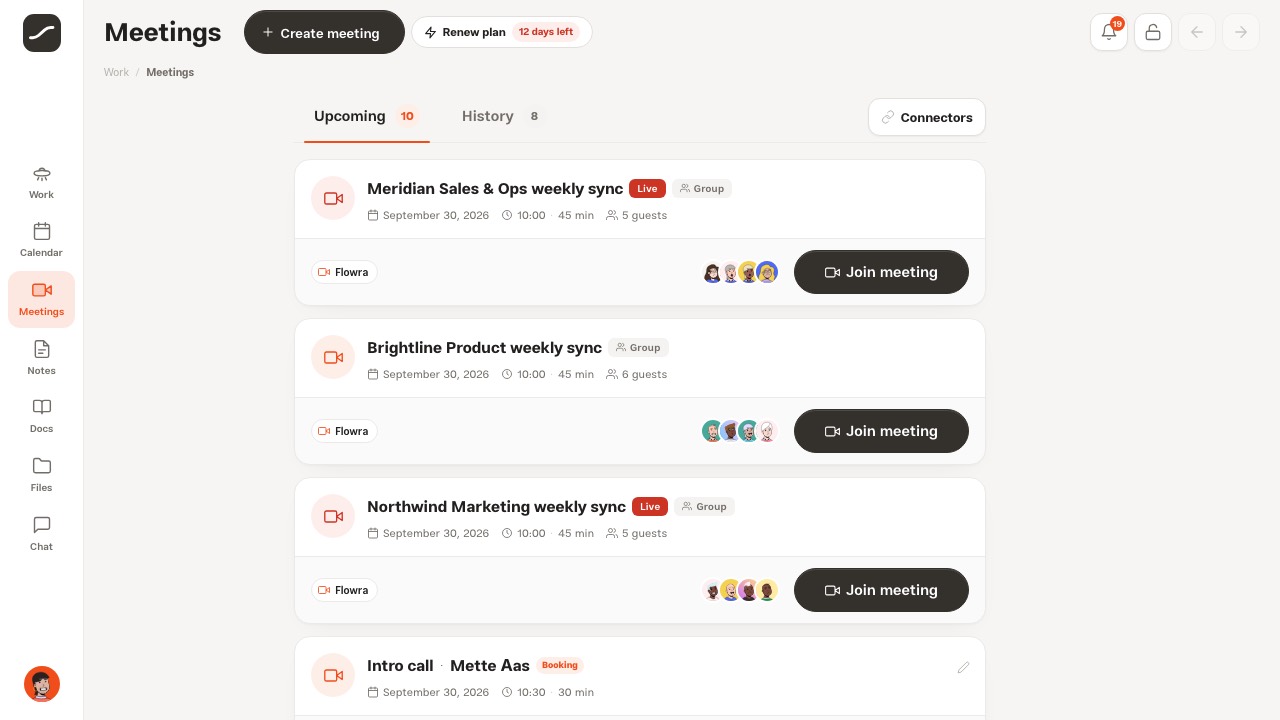
The meetings page: upcoming and history
“Meetings” in the side menu has two tabs, each with its own address: “Upcoming” for meetings whose time hasn't come yet or that are live, and “History” for finished ones. A meeting whose time and length have passed moves to History on its own and is never deleted.
Every card shows the date, time, length and number of guests, with a “Live” badge when someone is inside, “Group” for a meeting of several people, and “Booking” for one somebody booked on your booking page. At the bottom of the card are the venue, the guests' faces and the main button: “Join meeting” for a Flowra room, “Join on Google Meet” or “Join on Zoom” with a copy-link button for an external meeting, “View recording” for a recorded one, and “Expired” for one that is over and has no recording.
History has two filters: “All” or “Recorded only”, and the order “Newest” or “Oldest”. The “Connectors” button on the same row as the tabs goes to the page that connects Google Meet and Zoom, and shows how many services are connected.
Meetings on a phone
On a phone the same page is a single column: the page name at the top with the “Create meeting” button beside it, because the desktop's top bar has no room for it there. History's filter and order open from the bottom of the screen.
In the room, tiles are laid out for a narrow screen: up to two people get a full row each, up to six go two to a row, and more than that three to a row. The labels on the top bar's buttons give way to icons so the meeting's name stays visible.
Creating a meeting with the form
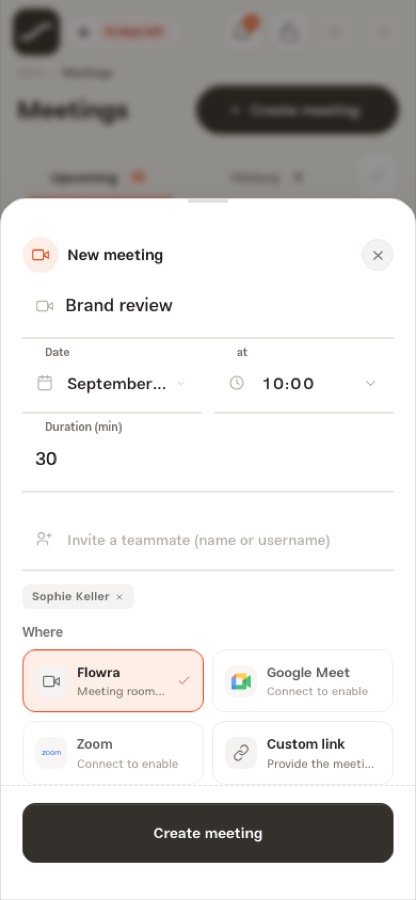
“Create meeting” (in the top bar on desktop, beside the page name on a phone) opens the “New meeting” form. If you leave the date empty, the meeting is created for right now.
Guests are found among the people you share a workspace, a project or a chat with, by name, username or email. Next to each name it says if that person is on leave or outside their working hours, before you invite them. With more than one guest, the meeting becomes a group meeting on its own.
- Meeting title
- Date, time and length in minutes
- Invite a teammate by name or username
- Venue: Flowra, Google Meet, Zoom or a custom link
- “Group meeting” if needed, then “Create meeting”
Conflicts and free times
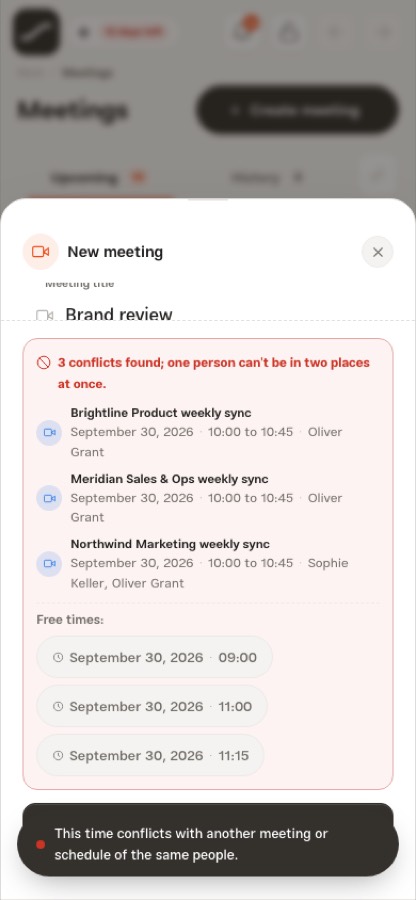
Before any meeting is saved, the server checks for the host and every guest whether that slot is free: their other meetings, recurring schedules that block meetings, working hours and leave. If something doesn't fit, the meeting isn't saved, and the form says how many conflicts it found, and what each one is with and for whom.
Below that message come up to three “free times”: the closest times to the hour you asked for, the same day first and then the following days, and all within every guest's working hours. Pick one and the form's date and time change; then create again.
The same check runs again when you move a meeting, make it longer or add someone new to it. The only exception is a call started “now” from a chat; that meeting is happening this very moment, whatever the calendar says.
Working hours and leave
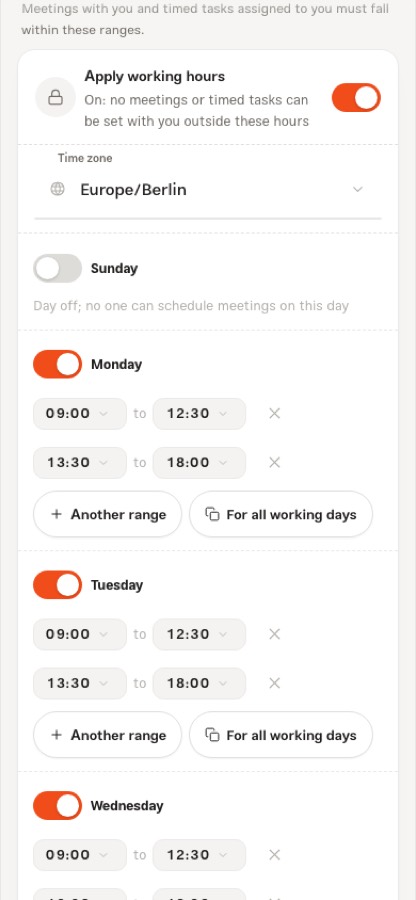
Working hours are set in “Calendar settings”: a time zone, ranges for each day of the week and days off. While “Apply working hours” is on, no meeting can be set with you outside those ranges. Someone who hasn't saved working hours yet isn't limited.
Leave is stronger: even without saved working hours, nobody can put a meeting with you on a day you're on leave. Teammates see your leave at the top of that day in the calendar.
Meetings on the calendar
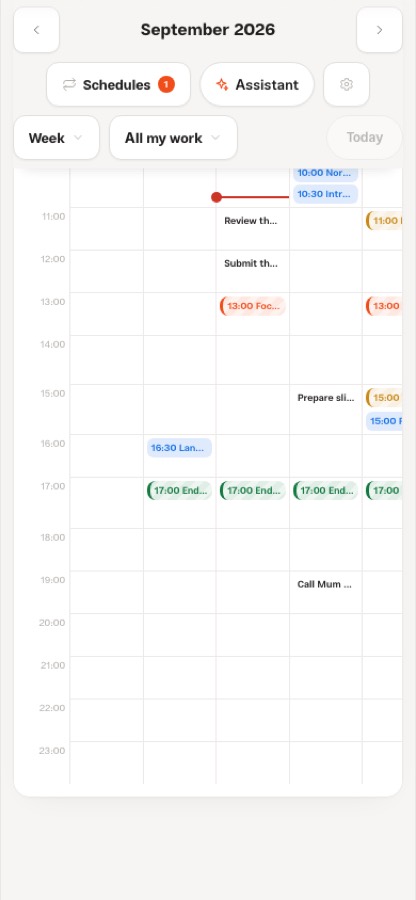
Every meeting sits on the calendar of the host and every participant, in blue, next to actions with due dates and recurring schedules. Clicking a meeting on the calendar opens that meeting.
Click an empty hour and choose “Meeting” to open a short form for that hour. The form shows conflicts as soon as you change the time or the people, before you press the button.
Meetings from a chat
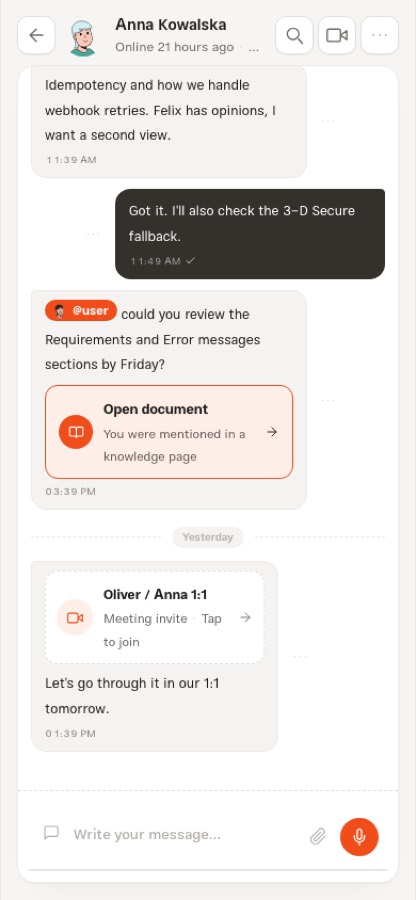
When you invite someone to a meeting, a card with the meeting's title lands in your private chat, taking them into the meeting with one tap, and they get a notification too.
From the menu at the top of any chat, “Schedule meeting” opens a short form with the day, time, length and the same people, and “Create and invite” creates the meeting. “Video call now” (the camera icon at the top of the chat) creates a meeting for this very moment and takes you straight to the lobby; in a group chat its card also lands in that group.
Meetings from My network
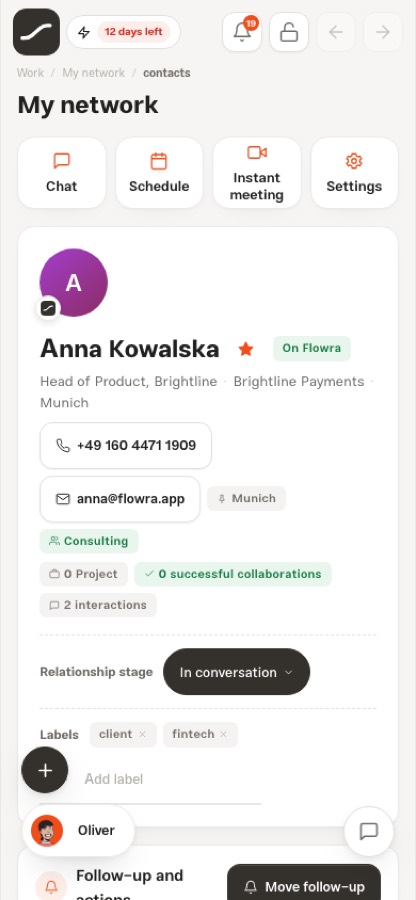
Every contact's page in “My network” has two meeting buttons. “Instant meeting” creates a thirty-minute meeting with them right now and takes you to the lobby. “Schedule” opens the meeting form with their name in the guest list and a “Meeting with” them title.
The same page also has a “Meetings with them” section: every meeting they've been in, newest first.
Venues and connectors
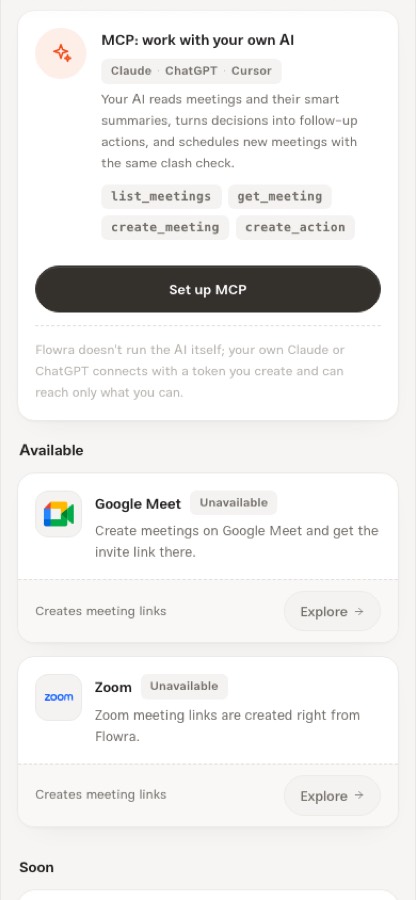
A meeting can be held in Flowra's own room or on an outside service. “Meeting connectors” (from the “Connectors” button on the meetings page) has two services available: Google Meet, which has no API of its own and gets its link through Google Calendar, so the calendar connection is what turns it on, and Zoom, which has its own connection. Until they're connected, the form shows them locked with “Connect to enable”.
The link is created on the server, where the tokens are; the browser only names the venue. Wherever the meeting is opened, from the meetings list, the calendar or a link someone sent, an external meeting hands over that same external link. If the service doesn't answer, the meeting is created in the Flowra room and you're told right away. There's also “Custom link”, for any meeting address you already have.
The “Soon” section shows services that can't be connected yet: Microsoft Teams, Webex, Jitsi Meet, BigBlueButton, Adobe Connect, Whereby, GoTo Meeting, Zoho Meeting, Skype, Slack Huddles and Discord. The MCP card at the top of the same page says how your own AI reads and creates meetings.
Invitations, notifications and reminders
Every guest with a Flowra account gets a message in their private chat with the host and a notification. Participants are stored by user id, not by username, so every “is this person in the meeting?” check gets the right answer.
Ten minutes before the start, the host and every participant get a “meeting starts in a few minutes” reminder in Flowra, and in Telegram too, with a join button, if they've connected it. Each reminder is sent only once.
The lobby: before you join
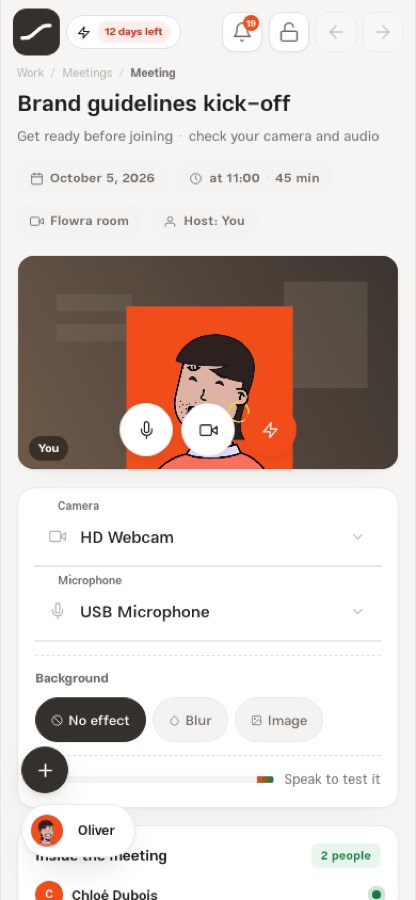
“Join meeting” goes to the lobby first, where you get your devices ready before anyone sees you. The top of the lobby shows the date, time, length, venue and host.
On the other side, “Inside the meeting” shows who's in right now, with “Invited” below it and the “Invite someone new (name or email)” box. An email address without a Flowra account gets an invitation to Flowra and is added to the meeting's list. “Copy invite link” copies the meeting's address; the link alone isn't a key, and only invited people get in with it.
- Camera preview with microphone, camera and noise cancellation buttons
- Pick the camera and microphone from the device list
- Background: no effect, blur in three strengths, or a ready-made or uploaded image
- Sound bar: speak to see that the microphone works
- “Start and join the meeting”
Inside the room
The Flowra room is a real video call: picture and sound go straight from one browser to another and never reach Flowra's server. The first person to join turns a scheduled meeting live, and the last one to leave turns it back.
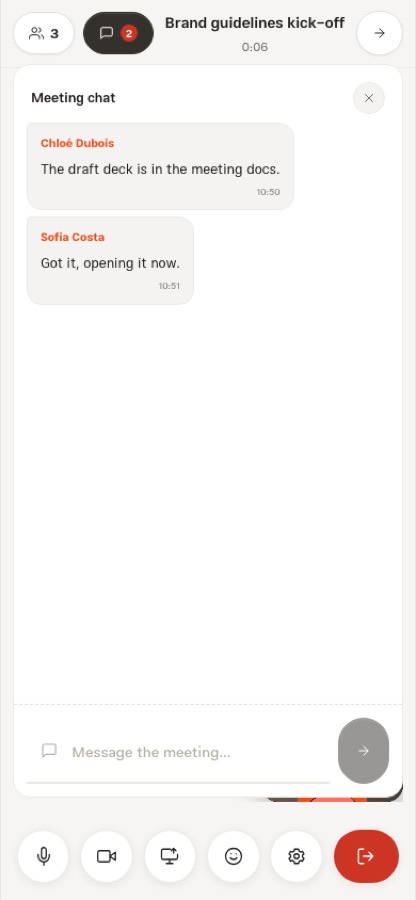
Everyone inside has their own tile, and an invited person who hasn't arrived yet shows dimmed with “Not here yet”. Any tile can be pinned to stay large, and with three people or more your own picture moves to a corner to make room for the others. The people button in the top bar opens the list of who's here and who isn't yet.
“Chat” opens the room's messages beside the stage. This chat is only for the host and the participants, and it stays in Chat after the meeting. Clicking someone's tile opens a private chat with them; the same chat you have on the Chat page.
- Microphone and camera
- Share screen
- Reactions
- Meeting settings: devices, noise cancellation, background and recording
- The red button: end for the host, leave for a guest
Screen sharing and recording
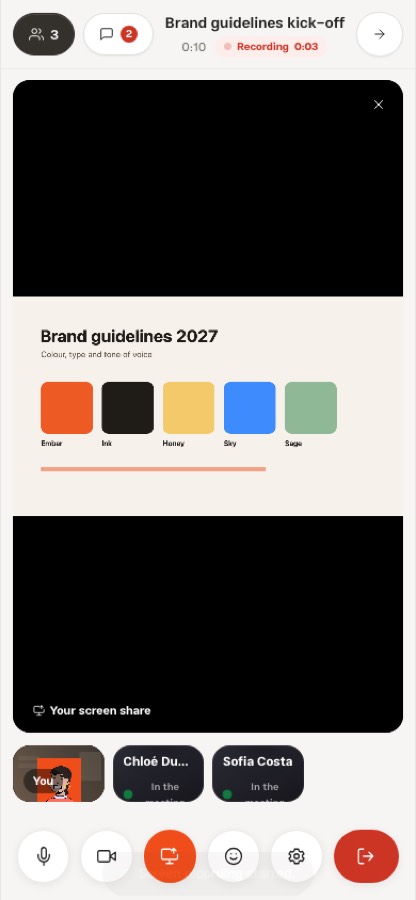
When you share your screen, it takes the place of your camera for everyone else and fills the stage; everyone else stays in a strip beside it. Stopping the share from the browser's own bar works too.
Recording belongs to the host and starts from “Meeting settings” with “Start recording”. The recording captures the screen, not the camera: the browser asks which tab, window or screen, and the microphone's sound and the screen's sound are mixed into one track. The technical reason is that the browser's recorder only encodes the first audio track, so handing it two means recording one.
The top bar shows “Recording” with its running time. If you stop sharing from the browser's bar, the recording stops too, and you're told.
Ending a meeting: host and guest
For the host, the red button means “End the meeting for everyone”; for a guest it means “Leave the meeting”, and the two are deliberately not the same thing. “Leave without ending” in the top bar is there for the host too, for when they need to go and the meeting should carry on.
When the host ends the meeting, the recording is uploaded to their “My Files”, the meeting moves to History, and everyone else leaves the room with the message “The host ended the meeting”.
Recording, transcript and notes
The recorded file belongs to everyone invited, not just the host who uploaded it. It is shared with the participants so it shows up under “Shared with me”, instead of only being reachable from the meeting page.
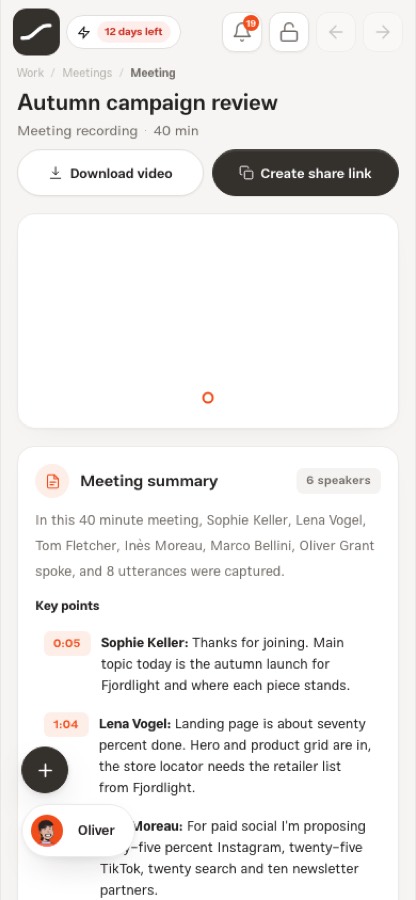
A recorded meeting's page has a player where every transcript line is a marker on the progress bar. “Meeting summary” says who spoke and shows the key lines with their times. Search the “Transcript” column; the line playing now is highlighted, and clicking any line jumps to that moment.
Below it is “Comments & notes”: a note sent with the time pin sticks to the video's current moment, gets a marker on the bar, and appears over the picture when playback reaches it. “Download video” and “Create share link” are at the top of the page.
The AI assistant: text, summary and actions
The “Meeting AI assistant” is on the page of every recorded meeting. “Transcribe the recording” turns the recording's sound into a timestamped transcript; if the recording isn't in Flowra's files, “Upload audio and transcribe” first puts an audio file of up to 25 MB in your files, then transcribes it.
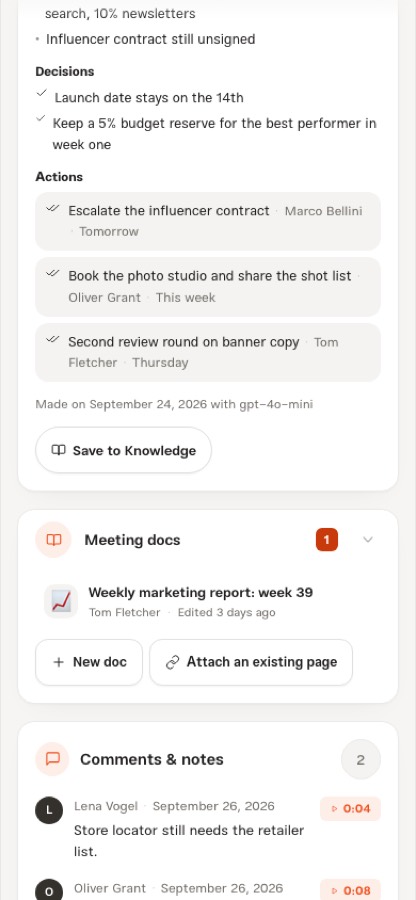
“Summary and action items” writes the summary, key points, decisions and tasks from the transcript. If “Turn the tasks into actions” is on, every task becomes a real action whose description says which meeting it came from; an assignee is set only when the name matches one of the meeting's people, and pressing it again doesn't create duplicates.
This part comes with the Prime plan and needs an OpenAI key on the server; if it's missing, the panel says so instead of offering a button that would fail later. The meeting's text is sent to OpenAI for this, and the panel says that too.
Meeting docs and minutes
Every meeting's page has a “Meeting docs” section: the minutes, or any knowledge page connected to this meeting. From there you create a “New doc” from the meeting notes template or choose “Attach an existing page”.
“Save to Knowledge” under the summary creates the “Meeting notes” page with the date, participants, summary, decisions and tasks as a checklist. The page lives in the creator's personal space and is shared with every participant with edit rights; minutes that only one person can read are a private diary, not minutes.
A meeting that wasn't recorded
A finished meeting without a recording doesn't get an empty player. Its page is a plain record: “This meeting was not recorded”, the date and time, the host and participants, and the same “Meeting docs” section so the minutes can still be written.
Who can get into the room
The host and the participants. The room link is not a key on its own: opening it goes through the same gate as the rest of the app, so forwarding it to somebody who was not invited does nothing.
The room's conversation follows the same rule. Its thread is for the host and the participants and for nobody else, even somebody holding the meeting's id.
Editing and deleting
The host has “Delete” on every meeting's card, and “Edit” too as long as the meeting hasn't happened yet. Edit opens the same form with “Save changes”, and if the time, length or people change, conflicts are checked again. Deleting can't be undone and only the host can do it.
A complete path: from invitation to action
This is the path most meetings take, and each step is explained in one of the sections above.
- Set your working hours and leave in calendar settings
- Create the meeting from the meetings page, the calendar, a chat or a contact's page
- If there's a conflict, take one of the free times
- Guests get the invitation in chat, and a reminder ten minutes before the start
- Get your camera and sound ready in the lobby, then join
- Share your screen and record the meeting
- After the meeting, get the transcript and summary, turn the tasks into actions and save the minutes to Knowledge