Knowledge: sharing, comments, mentions and versions
Who a page is shared with and at what level, how discussion stays next to the text, how a mention reaches chat, and how every earlier version can be restored.
Open in Flowra/knowledge/sharedPeople with access
OwneryouCan edit2 peopleCan comment1 personGeneral accessAll members of the spaceVersionsUp to 80 versionsOnly the owner and editors can share a page.
What this is wired to
Inviting someone to a page
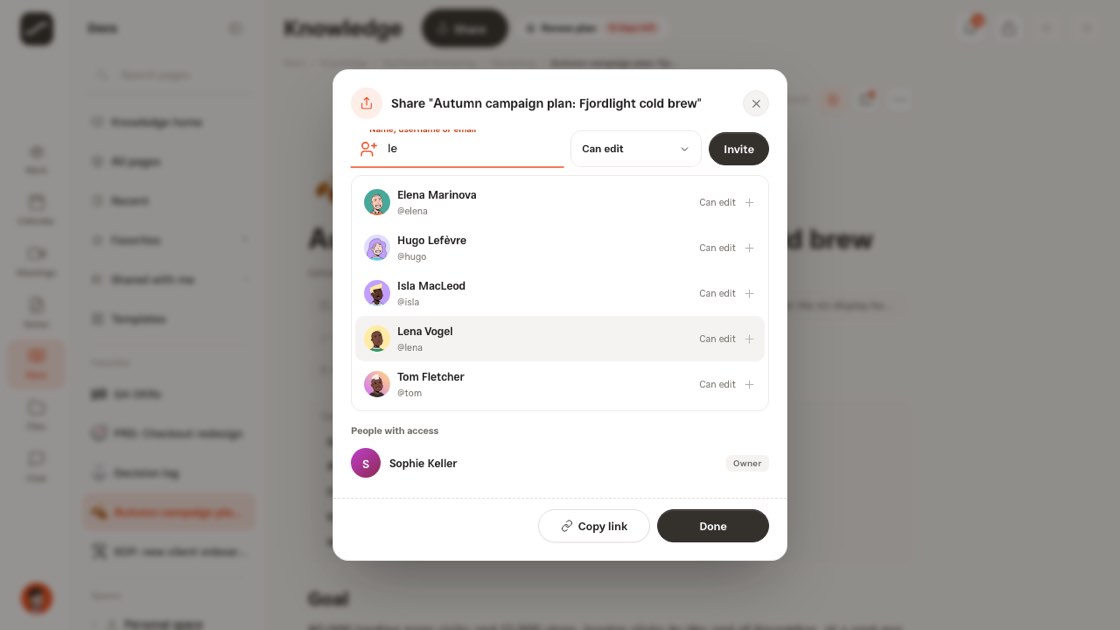
The “Share” button at the top of the page opens the share dialog. Type in the “Name, username or email” box; suggestions come only from your own network: members of your spaces and projects, people you've invited or who invited you, and people you have a direct chat with. Add anyone outside those with their exact username or email.
Choose the level next to the box (the default is “Can edit”) and hit “Invite”. The person you add gets a notification, and the page shows up in their “Shared with me”.
Access levels
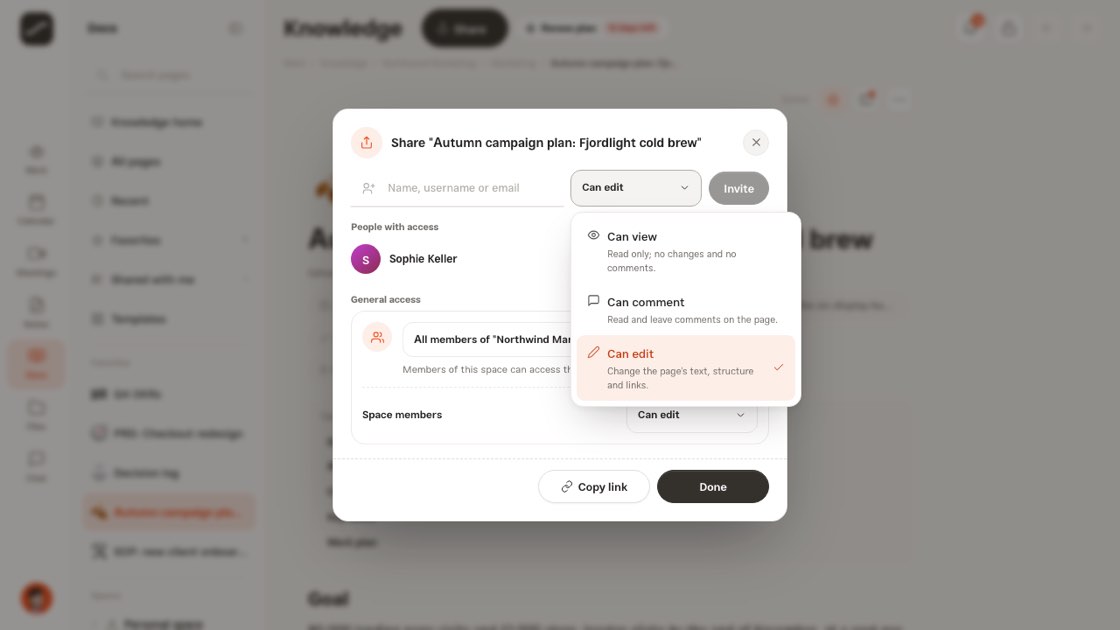
In the share dialog, each person gets one of three levels: can view, can comment, can edit. The page's owner always has full access and is shown with an “Owner” label. You invite by name, username or email, and the person you add gets an “A knowledge page was shared with you” notification.
Only the owner and editors can change sharing. On workspace pages, a space viewer has at most view access and the space owner can edit.
People with access
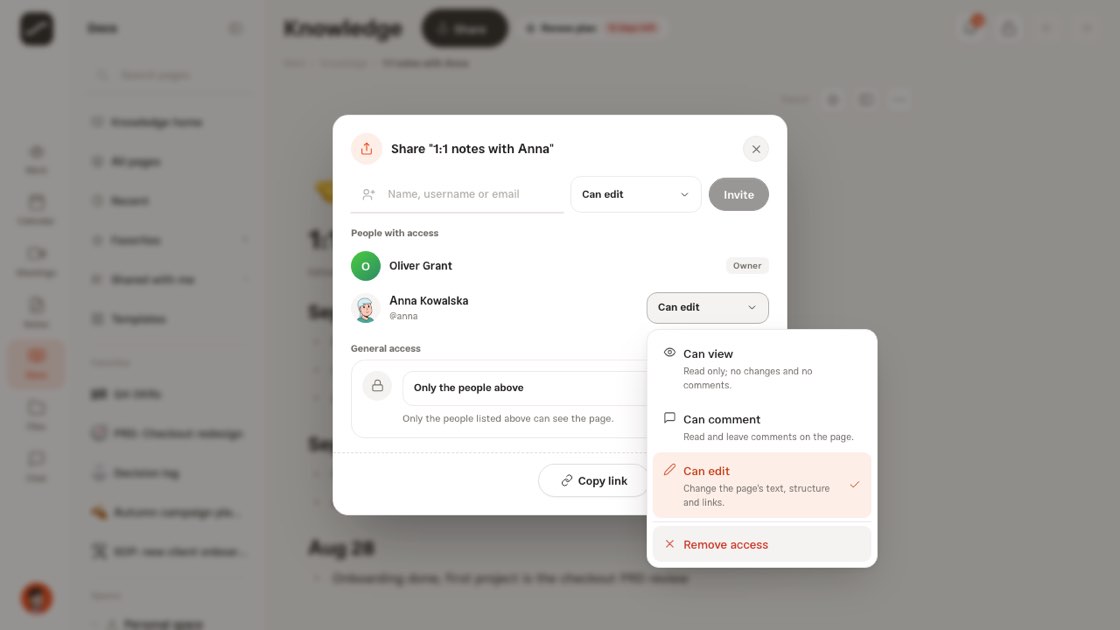
Below the invite box, “People with access” shows the page's owner at the top of the list with an “Owner” tag, and their level can't be changed. Everyone else's level is a button: tap it and pick a new level, or “Remove access”.
A private page switches to “Only the people above” with the first person you add. “Copy link” copies the page's address; the link only opens for people who have access.
General access
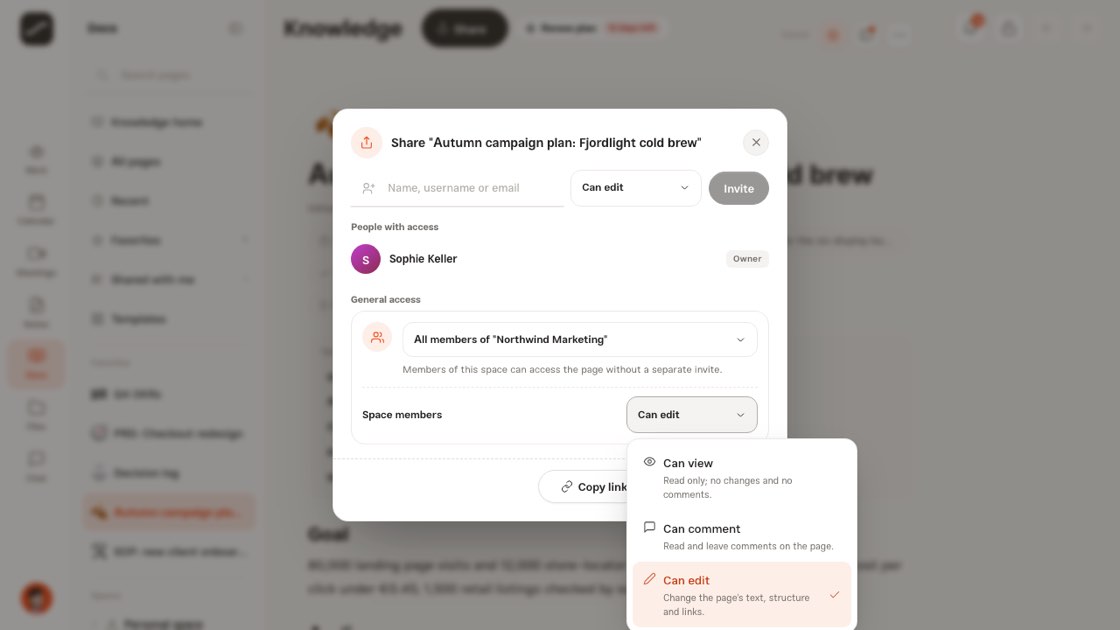
Below the list of people, “General access” decides who reaches the page without a separate invite: all members of that space (workspace pages only), only the people in the list above, or private to just you.
When you pick all members of the space, a second line sets the members' level. A new subpage takes its parent's access: under a page shared with three people, it's shared with the same three. A new page at the top of a workspace is open to that space's members, and private in your personal space.
- Open the page and tap “Share”
- Find the person, choose their level, then tap “Invite”
- Set “General access” to one of the three options
Comments next to the text
A comment attaches to a block or a selected piece of text and quotes that piece. Replies sit one level below. “Resolve” collapses the comment and “Reopen” brings it back; resolved comments are counted and shown separately.
Anyone allowed to comment can resolve their own comment, and a page editor can resolve any comment. Only the author can edit a comment, and deleting is up to the author or the page owner.
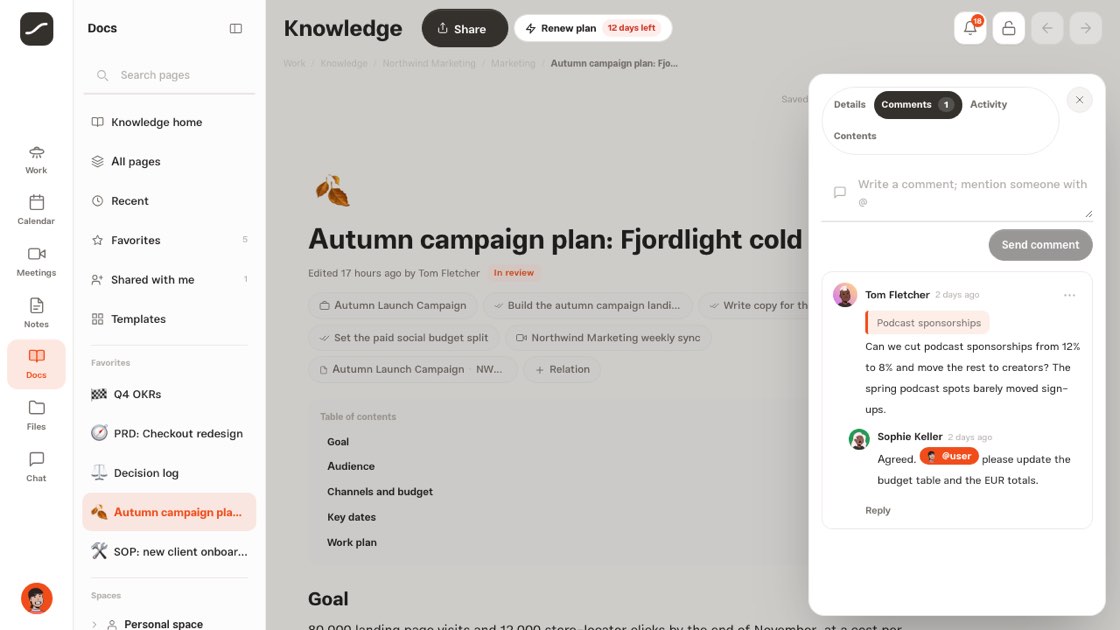
A new comment on a piece of text
Select a few words and hit “Comment” in the bar above them, or use the block menu. That piece is quoted above the box; write your thoughts and send. On a phone, press and hold the block and choose “Comment”.
Someone who can only comment does the same, without being able to change the text. “Go to this section” on any comment takes you to that exact spot in the text.
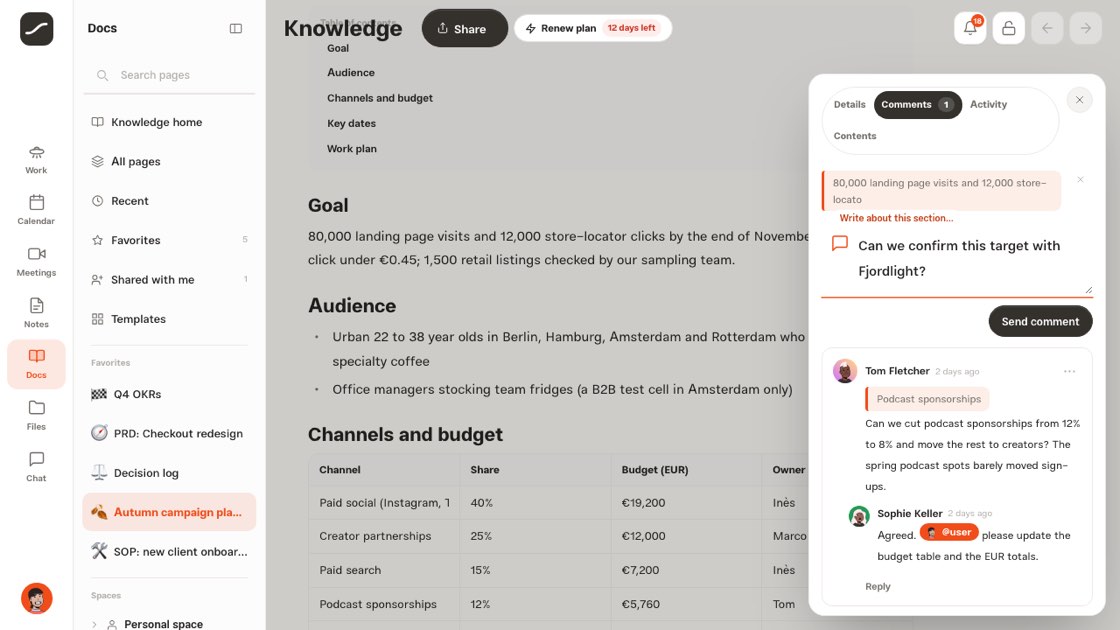
Resolved
Resolved comments gather under “Resolved” with their count. Open them to see what was said; “Reopen” brings the conversation back and “Hide resolved” folds them away again.
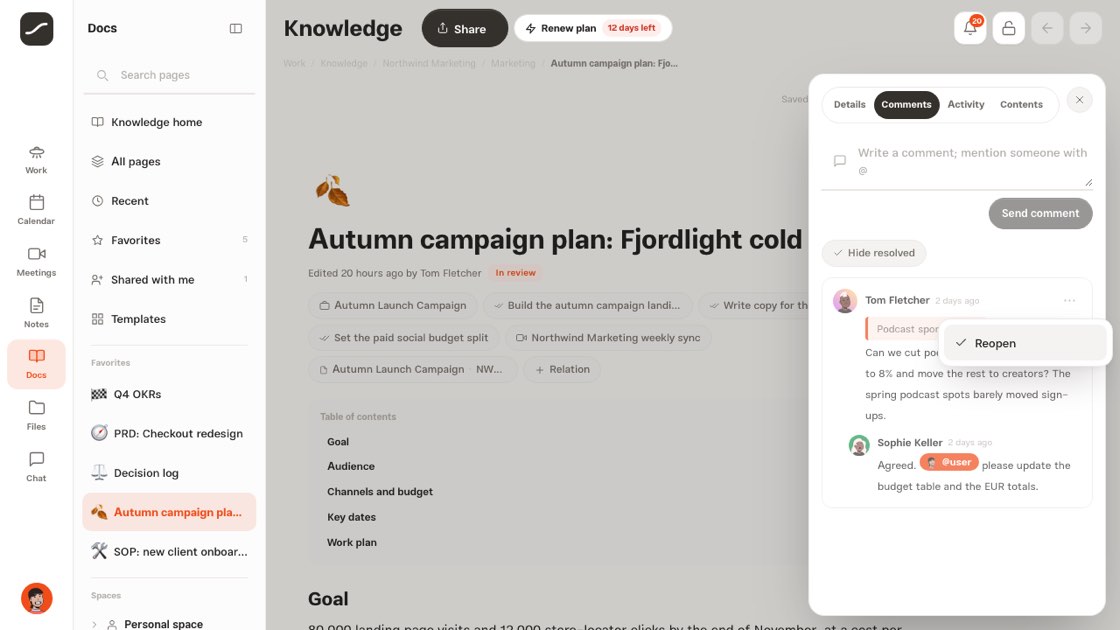
A mention in a page reaches chat
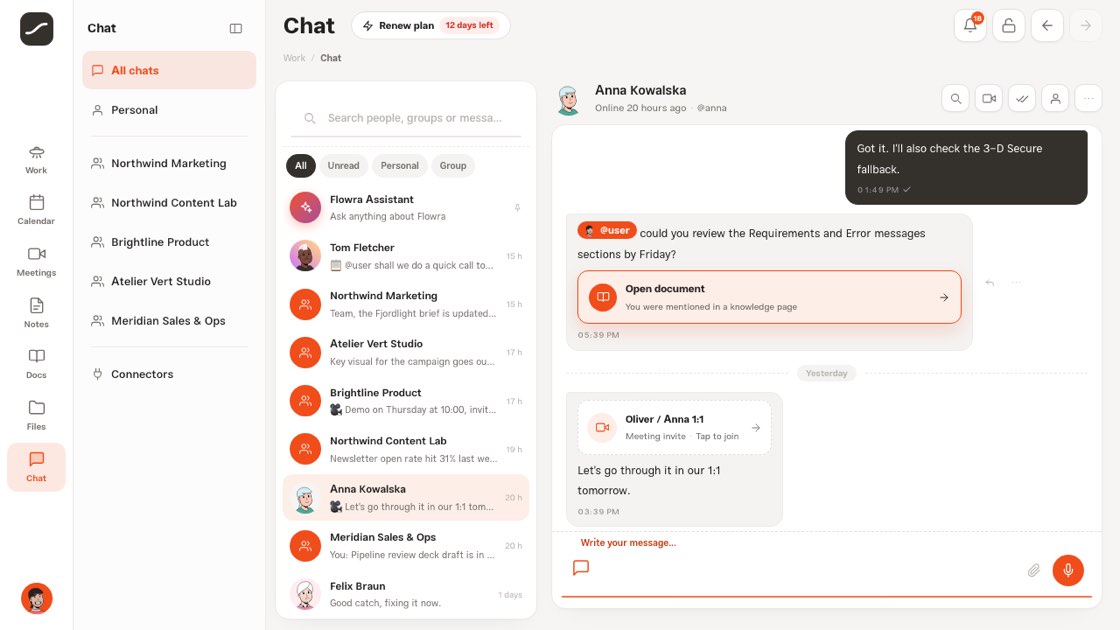
With @ or the “Mention someone” command, you call someone in the text or a comment. If that person can open the page, they get two things: a “You were mentioned in a knowledge page” notification, and a card in your direct chat with the sentence they were mentioned in and an “Open document” button that goes straight to that block.
Someone without access to the page gets no notification; a mention must not leak a doc. Share the page with them first. Each mention creates a notification only once, not on every save.
The “Open document” card in chat
The card that lands in your direct chat after a mention shows the sentence the person was called in. “Open document” opens the page and goes straight to that block or comment, so there's no need to hunt for it.
Status and review
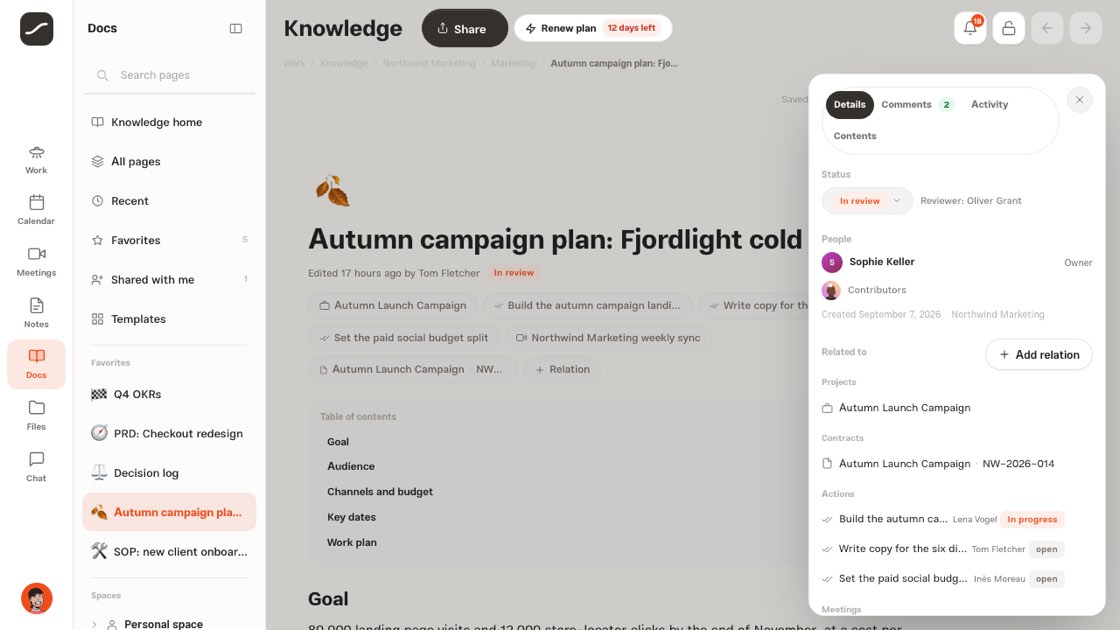
Every page has one of three statuses: draft, in review, approved. When you choose a reviewer, they get a notification. Your drafts have their own tab in Knowledge home.
When two people edit at once
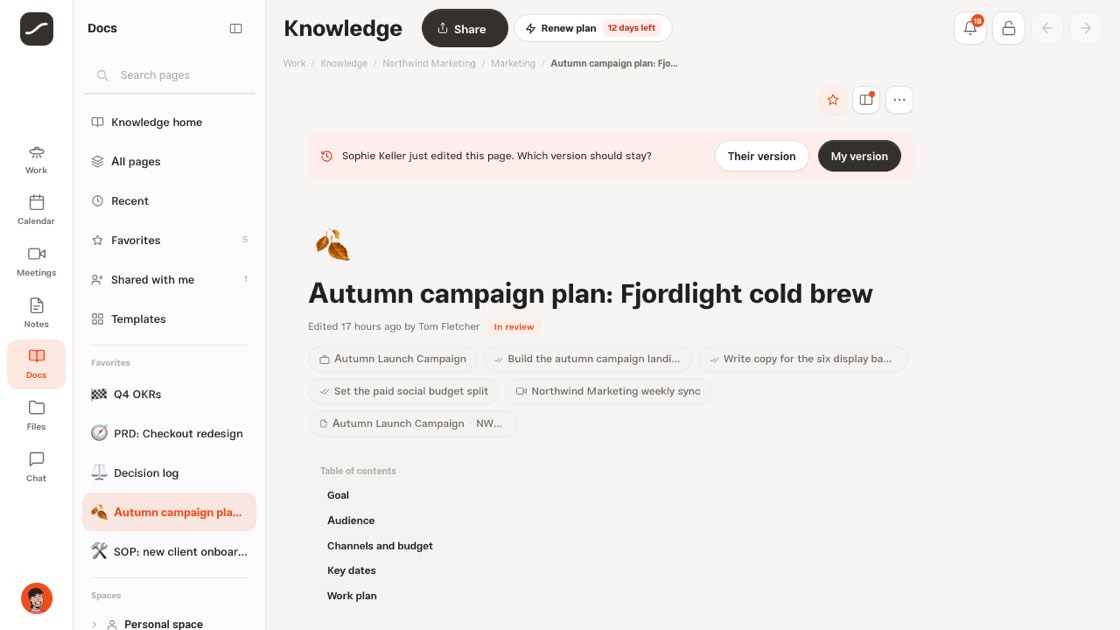
Flowra has no live co-editing: you don't see other people's cursors, and writing isn't merged moment by moment. Instead, every save knows which version it was written on. If someone else saved the page in the meantime, Flowra won't write over their work; a bar appears at the top of the page asking which one stays: “Their version” or “My version”.
If your connection drops, the save status turns to “Offline” and your writing stays right there until it's saved when the connection comes back.
Changelog
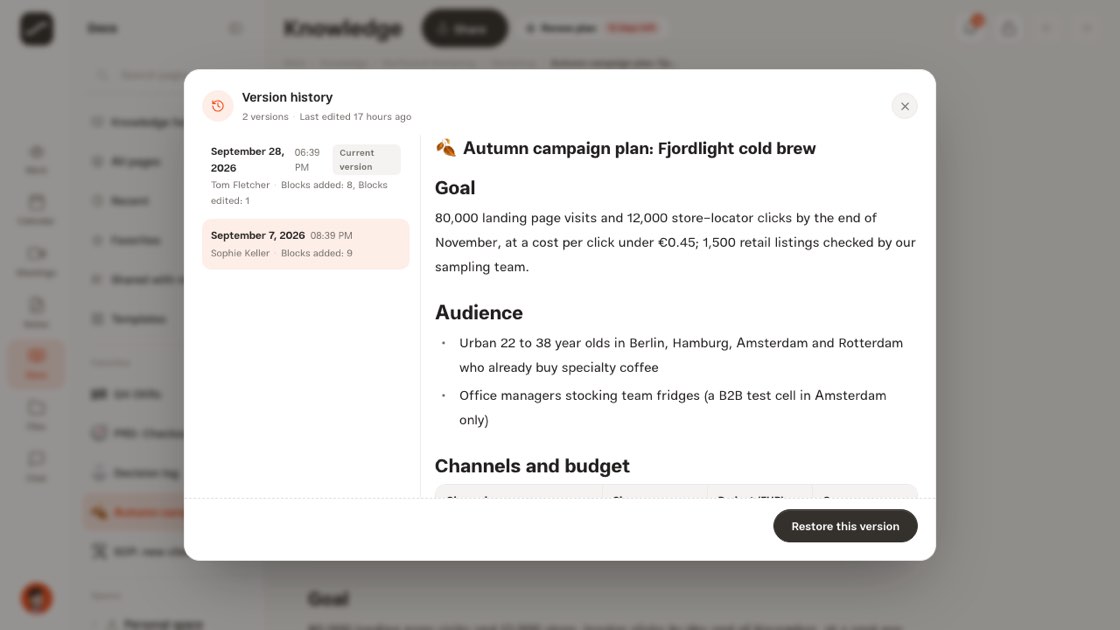
Up to 80 versions of each page are kept. One person's saves within a ten-minute window count as one version, so the history doesn't fill up with one-character changes. “Restore this version” brings the text back, and the restore itself is recorded as a new version, so nothing is lost.
The history window shows each version with the editor's name, the time and a summary of the change: how many blocks were added, edited or deleted, or whether only the title and look changed. Tap any version to see its preview.
Shared with me and activity
“Shared with me” in Knowledge gathers the pages others have shared with you. If your level is view or comment, a bar at the top of the page says so. The “Activity” tab in the panel beside the page records the page's creation, edits, sharing, access changes and status, with the name of who did it.
On phones
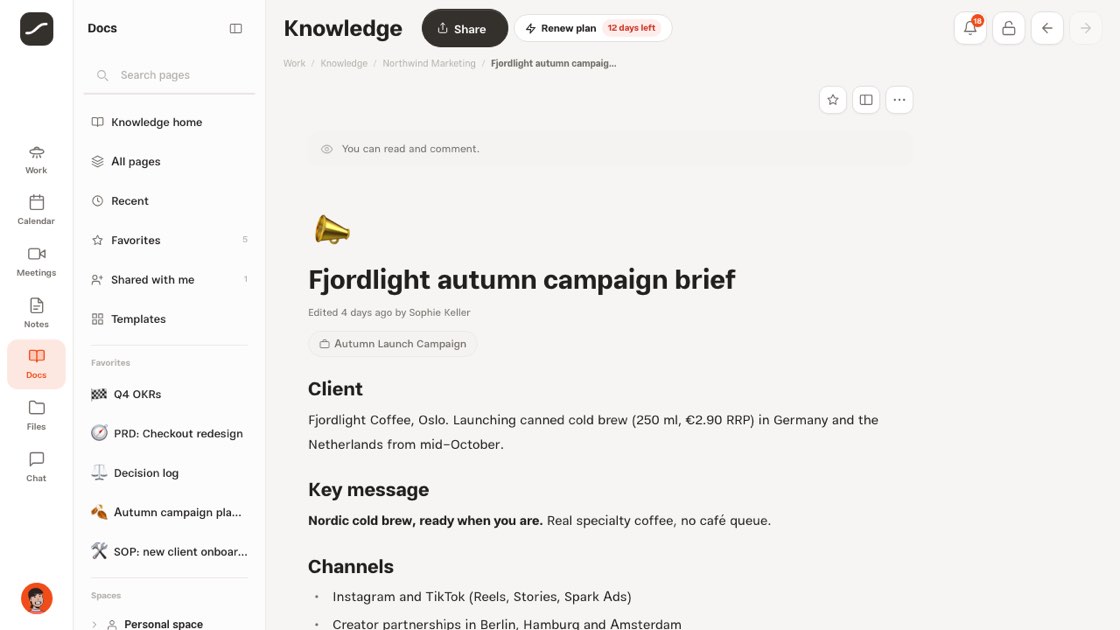
On a phone, sharing is an icon in the page's top bar. In the share dialog, the name box takes a full line with the level and “Invite” on the next, and every level choice opens from the bottom of the screen. Comments and details open from the “Page options” menu, and a new comment by pressing and holding a block.
A complete path
This is the path a team page takes from draft to approval.
- Write the page and use “Share” to invite teammates at the right level
- If the page belongs to the whole space, set “General access” to the space's members
- Call in whoever needs to weigh in with @; the doc card reaches them in chat
- Keep the conversation beside that piece of text, and hit “Resolve” when it's done
- Set the status to “In review” and choose a reviewer
- Edit with peace of mind; every earlier version comes back from the history