Contracts, milestones and receivables
A contract sits on the project itself: the company is the other party, milestones split the amount into instalments and every receipt is a real transaction in your accounts. This chain tells you how much of a job has actually been collected.
Open in Flowra/selectAutumn Launch Campaign
Contract value€48,000Milestones3 stagesReceived€24,000Receivable€9,600StatusActiveA milestone only counts a transaction that somebody linked to it.
What this is wired to
Where a contract lives
A contract belongs to a project, and a project belongs to a workspace, so there are no contracts in personal mode. Each project can have one contract, and you find it on the project page in the foldable “Contract and receivables” section. The money cards at the top of that page show “Contract value”, “Received”, “Contract remaining”, “Project expenses” and “Cash profit”; a project in several currencies gets one row per currency, and two currencies are never added together.
The other party is the project's company, and the contract's currency is one of the project's currencies. “Contract remaining” is always shown as what is left, never as a debt.
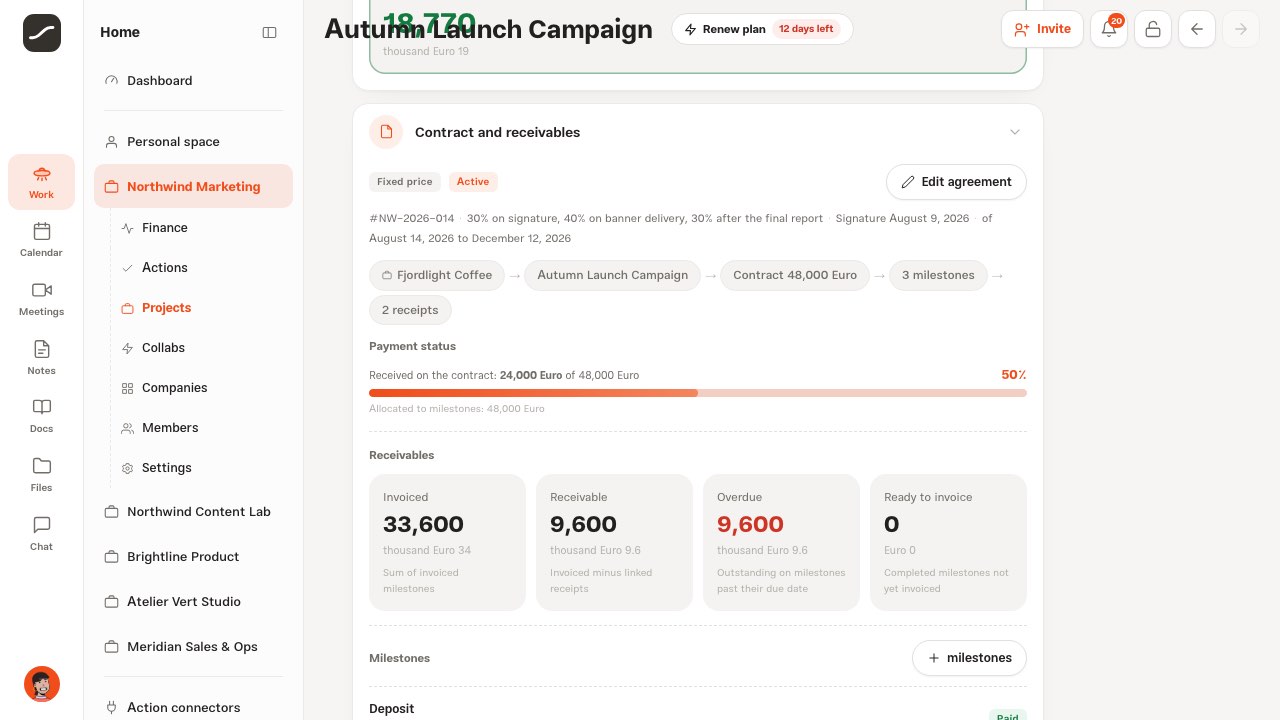
The chain: company, project, contract, milestone, receipt
The company is the counterparty and can have several projects. The project is the access boundary. The contract is what the money is tied to, milestones split it into instalments, and receipts are real income transactions. Merging these layers would mean either no two contracts with one client, or no way to keep one project's access separate.
At the top of the contract card this chain appears as one row: the company name, the project name, the contract amount, the number of milestones and the number of linked receipts. Tap the company name and that company's page opens.
Creating a contract, step by step
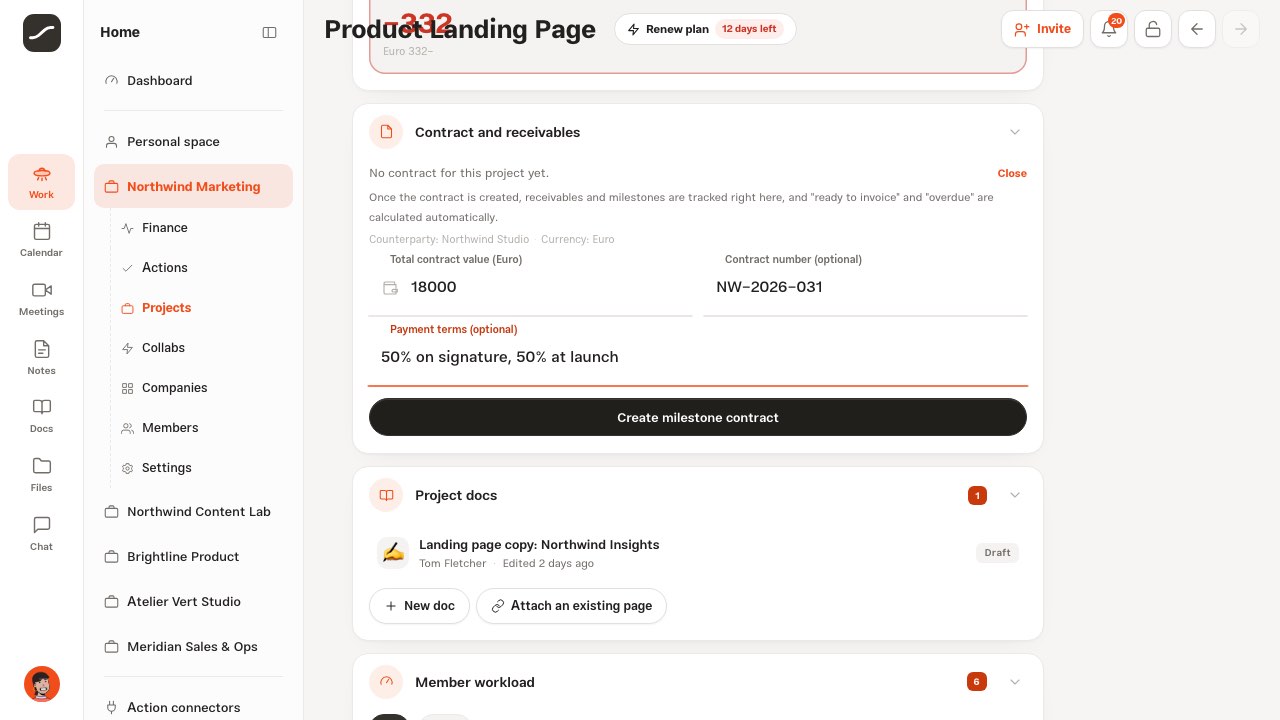
On a project with no contract yet, the “Contract and receivables” section says who the other party is and which currency applies, and offers “+ Create contract”. If you entered a contract value when you created the project, that figure is already filled in.
A new contract is “Active” and billed by milestone. The signing date is recorded as the day it was created, and the start and end dates come from the project's own dates. If you leave the payment terms empty, “Each milestone is paid once its invoice is issued” is written in. The contract value also appears in the cards at the top of the project.
- Open the project page and expand “Contract and receivables”
- Press “+ Create contract”
- Enter the total contract value in the project's currency
- Add a contract number and payment terms if you like
- If the project has several currencies, pick the contract's currency
- Press “Create milestone contract”
Editing a contract, and its statuses
“Edit agreement” changes the value, number, start and end dates, payment terms, note and status. The contract value can never drop below the sum of its milestones; reduce the milestones first. Whenever the value changes, the card at the top of the project changes with it.
The status has four states. “Draft” and “Canceled” are set only by you, and Flowra never touches them. “Active” and “Settled” are automatic: once every milestone is paid the contract becomes “Settled”, and if a receipt is later unlinked it becomes “Active” again. On a canceled contract the milestone buttons disappear and the history stays.
- Draft: not final yet
- Active: in progress
- Settled: every milestone has been paid
- Canceled: the work stopped; milestones are read-only
Milestones: splitting the contract into instalments
Each milestone is a slice of the contract amount, with a title, an amount, a payment due date and an optional note. The form suggests titles such as “Deposit”, “Design phase” and “Final handoff”, and for the amount offers “All unallocated”, 25% and 50%. The bar under the amount shows the other milestones' share, this one's share and what is still free, and the amount is also written out in words.
The milestones never add up to more than the contract value; if the whole amount is already split, the form tells you to either raise the contract value or reduce an unpaid milestone. A due date outside the contract's range or in the past gets a warning, and so does a duplicate title. If the work for this stage is already done, tick “This stage's work is done” and it is saved straight as “Ready to invoice”.
A milestone can be edited until it is fully paid, but its amount can never drop below the receipts linked to it. Deleting is only for a milestone with no invoice and no receipts, so removing it takes nothing away from the money.
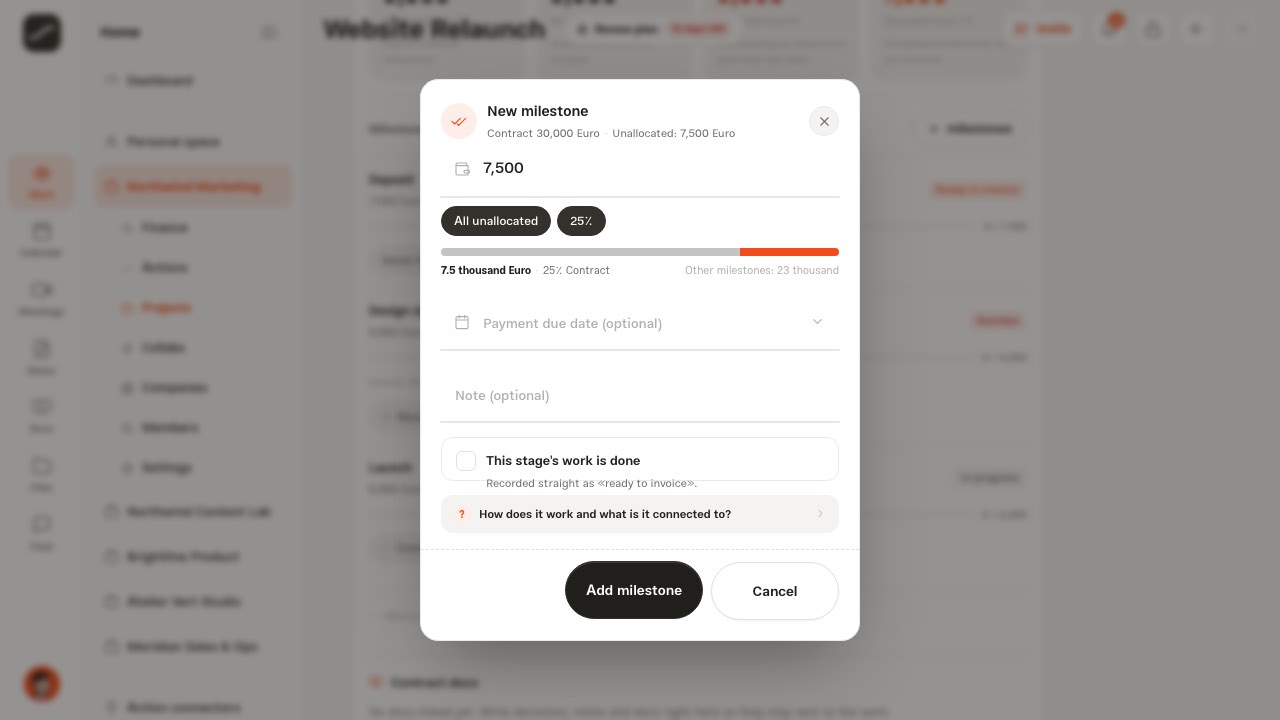
The four steps of a milestone, and its status badge
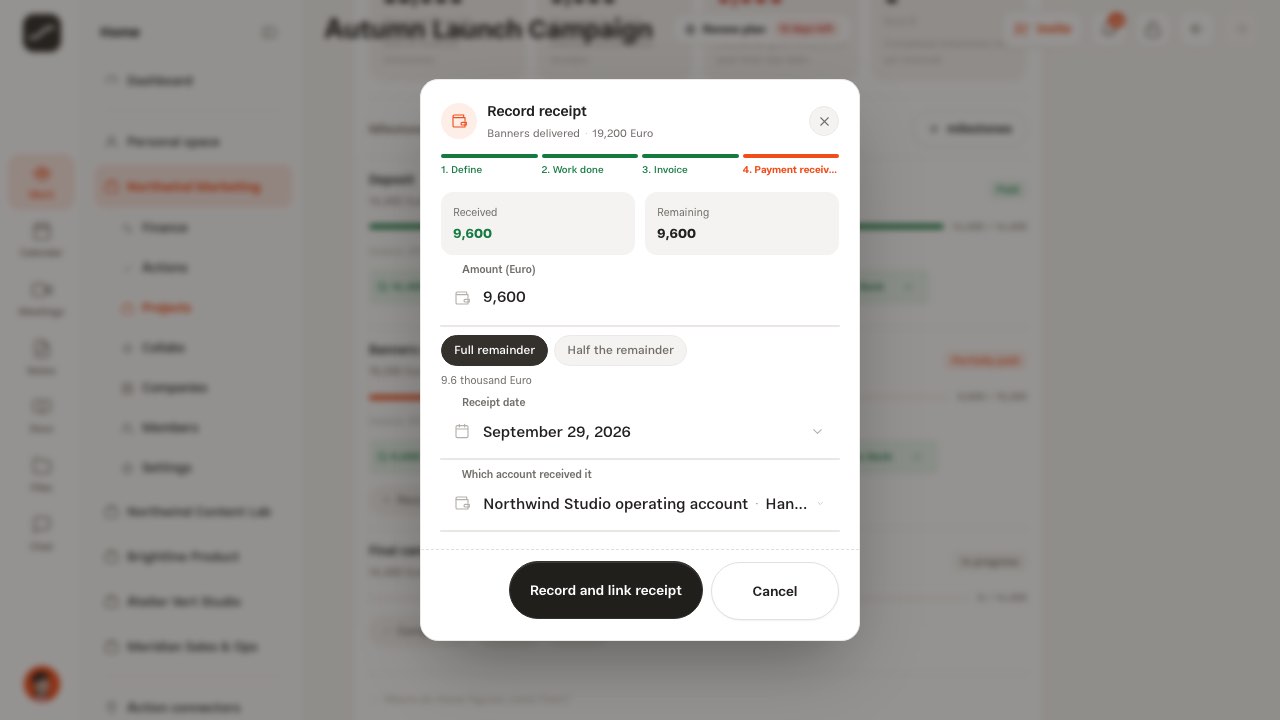
At the top of every milestone dialog four steps are shown, with the current one lit: Define, Work done, Invoice and Payment received. Each milestone in the list also carries a status badge, and its buttons change with that status.
Every step can be undone while no money stands behind it: “Revert” takes a completed milestone back to in progress, and “Cancel invoice” withdraws the invoice as long as no receipt is linked.
- In progress: defined, work not finished yet; the “Completed” button
- Ready to invoice: the work is done; the “Issue invoice” button, with an optional number
- Invoiced: the amount now counts as “Receivable”; the “Record receipt” and “Link existing receipt” buttons
- Overdue: invoiced, not fully paid, and past its due date
- Partially paid: part of the amount has arrived
- Paid: the receipts add up to the milestone's amount
Record receipt: the money that arrived
“Record receipt” creates a real income transaction and links it to the milestone in the same step. It is booked on the account you choose, on this project and its workspace, with the category “Contract receipt” and the label “Work”. The default account is the team's account in the contract's currency; if you pick an account in another currency, the form warns you.
The amount is prefilled with what remains, and “Half the remainder” is there too. If you enter more than the remainder, the extra is booked on the project but not added to this stage's receivables. When the receipts reach the milestone's amount it becomes “Paid” and the settlement date is recorded.
- On an invoiced milestone, press “Record receipt”
- Keep the amount, or press “Full remainder” or “Half the remainder”
- Set the date received
- Under “Which account received it”, choose the account
- Add a description if you like and press “Record and link receipt”
Linking an existing receipt, and reconciling two figures
Money is only ever linked by an explicit choice. A milestone counts a transaction because somebody picked it; nothing is guessed from an amount or a date, so a coincidence can never mark an invoice paid. The received amount and the payment status are worked out from that list and cannot be changed by hand.
If the money is already booked as a transaction, press “Link existing receipt”: this project's own income comes first, then the rest of the income you can see. Only posted income on an account you have access to can be picked, and each receipt links to one milestone only. A transaction that gets linked joins the project as well. You remove a link with the cross beside the receipt on the milestone itself.
“Received” at the top of the page comes from all of the project's income, while receivables count only receipts linked to a milestone. When the two differ, a box shows the difference and each unlinked receipt, so you can put each one in its place with “Link to milestone...”.
Receivables: four figures and where each comes from
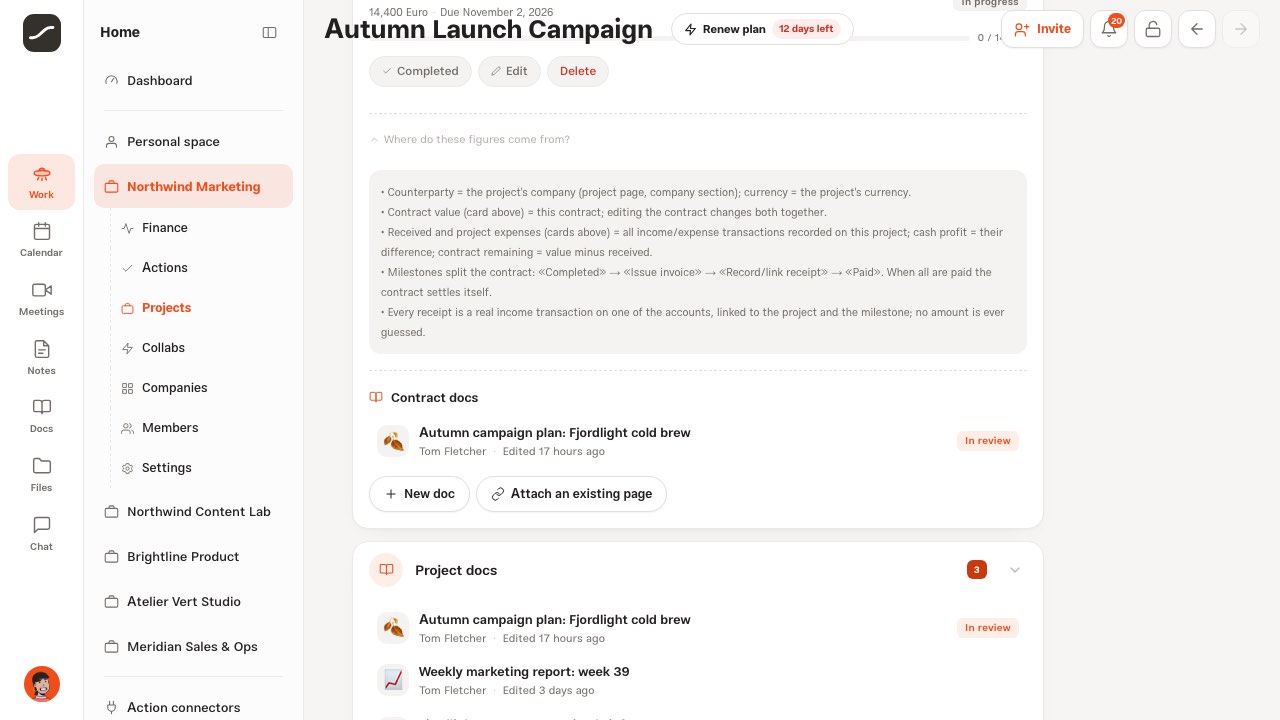
The “Payment status” bar shows what has been received on the contract as a percentage, shaded with what is allocated to milestones, and the unallocated amount beneath it. Under it are the four “Receivables” tiles, and “Where do these figures come from?” opens the source of every number in a few lines.
- Invoiced: the sum of milestones that have an invoice
- Receivable: invoiced minus linked receipts
- Overdue: the receivable of milestones past their due date
- Ready to invoice: completed milestones that have no invoice yet
From the finance side: accounts and transactions
A receipt is an ordinary transaction in the ledger, and like any other it is voided, never deleted. Tap it on the account page and the detail panel shows the project and the “Contract milestone”, both leading to the project page.
The other way round works too: when you book income on a project, the transaction form offers “Settles a contract milestone (optional)” with that project's unpaid milestones, and the transaction is linked to that stage once it is saved. All of a project's income and costs count in “Received”, “Project expenses” and “Cash profit” at the top of the project page.
The company page: every contract with one client
On a company's page, the projects section adds up the contracts of all that company's projects, in a separate box for each currency: “Contracts total”, “Received” and “Receivables”, with any overdue amount in red. Under each project's name its contract amount and receivable are written too.
The “Salary agreement” on the same page is something else: a salary agreement you receive from that company, with pay periods and automatic follow-up. It has nothing to do with the project contract.
Reminders and chasing payment
A milestone sends no reminders of its own; Flowra works out “Overdue” every time from the due date and the receipts, and shows the amount in the project's receivables and on the company page. To chase it, create an action, set its financial context to “Invoice follow-up”, and give it a due date and a reminder; the reminder arrives in the notification bell and, if connected, in Telegram.
Actions with a financial context are gathered on the project page under “Financial context of actions”. From a transaction's panel you can also make an action linked to that transaction with “Follow-up action”.
Signing, Folio and files
In Flowra a contract is a financial record and carries no attached file; the text and the signatures have their own place. The signing date is recorded as the day the contract was created and shows next to the payment terms.
Write the signed text in Folio: the “Collaboration contract” template has the text, the details of both parties, the amount, the date and signatures from both sides. The other party fills in and signs only their own fields through a share link, with no account, and the sheet's export lands in a folder named after the sheet in “My Files”.
Under the contract sits “Contract docs”. “New doc” creates a Knowledge page linked to the contract, for example from the “Contract notes” template for negotiation, scope, requirements and client decisions, and “Attach an existing page” links a page you already wrote. The receipt behind any payment can carry an attached file, like any other transaction.
Project assistant
The “Project assistant” is on the new project page and on the project itself, and on a company's page as the “Company assistant”. Describe the project in your own words and attach or paste a brief, a proposal or the contract text; the assistant asks for what is missing, including the contract value, and then shows a complete plan: company, project, members, phases with their tasks and, if you gave a contract value, the contract with one milestone per phase.
You edit the plan in the same window, and once you confirm it is built step by step through the app's own routes. The milestones never exceed the contract, and if something fails half way, confirming again carries on from there without making anything twice.
Who can do what, and the activity log
Seeing a contract requires seeing the project, and a guest invited to a single project does not see the money section unless their role is finance manager. Every change, from creating a contract to linking a receipt, needs edit rights in the workspace; a viewer can only read.
Every change to a contract or a milestone writes an activity row on the project, the same rule actions follow; a contract is a document several people work on, and “when did this figure change” must have an answer.
On a phone
On a phone everything is the same and only the layout changes: the money cards sit two by two, the chain row becomes a two-column grid so the page never scrolls sideways, each milestone's buttons come in two columns, and the milestone and receipt dialogs slide up from the bottom of the screen.
A complete path: from signature to settlement
This is what you see on the Autumn Launch Campaign demo project in the Northwind Marketing space, and each step is explained in one of the sections above.
- Create the contract on the project with its total value and payment terms
- Get the text signed by the client in Folio with the “Collaboration contract” template
- Split the contract into a deposit, a mid-point delivery and a final delivery
- Invoice the deposit and, when it arrives, press “Record receipt”
- For each finished stage press “Completed” and then “Issue invoice”
- For an overdue amount, create an “Invoice follow-up” action with a reminder
- With the last receipt, the contract settles itself