Knowledge: pages, editor and links to work
Pages for your team and yourself: docs, meeting minutes, guides and decisions. Each page is a tree of blocks built with “/”, and it can be linked to real work (actions, projects, meetings, contacts, contracts, opportunities).
Open in Flowra/knowledgeFall campaign brief
WorkspaceMarketing · under “Campaigns”StatusIn reviewChecklist2 items linked to actionsRelated toCampaign project, brief meetingFavoriteYesChecking an item that's linked to an action marks the action itself as done.
What this is wired to
Knowledge home and sidebar
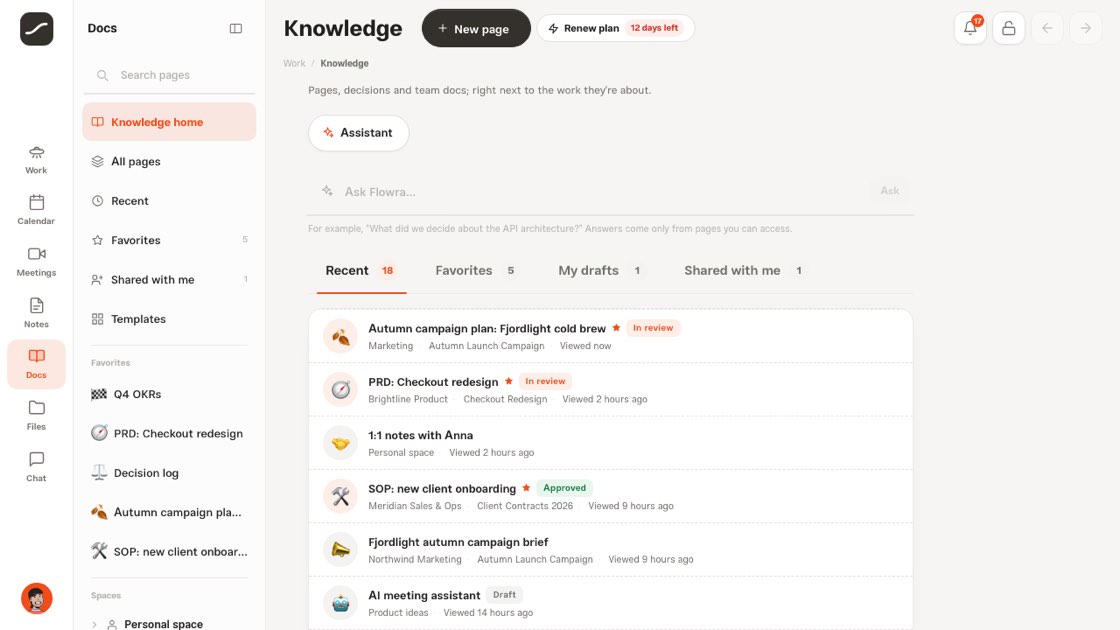
Knowledge home has four tabs: Recent, Favorites, My drafts and Shared with me, and below them project docs, Start from a template and recent activity. The sidebar arranges pages under “Spaces”: your personal space and each workspace, each with its own page tree.
The page tree
Pages don't have folders; pages sit inside pages. The “+” next to each row creates a new subpage. On desktop you drag a row: drop it on another row to nest it underneath, or on the top or bottom edge to change its position in the order. On a phone, “Move” does the same, and subpages come along with the page.
The “Options” menu on each row has add to favorites, copy link, duplicate page, move and move to trash. The search box above the tree matches page titles, and pressing Enter searches the text of every page.
Creating a page
From “Create page”, from a template, from “+” in the tree, from “Duplicate page”, or from the command bar with /doc (or its Persian equivalent) and a title. Every page can have a cover and an icon, take tags, and have its table of contents hidden, inline on the page or in the side panel.
- In “Knowledge”, tap “Create page” or “Use a template”
- Write the title and add the first block with “/”
- Link the page to real work from the “Related to” side panel
- Set the status to “In review” and choose a reviewer
Templates
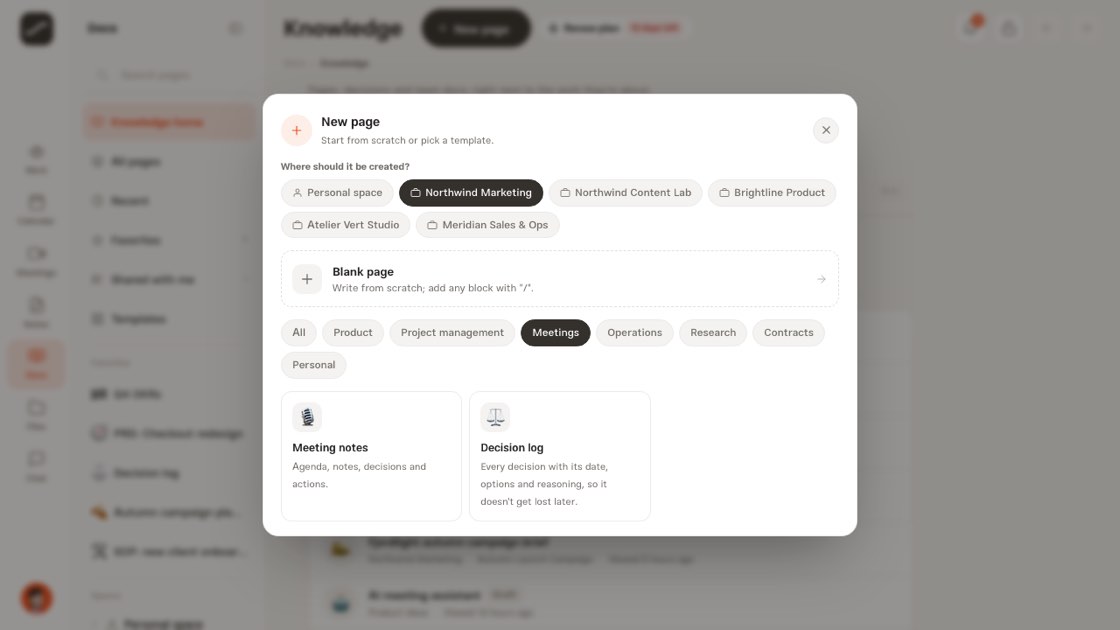
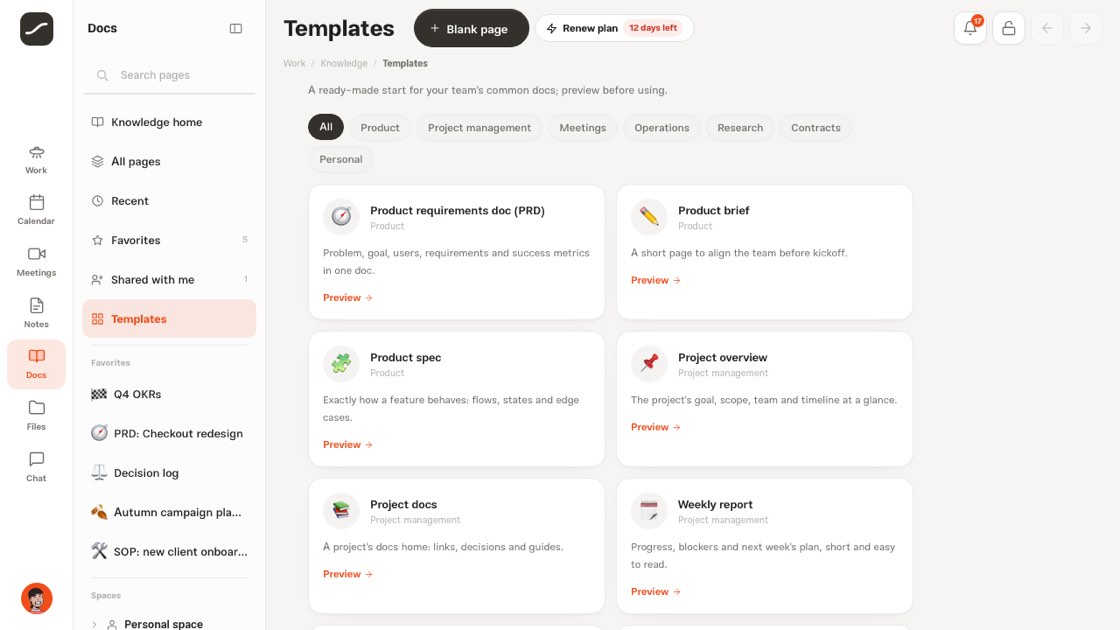
The “Templates” page shows every template in seven categories: Product, Project management, Meetings, Operations, Research, Contracts and Personal. Tap any template and the “New page” dialog opens straight on that template's preview, so you can see its full text before creating it.
In that same dialog, you first choose where the page is created: your personal space or one of the workspaces you write in. “Use this template” creates the page with the template's headings and sections, and “Blank page” is always there for when you start from scratch.
Page anatomy
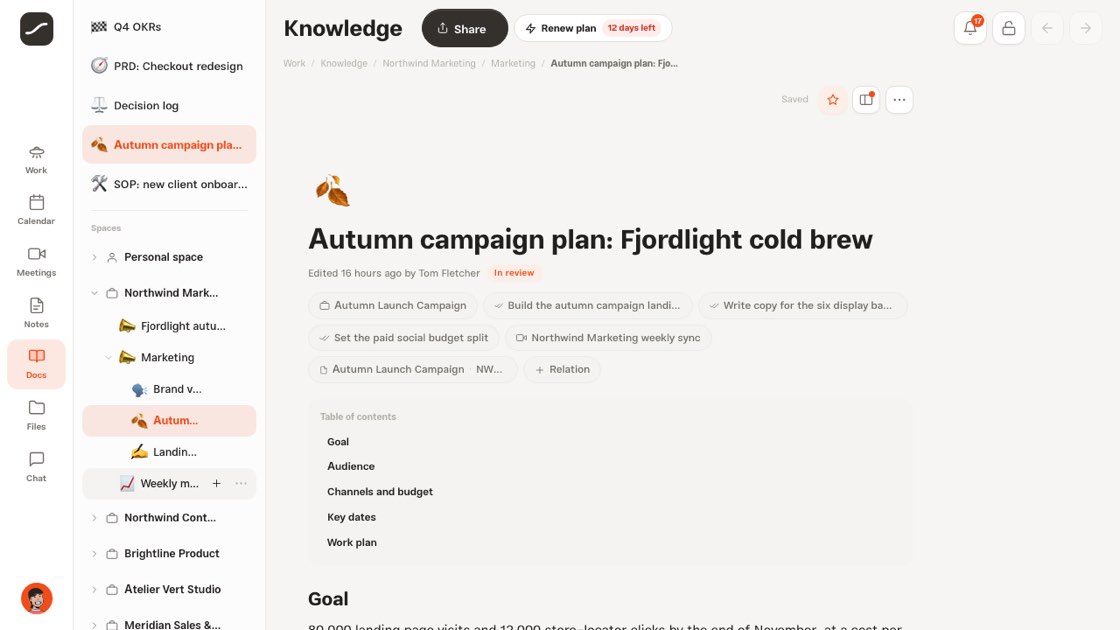
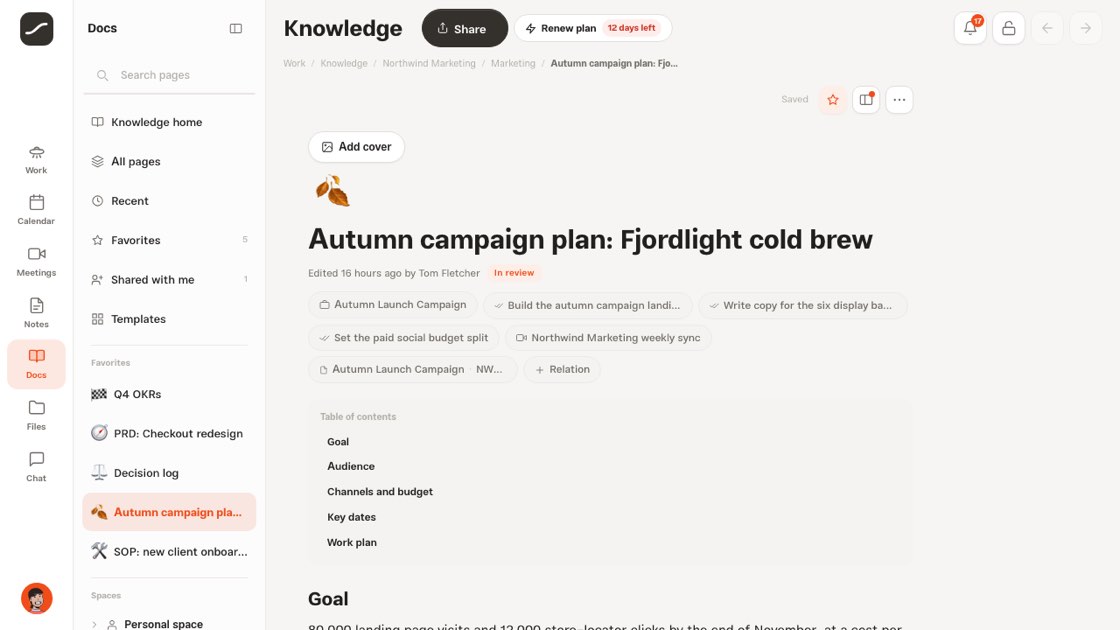
At the top of every page are the icon, cover and title, and below them a line that says who edited it last and what status the page is in. Linked work appears as tags under the title. The save status is always visible: saved, saving, or offline, which means your writing will be saved later.
The panel beside the page has Details, Comments and Activity tabs, plus the table of contents if the page has headings. “Details” brings together space, status, reviewer, tags, “Related to” and “Referenced by”.
The block editor and “/” commands
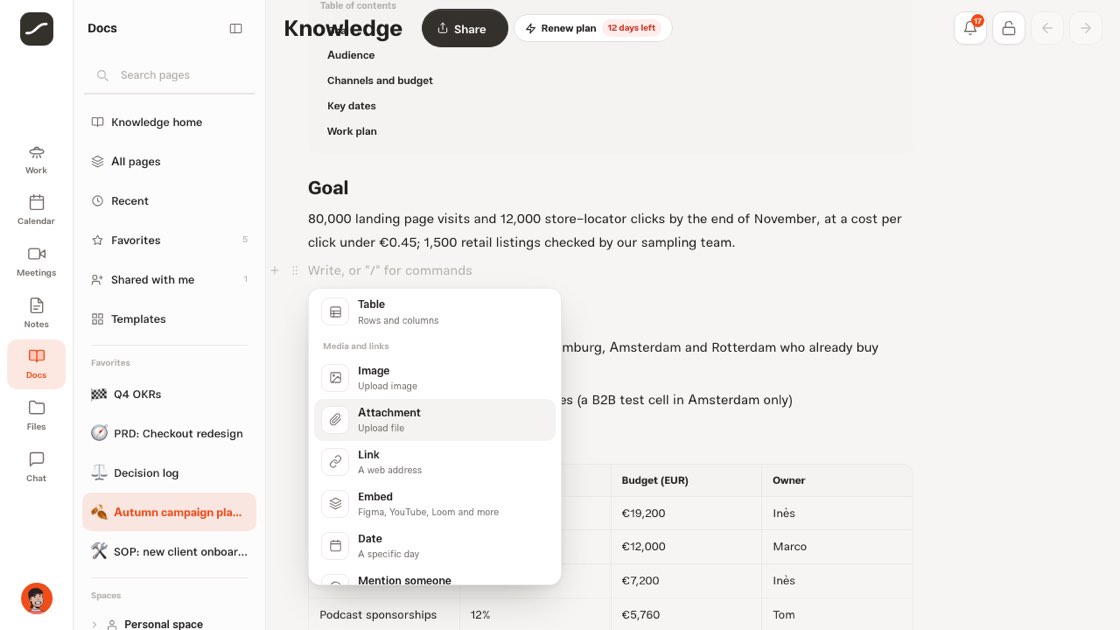
Every line is a block. “/” opens the command menu, which filters as you type (English names like /h1 or /table work too). There are typing shortcuts as well: “# ” for a heading, “- ” for a list, “[] ” for a checklist, “> ” for a quote and three backticks for code, and Ctrl or ⌘ with B, I, E and K for bold, italic, code and link.
- Basic blocks: text, headings 1 to 3, bulleted and numbered lists, checklist, quote, callout, divider, code, table
- Media and links: image, file attachment, link, embed (Figma, YouTube, Loom and more), date, mention someone
- Flowra items: action, project, contract, contact, meeting, opportunity, another page
- AI: continue with AI
Block menu and selection bar
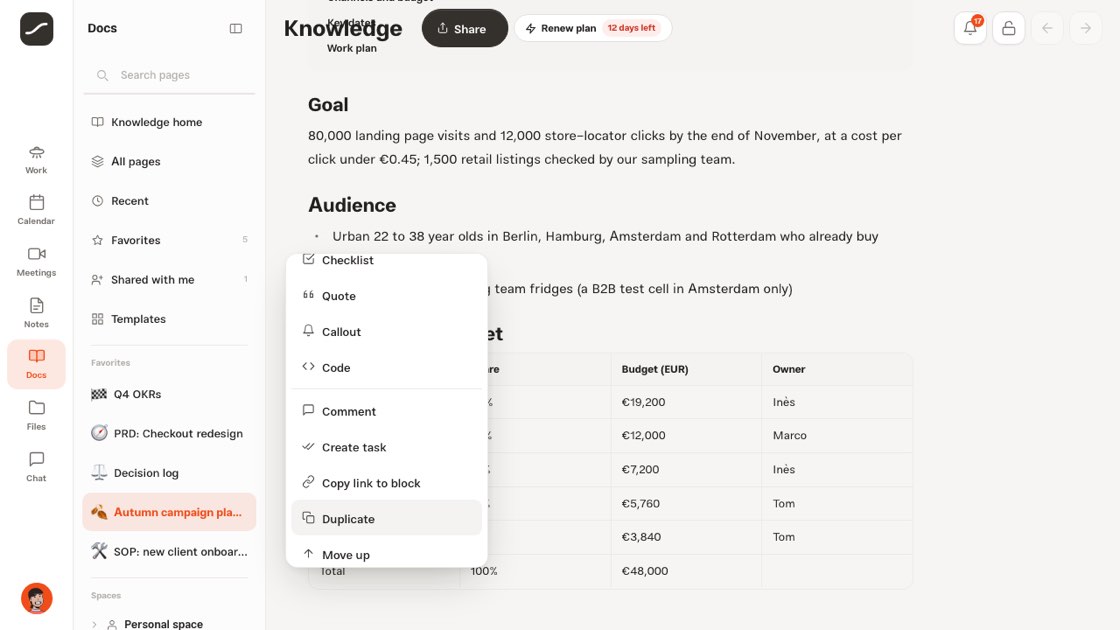
Each block's menu has convert to another type, comment, create action, copy block link, duplicate, move and delete, and selecting a piece of text shows the formatting bar along with ask AI, comment and create action.
On desktop, drag the handle beside any block to move it, or tap it to open its menu. On a phone, press and hold the block and the same menu opens from the bottom of the screen.
Links to real work
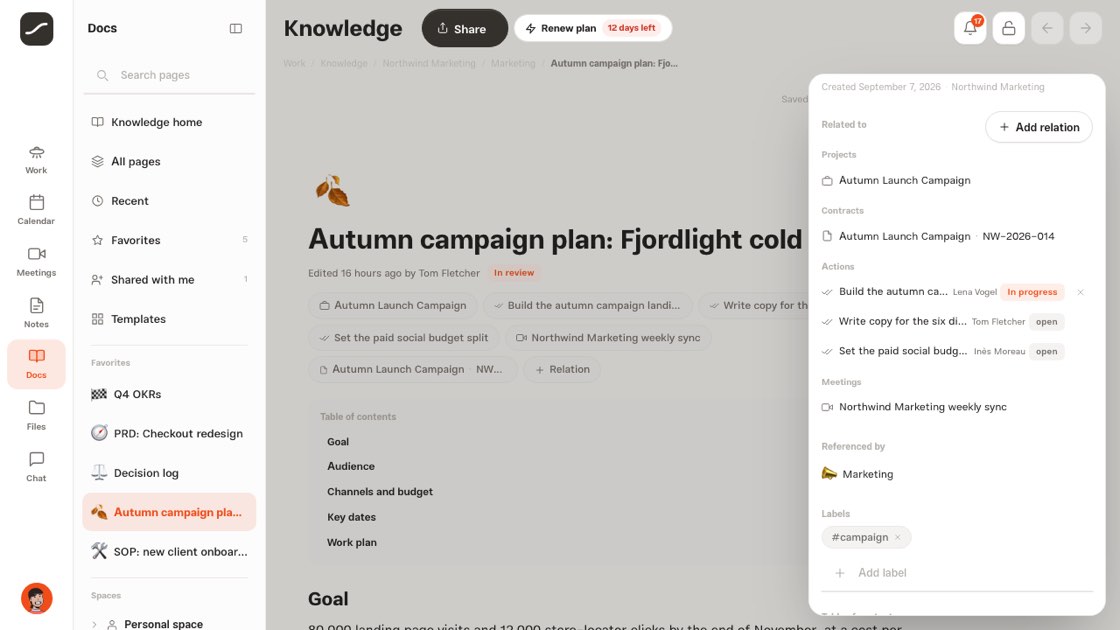
A page can be linked to projects, actions, contracts, contacts, meetings, opportunities and other pages. A link is added either from the “Related to” section in the panel or from a mention you placed in the text, and those are marked with an “In text” label. A linked action shows its status right there: open, in progress or done.
The other side sees this too. The action page, project page, contact page and meeting page (named “Meeting docs” there) have a section called “Related docs” that lists linked pages and offers a new doc or attaching an existing page. Pages that mention a page also appear under “Referenced by”.
A checklist that closes an action
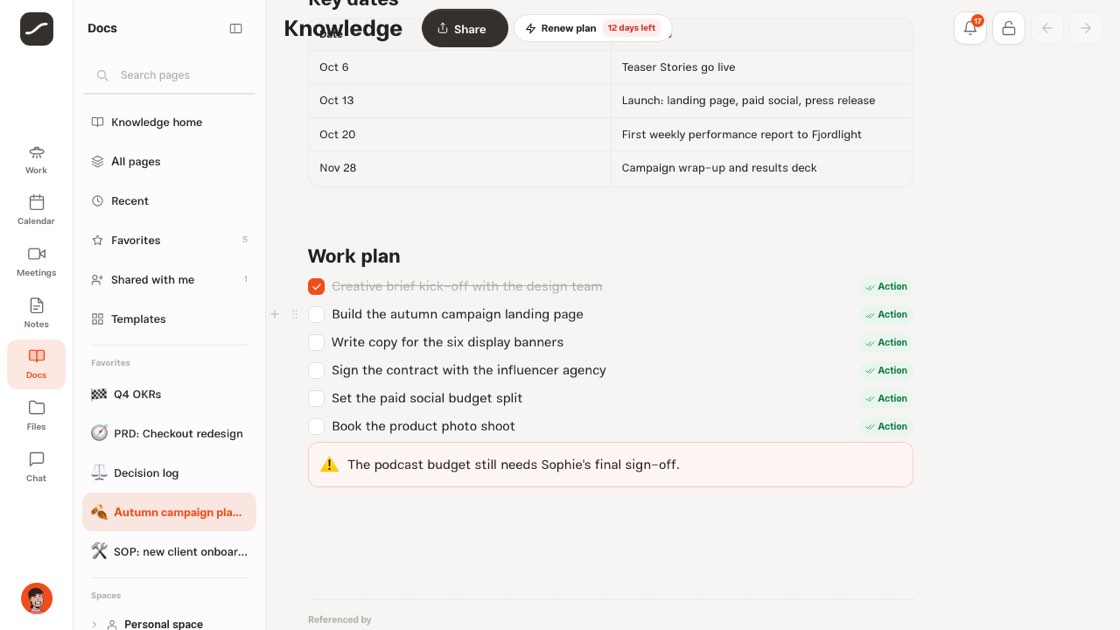
“Create task” turns one checklist line into a real action, and “Create actions from checklist” does the same for every unchecked line. The first person mentioned on that line becomes the owner, and if the page is linked to exactly one project, the action is created in that project. The action's description links back to that block, and an “Action” label sits next to the line that opens the action.
From then on the two sides are one: checking the line marks the action done and unchecking it reopens it; and an action closed somewhere else shows as checked the next time the page is opened.
Finding things: search, favorites, recent, templates
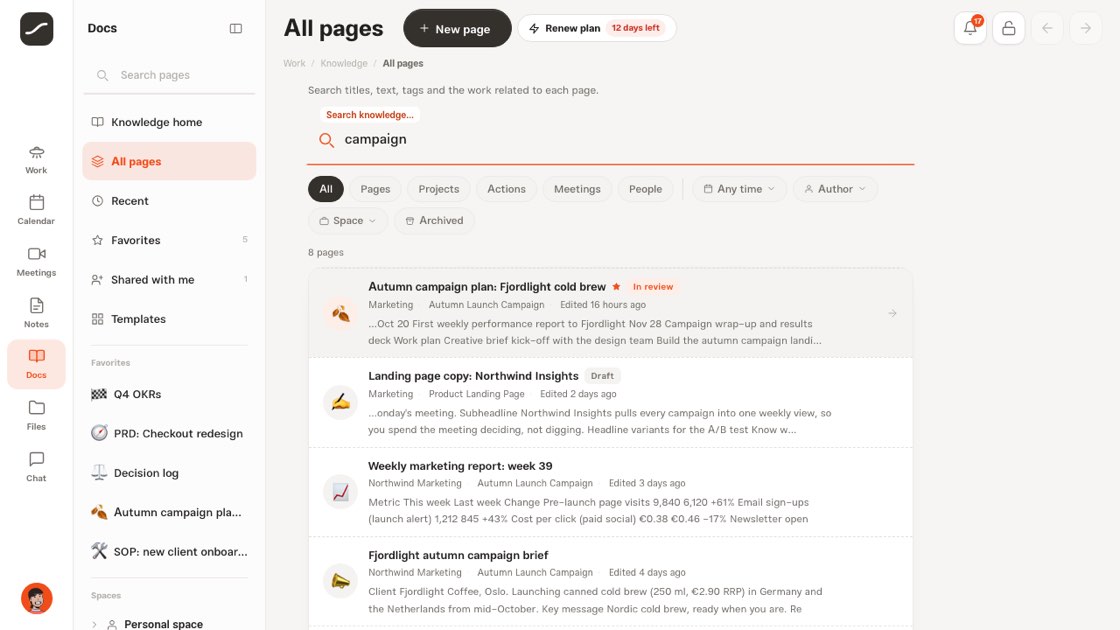
Sidebar search matches titles, and pressing Enter searches the text of every page. The “All pages” page searches titles, text, tags and related work, and filters by link type, time, author, space and archive. Knowledge pages also show up in the global search at the top of the app.
“Add to favorites” keeps a page in the Favorites tab, and “Recent” holds the pages you've just opened. Templates are grouped into Product, Project management, Meetings, Operations, Research, Contracts and Personal: from a product requirements doc and a weekly report to meeting notes, a decision log and a personal weekly review.
Ask Flowra
On Knowledge home, “Ask Flowra...” answers a question from your team's knowledge pages: only from pages you can read yourself, with links to those pages under the answer. It's an AI feature that depends on your plan; if your plan doesn't include it, you're told right there which plan does.
Docs assistant: a page from a few questions
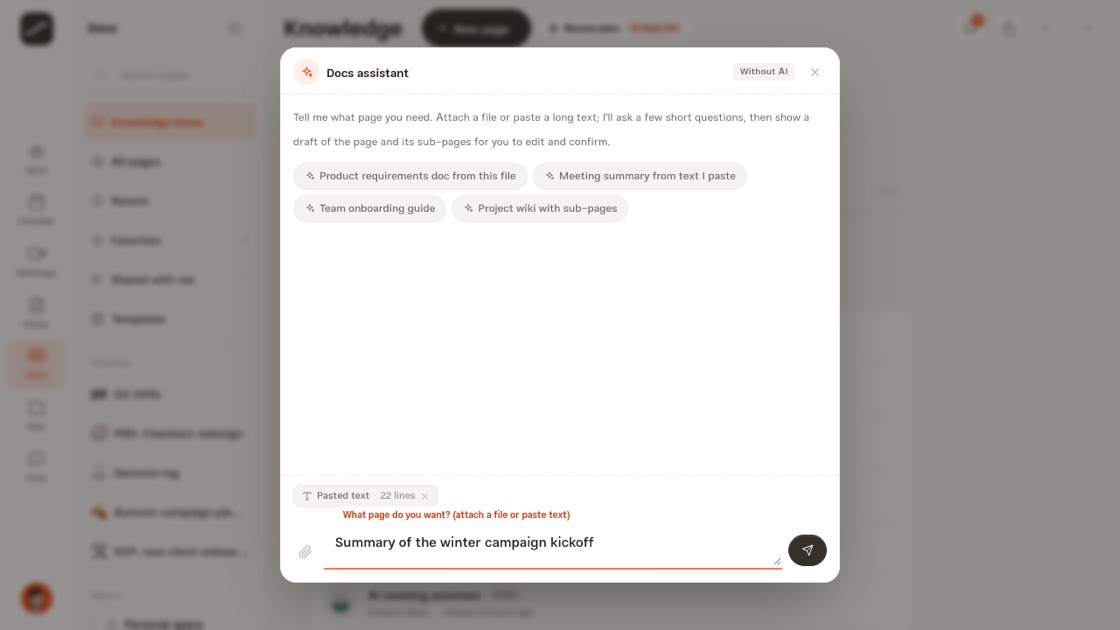
“Assistant” on Knowledge home opens the “Docs assistant”. Say what page you want, or tap one of the suggestions: a product requirements doc from a file, a meeting summary from text you paste, a team onboarding guide, or a project wiki with subpages.
“Attachment” brings in a file from your device or from My Files (“Pick from the library”), and the assistant reads its text. Long text you paste doesn't fill the box: it becomes a “Pasted text” chip that you can open to view, or remove.
Draft, edit and create
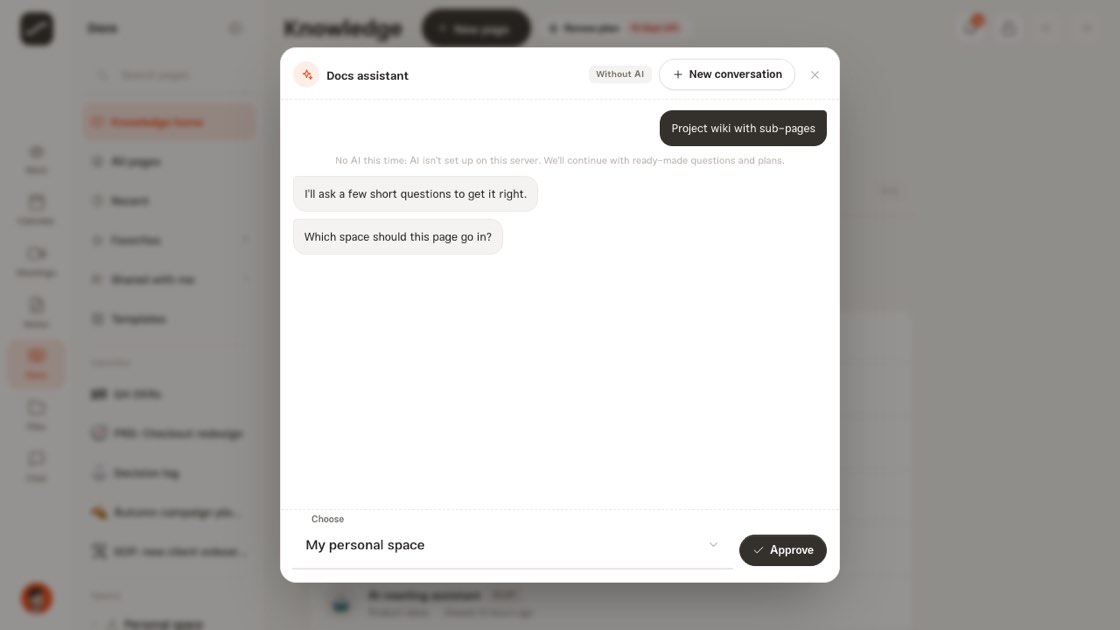
The assistant asks a few short questions, and each one has ready-made options: in which space, under which page, from which template (“You choose” is there too), for whom (the team, just me, a client or outside the team) and which project it relates to. “No, build the page” skips the remaining questions.
Then the draft arrives: the main page and, for a wiki, its subpages. Edit each one's title, icon and text, or drop a page from the draft, then hit “Create pages”. The pages are created the same way as through “New page”, with the same access, first version and relations.
The assistant works without AI too: the draft is the template you picked with your attached text below it, and the assistant says so honestly.
Archive, trash and export
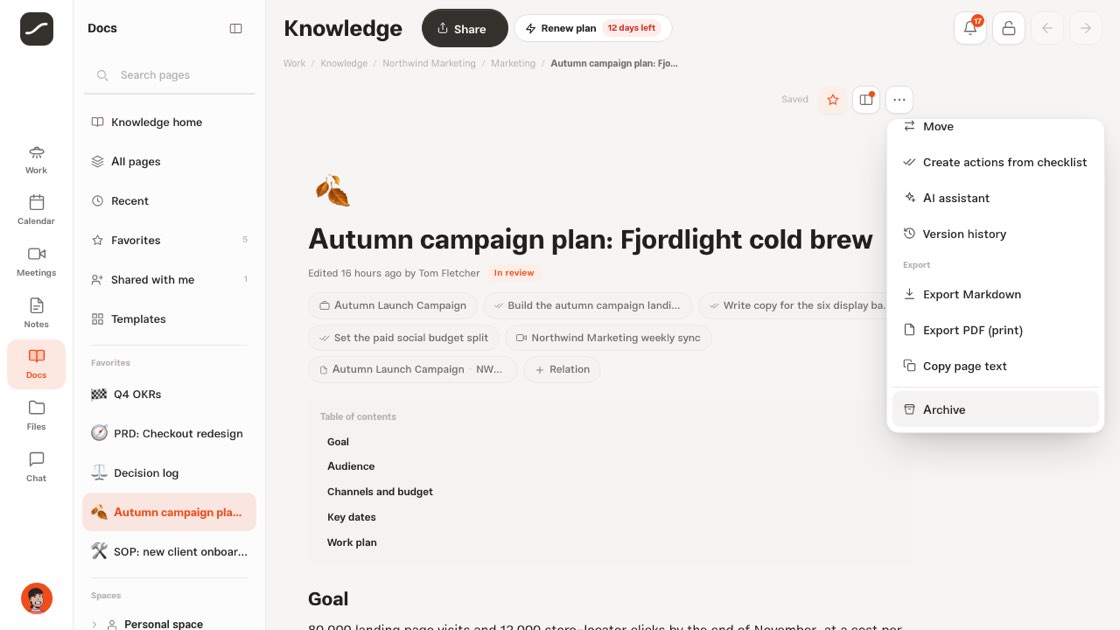
An archived page is read-only until you unarchive it. A deleted page, along with all its subpages, stays in the trash for 30 days, where it can be restored or deleted permanently. From any page you can export Markdown or PDF (via print) or copy its text. There's no public publishing to the web.
Saving is automatic and its status is always visible; if you're offline it saves later, and if two people change the same page at the same time, you choose between their version and yours.
Knowledge connectors and MCP
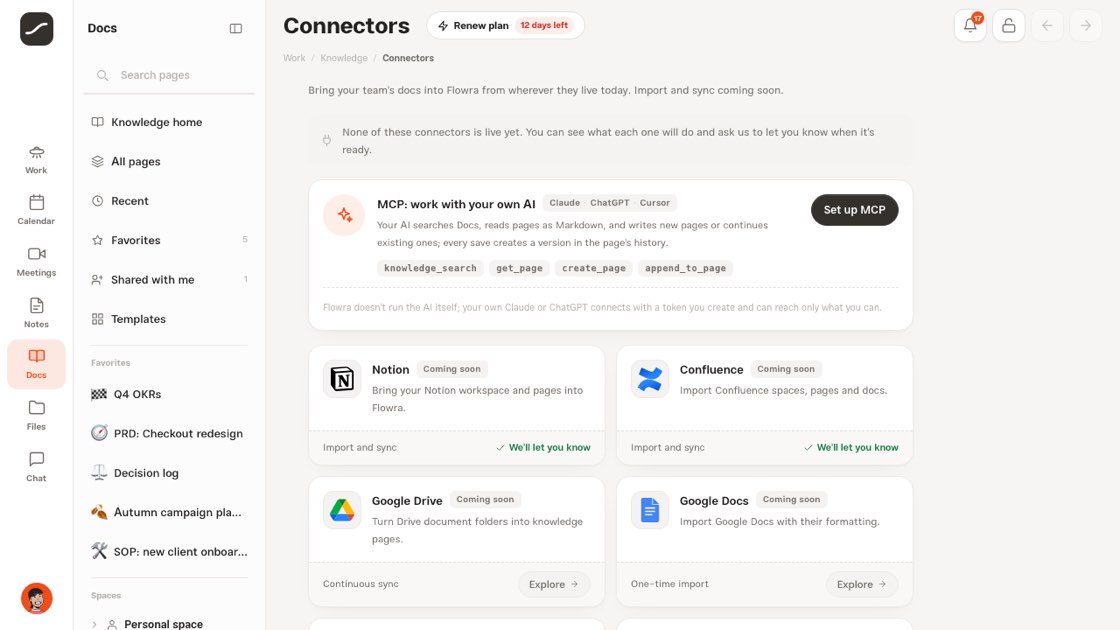
The “Connectors” page shows where your team's docs will come into Flowra from: Notion, Confluence, Google Drive, Google Docs, SharePoint, OneDrive, Coda, Slite, ClickUp Docs and Dropbox Paper, and later GitHub and Slack. None of them is active yet: “Explore” explains what each one will do, and the only thing you can do is “Notify me”, which stays on your account.
The road open today is MCP. The MCP card at the top of this page says what your own Claude or ChatGPT does in Knowledge: search, read a page as Markdown, write a new page and continue a page. Each of its saves creates a version in the page's history.
On phones
On a phone, Knowledge is the same, just laid out for one hand. The home tabs become a dropdown, “New page” has its own button, and the page tree opens in a sheet from the “Pages” button. On a page, sharing is an icon in the top bar, and details, comments and the table of contents open from the “Page options” menu.
For any block's menu, press and hold it. While you write, a bar above the keyboard keeps “/”, bold and italic, link, mention someone, comment and create action within reach.
A complete path
This is the path most of your team's pages take, and each step is explained in one of the sections above.
- Create the page in the right space from a template or with the Docs assistant
- Write with “/” and add files, tables and Flowra items
- Link the page to its project, action or meeting from “Related to”
- Turn the checklist into actions with “Create actions from checklist”
- Add the page to favorites and find it again with search or “Ask Flowra”
- When it gets stale, archive it, or export Markdown and PDF