Collaboration opportunities
A funnel that follows an introduction all the way to a collaboration: each opportunity is someone from My Network sitting under a project, with a stage, notes, a follow-up owner and a history, and every project side by side in one pipeline.
Open in Flowra/opportunitiesCollaboration opportunities
ProjectProduct landing pagecontactsUI designerStageNegotiatingFollow-up ownerMeAddress?status=negotiatingYour filter stays in the page address, so its link can be shared.
What this is wired to
What a collaboration opportunity is
A collaboration opportunity is someone from My Network who is linked to a project and moving step by step towards working together: a designer for a landing page, a photographer for a campaign, a lawyer for a client contract. A person has only one opportunity per project, and adding them again repeats nothing; the same person has a separate opportunity in another project.
Opportunities are yours: everyone sees their own pipeline, and your opportunities are not shown to teammates, even in a shared project. The Opportunities page (/opportunities) shows every opportunity of every project in one place, each workspace has its own opportunities page, and each project has its own pipeline.
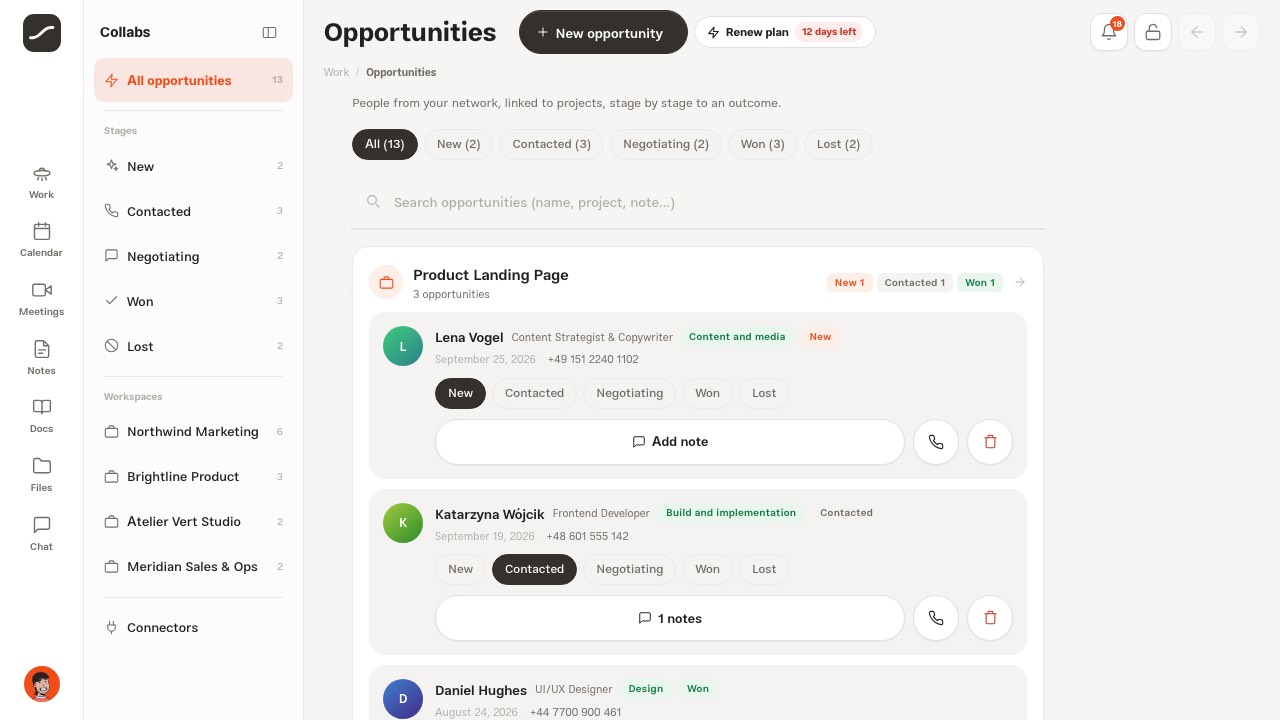
The Opportunities page: a group per project
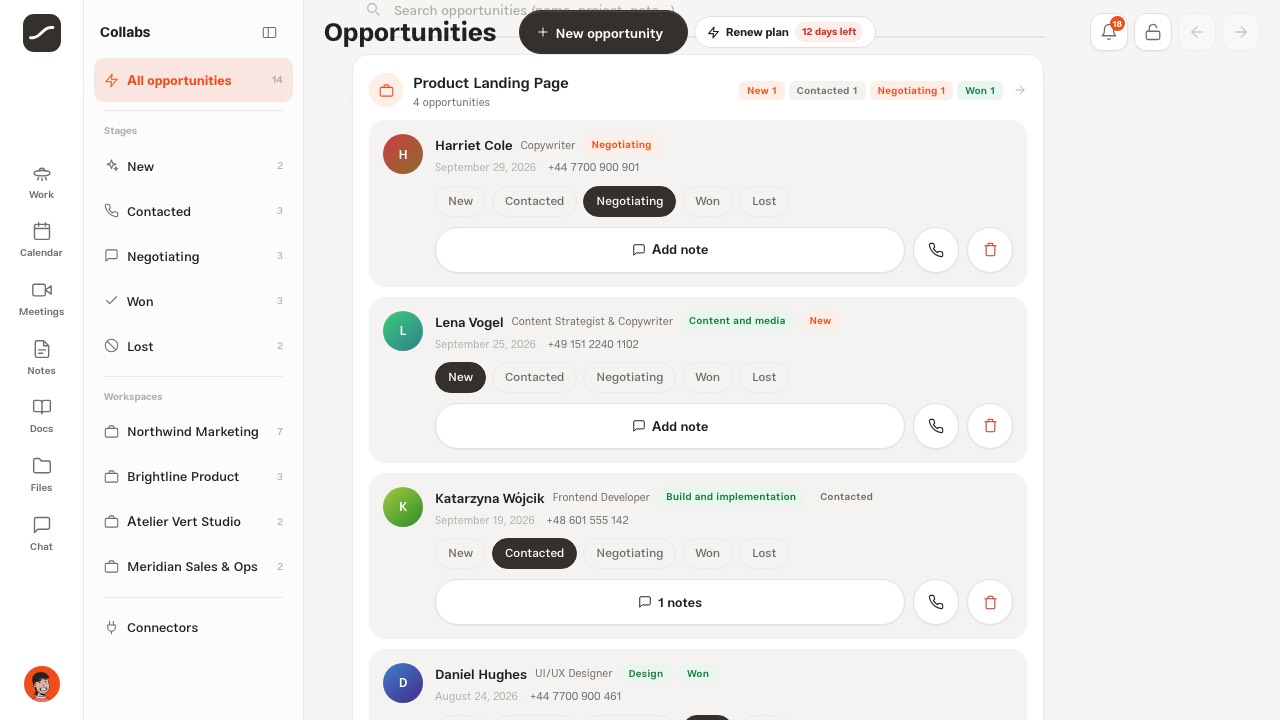
Opportunities are grouped by project, and the group with more opportunities sits higher. Each group's header carries the project's name, how many opportunities it has and a badge per stage with its count; clicking the header opens that project's pipeline.
Each card has the person's name and role, the suggested kind of collaboration (such as Design or Content and media), the stage badge, the date added and their phone number. Clicking the name opens their profile in My Network.
The second column: stages, spaces, connectors
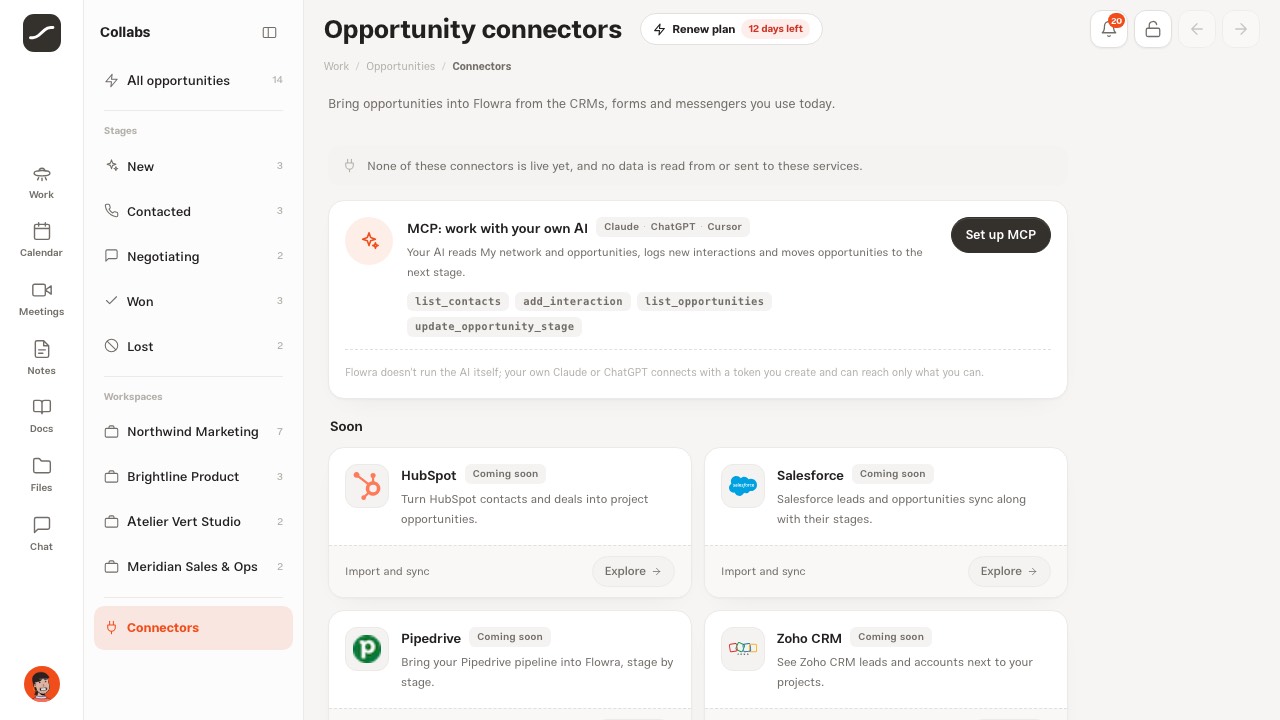
On a desktop, the opportunities side column starts with All opportunities, followed by the five stages with a count each: New, Contacted, Negotiating, Won and Lost. Below it, Workspaces lists only the spaces that have opportunities, and the Connectors row goes to the opportunity connectors page.
The column's rows set the same filter as the buttons at the top of the page, so the two always agree; clicking a row again clears its filter. When a space is picked, the stage counts only count that space. The counts are read again after every change.
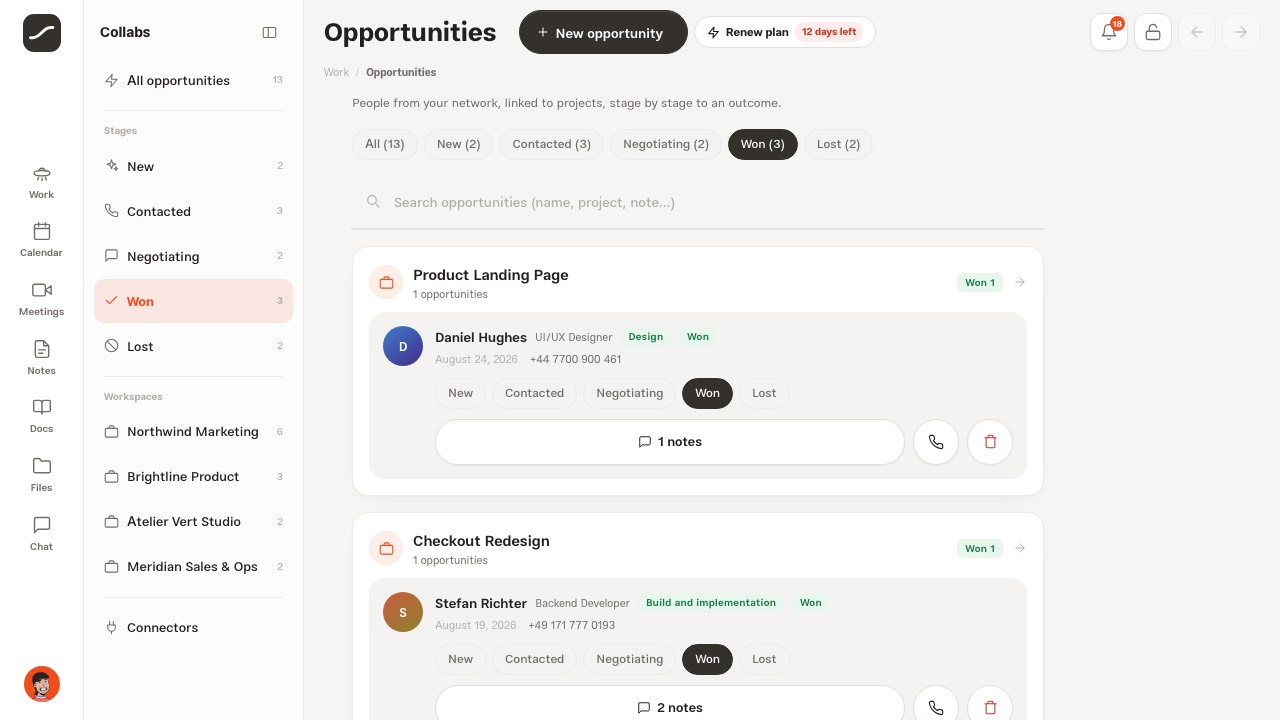
Filters and search
The stage buttons at the top only show the stages that have opportunities, with their counts. A space picked in the side column sits at the top as a separate button with a cross, which clears it.
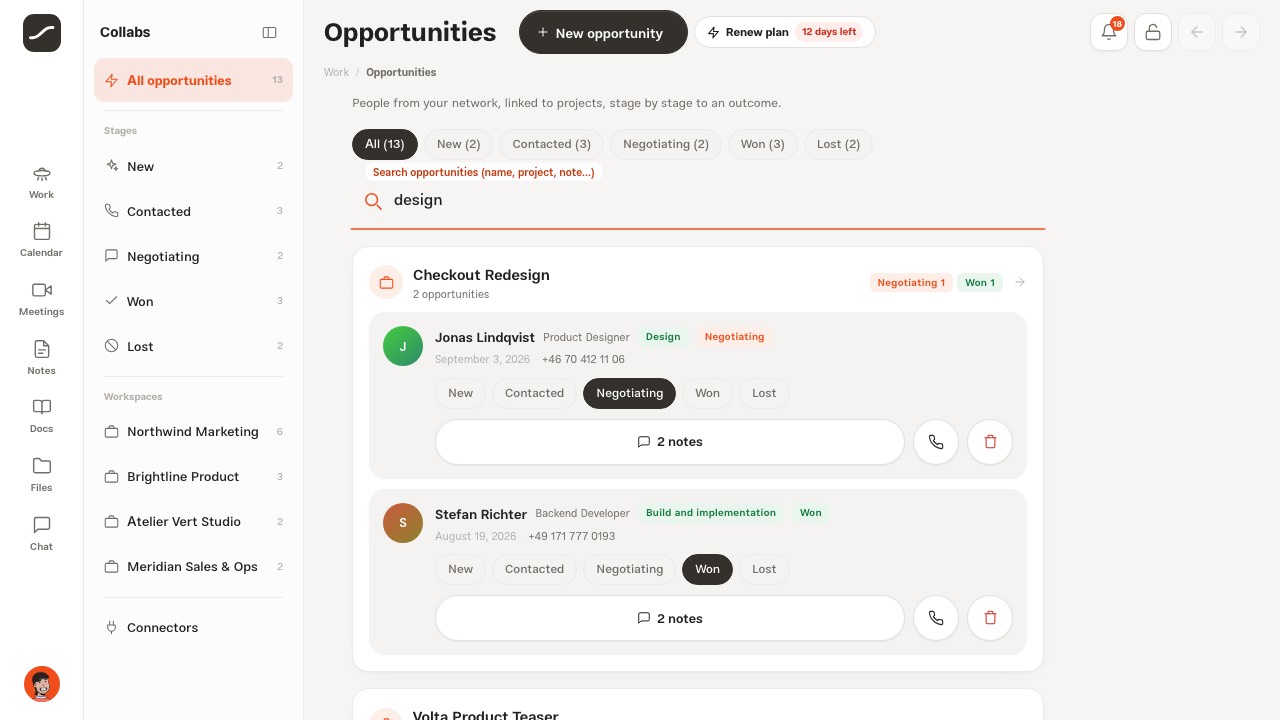
The stage and the space are written into the page address (status and ws), so any filtered view can be bookmarked or sent to someone. Once you have more than three opportunities, a search box appears too; it looks through the name, the role, the kind of collaboration, the project's name and an opportunity's older note.
A new opportunity and its fields
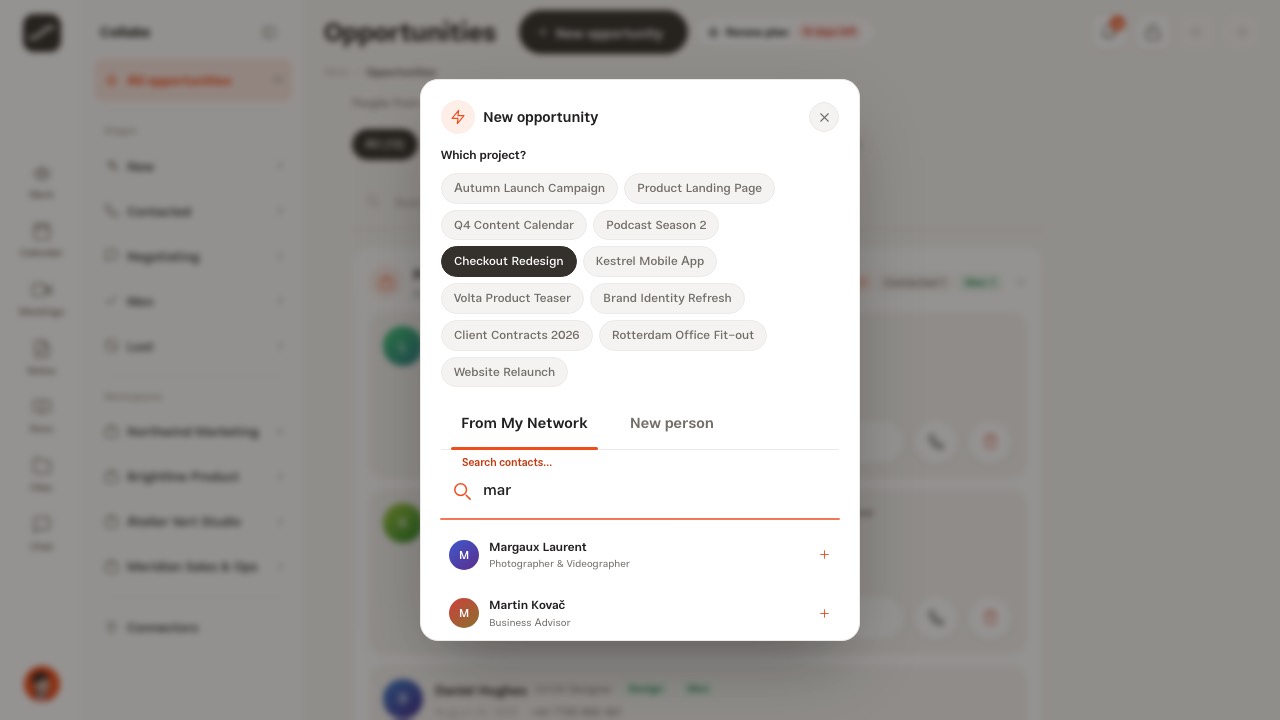
New opportunity, at the top of the page (under the title on a phone), opens a sheet that first asks Which project?; the project with the most opportunities is preselected and can be changed. If you opened the page inside a workspace, only that space's projects are offered.
Then there are two ways. From My Network shows up to six of your contacts who have no opportunity in this project yet, and searches by name, role or skill. New person takes a full name, role, phone number and skills, and adds that person both to the project's opportunities and to My Network.
An opportunity deliberately has no amount, currency or company field. If the project sits under a company, the company comes from the project itself, and the money is recorded where it is actually received: the project's contract, with its value, currency and milestones. The kind of collaboration appears on the card when an opportunity is created from the project's suggestions or by the assistant.
- In Opportunities, press New opportunity
- Under Which project?, pick the project
- Click someone under From My Network, or go to New person
- For a new person, write the name, role, phone number and skills
- Press Create contact & add opportunity; the opportunity is created at the New stage
Stages and moving a card
The five main stages come in this order: New, Contacted, Negotiating, Won and Lost. Cards are not dragged and there is no kanban view; the stage changes with one tap. On a desktop every stage is lined up under each card, with the current one filled in.
Every move is logged in the opportunity's history with the name of whoever made it and the time, and that same history shows on the person's profile under Full trail. Creating the opportunity and changing its follow-up owner land in the same history.
Notes, calls and deleting
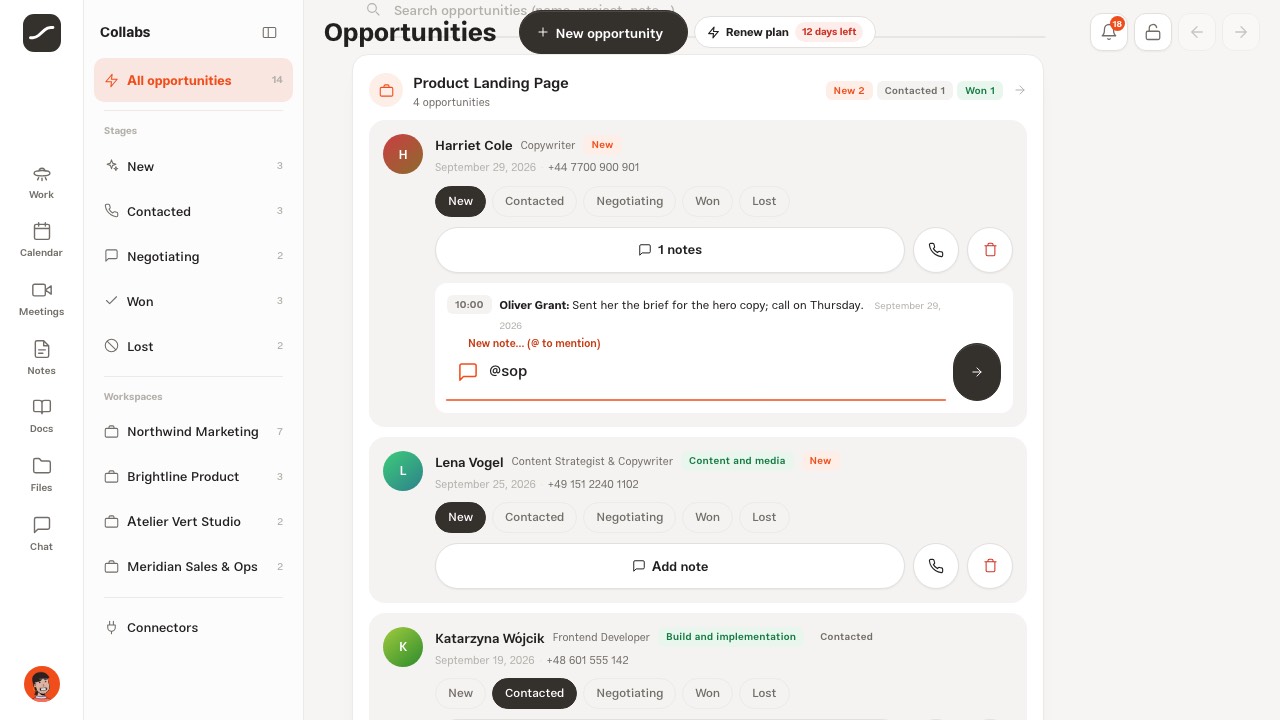
At the foot of each card, Add note (or the number of notes) opens that opportunity's thread of notes. Each note has a time, a date and the author's name, and Enter posts it. @ opens the list of people; whoever is called in gets a notification, and their name in the note links to your direct chat with them.
If the contact has a phone number, the phone button dials it directly. Delete opportunity, after a confirmation, removes the opportunity from the project; the contact stays in your network.
Each project's pipeline
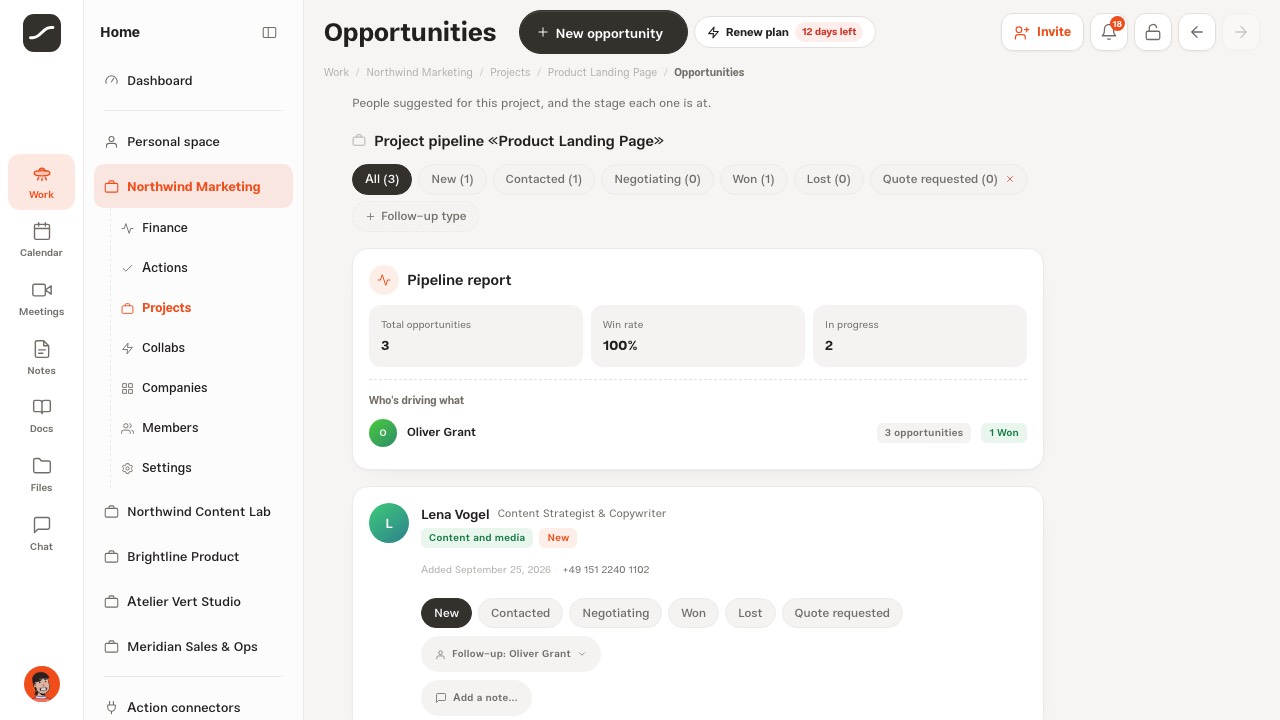
From any group's header, or from the Opportunities tile on the project page, you reach the Project pipeline. The Pipeline report shows total opportunities, the win rate (Won divided by Won plus Lost) and those in progress, and Who's driving what shows each person's count of opportunities, wins and losses.
Under each card, Follow-up is the owner of that opportunity; whoever creates it becomes the owner, and clicking it lets you hand the follow-up to one of the space's members.
Custom stages
With Follow-up type in a project's pipeline you create a stage of your own, such as Quote requested. A custom stage belongs to you and shows in the pipeline of every one of your projects. The five main stages cannot be deleted; if you delete a custom stage, its opportunities go back to New.
Collaborators from your network
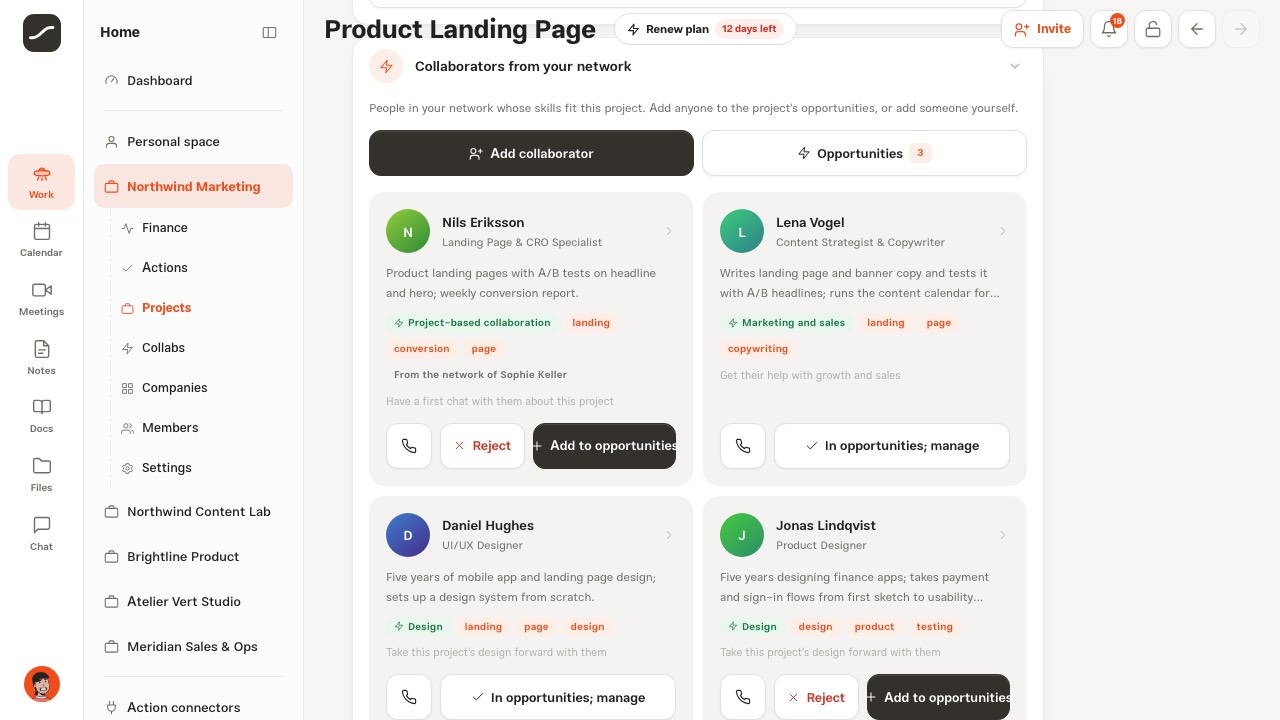
On every project page, the Collaborators from your network section shows people whose skills and role match the project's name and description. Add to opportunities puts that person into the pipeline at New, and their card turns into In opportunities; manage.
Reject asks for a reason, such as Their skills don't fit this project or No capacity right now; that person is no longer suggested for this project and the reason stays on their profile. Add collaborator adds anyone, from your network or brand new, straight into the project's opportunities.
The history on the person's profile
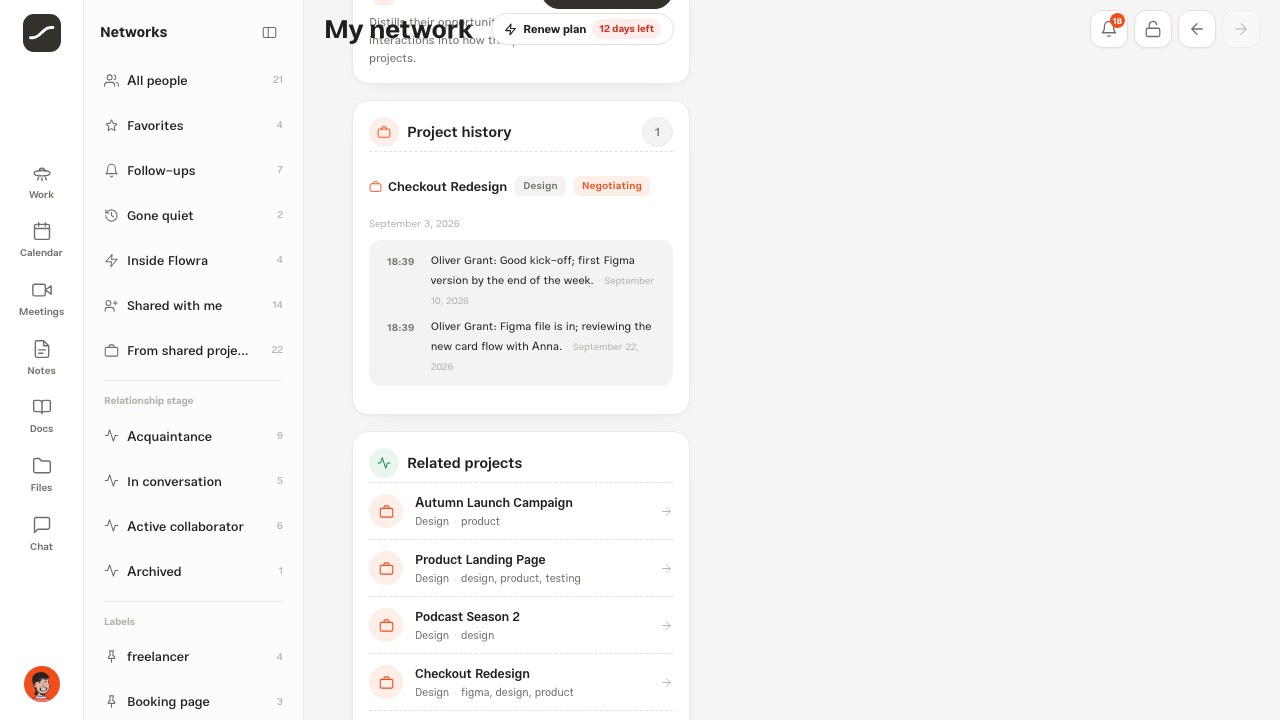
Every contact's profile in My Network has a Project history section: each of their opportunities with the project's name, the kind of collaboration, the stage and its notes. Full trail tells every event with its time: who added them to which project, moved the stage from where to where, handed the follow-up to whom and left which note.
In the My Network list, each contact's row also shows their open opportunities. If someone in your opportunities has an incomplete profile (for example no skills, role or phone number), your dashboard reminds you, because suggestions are built from exactly those skills.
Once it's Won: contract and finance
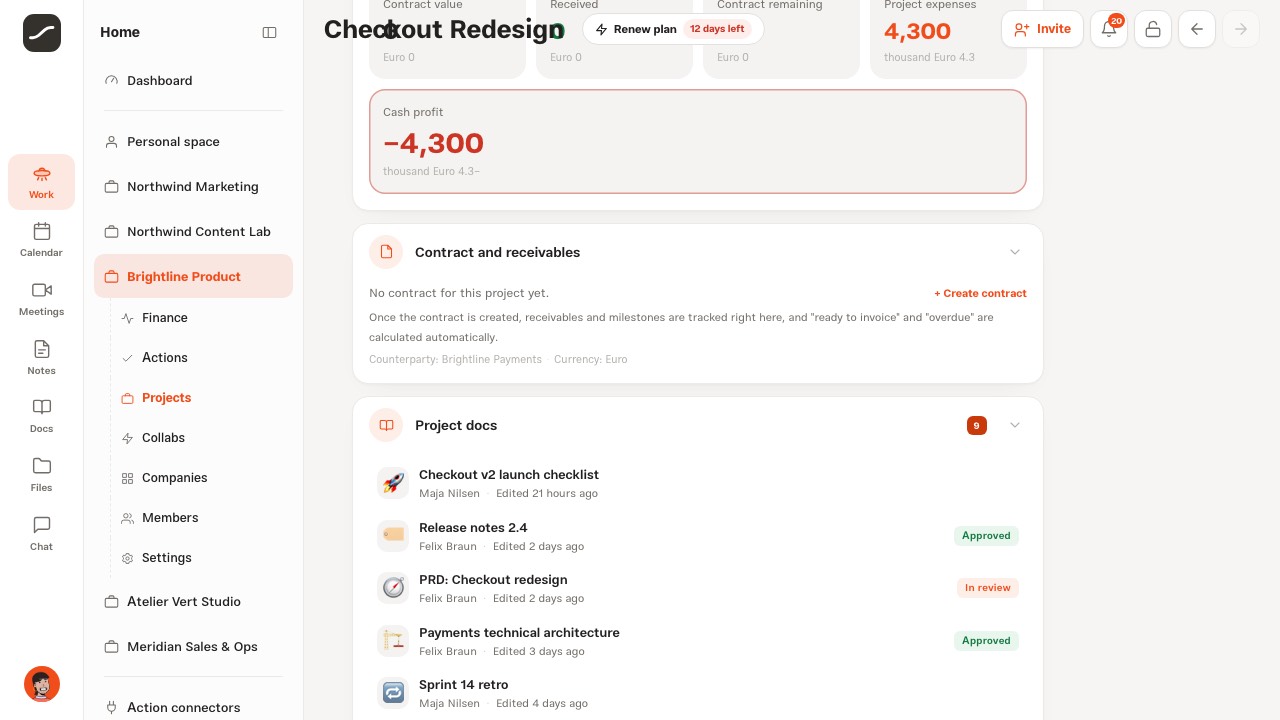
Won turns the opportunity green and counts towards the win rate, but it does not create a project or a contract by itself; the opportunity sits under a project from the start. The next step is in the project: under Contract and receivables, use Create contract to record the contract's value, currency and milestones.
Each milestone's receipt is linked to a transaction in the finance ledger, and the project's finances show the contract value, what was received and what remains from there. An opportunity that went nowhere is closed with Lost, and its history remains.
The assistant and your own AI
When the project and company assistant builds a project from a description, it creates the collaborators you named in your network and opens an opportunity for each of them in that project, with their kind of collaboration. In Docs, / and Opportunity link to an opportunity.
Through MCP, your own Claude or ChatGPT reads opportunities and moves their stage with the list_opportunities and update_opportunity_stage tools, and reaches My Network with list_contacts and add_interaction; always with exactly the access you have yourself.
Opportunity connectors
The Opportunity connectors page (/opportunities/connectors) shows the services opportunities will come in from later: CRMs (HubSpot, Salesforce, Pipedrive, Zoho CRM), LinkedIn, email (Gmail, Outlook), messengers (WhatsApp, Telegram, Instagram), forms (Typeform, Google Forms), tables (Google Sheets, Airtable, Notion), Calendly, Zapier and Webhook.
All of these are coming soon, and the banner at the top says plainly that no data is read or sent. Explore on each card explains what it will do, and Notify me only records your request on your account. The one live route today is the MCP card at the top of the same page.
On a phone
On a phone there is no second column; the stage buttons at the top set the same filter, and New opportunity sits under the title. At the foot of each card, the dark button moves straight to the next stage and Change stage opens every stage in a sheet from the bottom of the screen. In a project's pipeline, the stages and Follow-up type are gathered in one dropdown menu.
Notes, calls and delete are finger-sized buttons, and the call dials the number directly. The connectors page is also reachable from Connectors in the settings.