Connectors: every connection in one place
Everything Flowra connects to on one page, by area: which are connected, which are ready to connect, which are still coming soon, and how the operator switches each one on.
Open in Flowra/settings/connectorsConnectors
Connected3 servicesReady to connect4 servicesSoonWith “Notify me”Last sync4 minutes agoA connector that isn't ready moves no data.
What this is wired to
What a connector is
Every link from Flowra to an outside service is called a connector: cloud storage for My Files, a calendar, a meeting venue, a messenger, team tools and CRMs. They are all gathered in one place, Connectors in the settings (/settings/connectors), and each area also has its own connectors page.
Every connector is honestly in one of three states: connected, ready to connect, or coming soon. A live connector whose keys the operator has not registered yet, or has switched off, says Unavailable and shows no button that could only fail.
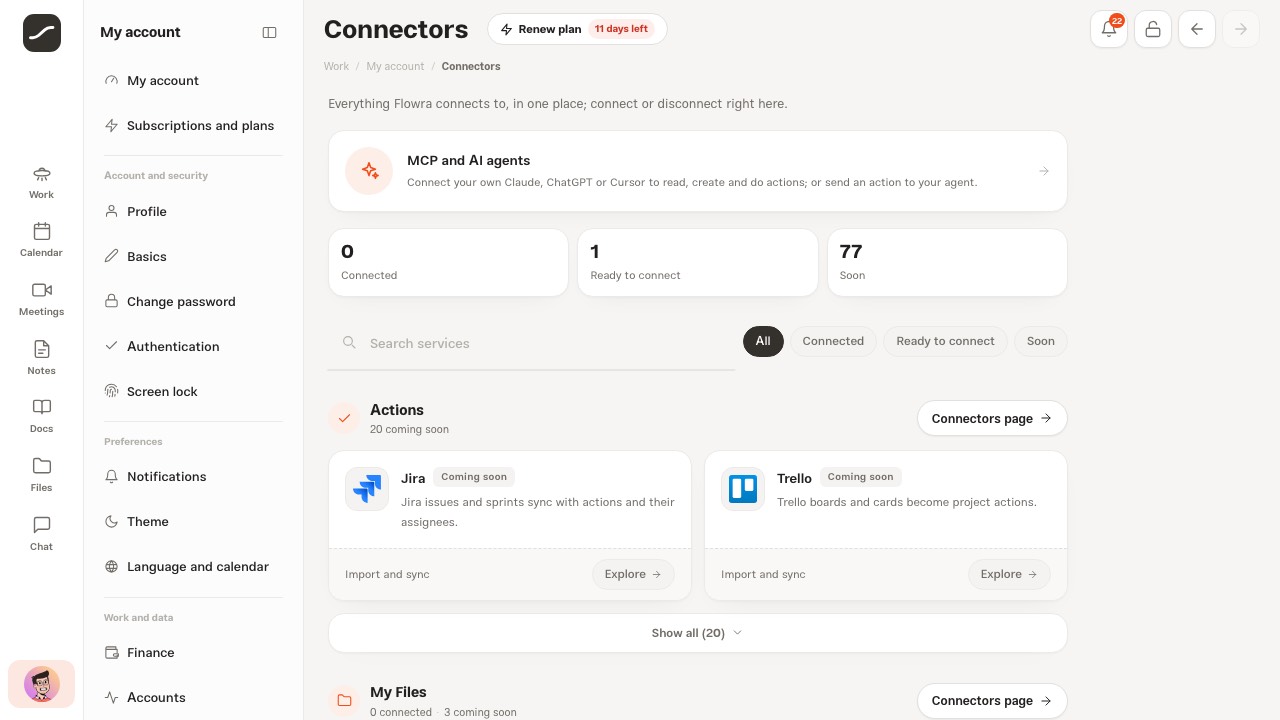
Status tiles and filters
At the top of the page sits the MCP and AI agents card, with three tiles below it: Connected, Ready to connect and Soon, each with its count. Each tile is also a filter: one tap shows only that group, and a second tap brings everything back.
Next to the Search services box are the All, Connected, Ready to connect and Soon buttons; on a phone they are gathered in the Show list. Search looks through a service's name, description and capabilities, and if nothing matches, the page says so plainly.
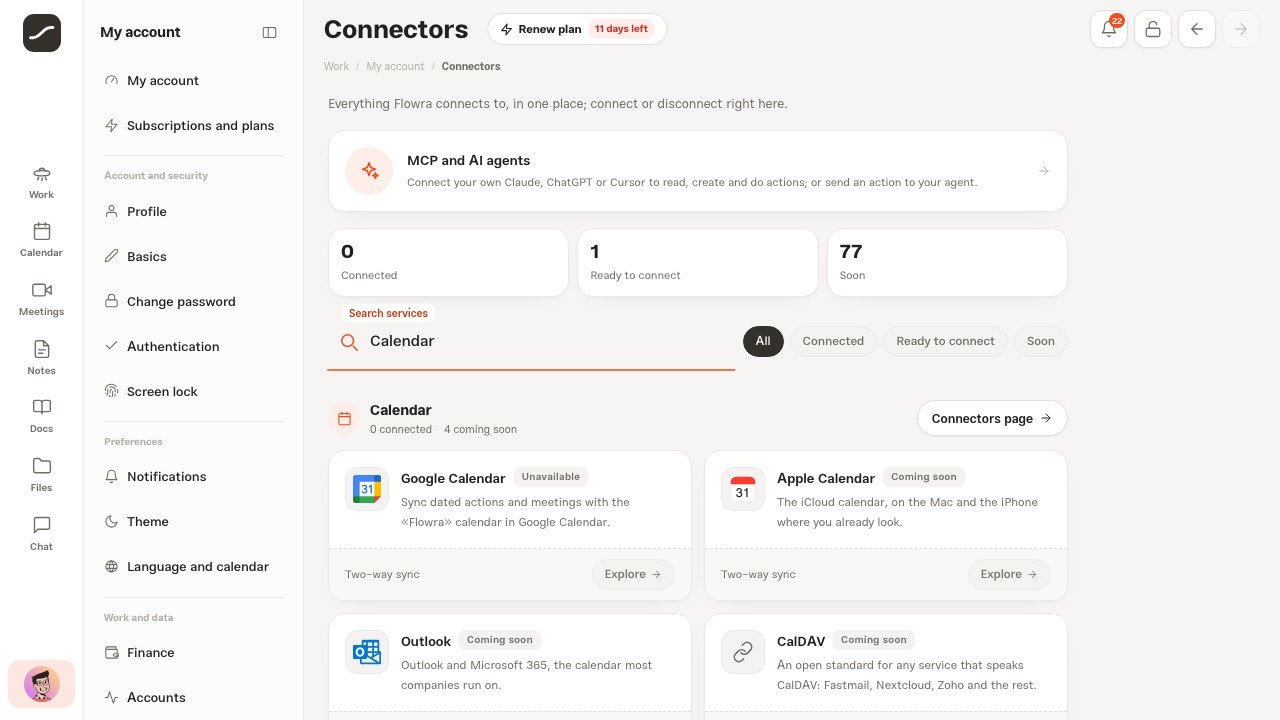
Sections and each one's page
Connectors are grouped by the area they serve. Each group's header carries the area's name, how many are connected and coming soon, and a Connectors page button. Live cards are always shown, and the coming-soon cards fold under Show all after the first row; a search or the Soon filter opens them all.
- Actions (/actions/connectors): Google Calendar and Telegram live; Jira, Trello, Asana, Linear, ClickUp, Notion, Todoist and more coming soon
- My Files (/settings/media/connect): Google Drive and Dropbox live; OneDrive, iCloud Drive and Nextcloud coming soon
- Calendar (/calendar/connect): Google Calendar live; Apple Calendar, Outlook, CalDAV and ICS coming soon
- Meetings (/meet/connect): Google Meet and Zoom live; Microsoft Teams, Webex, Jitsi and more coming soon
- Chat (/chat/connectors): Telegram live; WhatsApp, Slack, Discord, Gmail and more coming soon
- Knowledge (/knowledge/connectors): Notion, Confluence, Google Docs, SharePoint and more, all coming soon
- Opportunities (/opportunities/connectors): HubSpot, Salesforce, Pipedrive, LinkedIn and more, all coming soon
- My Network: the Google Contacts card goes to My Network itself; importing contacts today is done via a CSV file
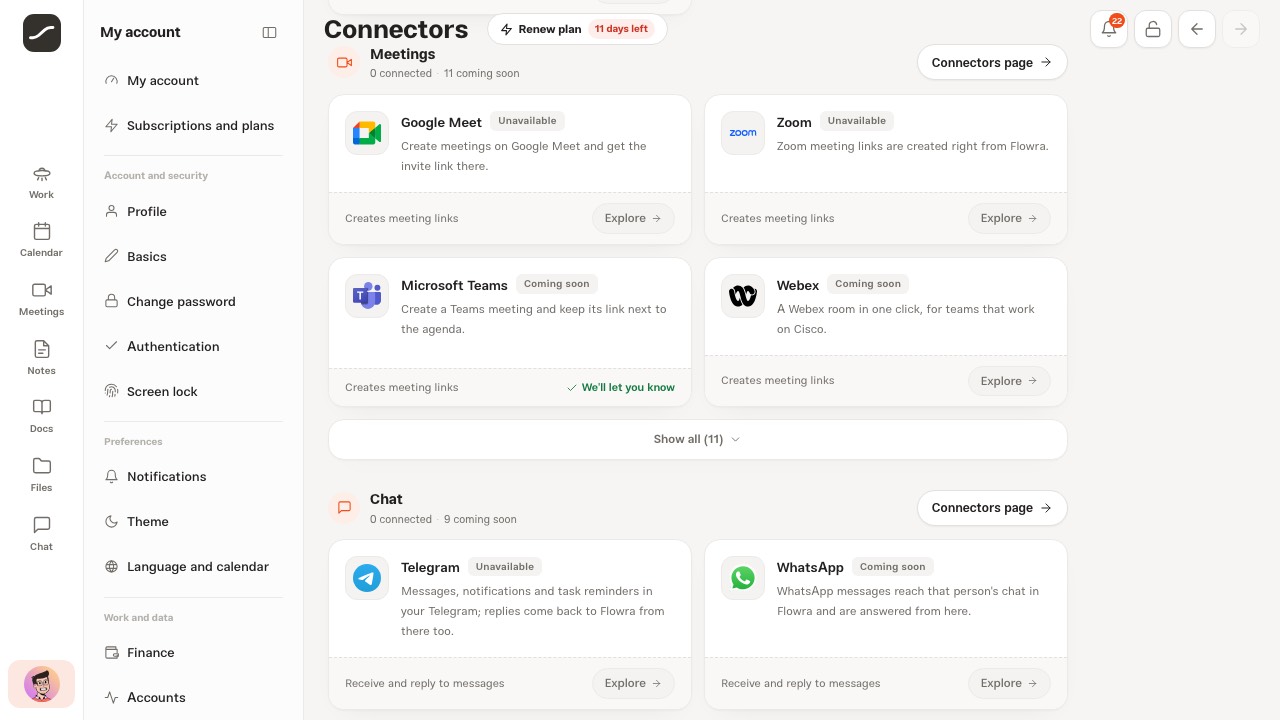
Live connectors
These really connect today: Google Drive and Dropbox for My Files, Google Calendar for dated actions and meetings, Google Meet, which takes its link from that same calendar connection and has no connection of its own, Zoom for creating meeting links, and Telegram for messages, notifications and reminders. Google Contacts has no account connection; you import your contacts' CSV export into My network.
Every live connector's card carries its real status badge, and a connected card writes the connected account under its name. Files and the calendar also show the last sync and the last error.
Each connector's sheet
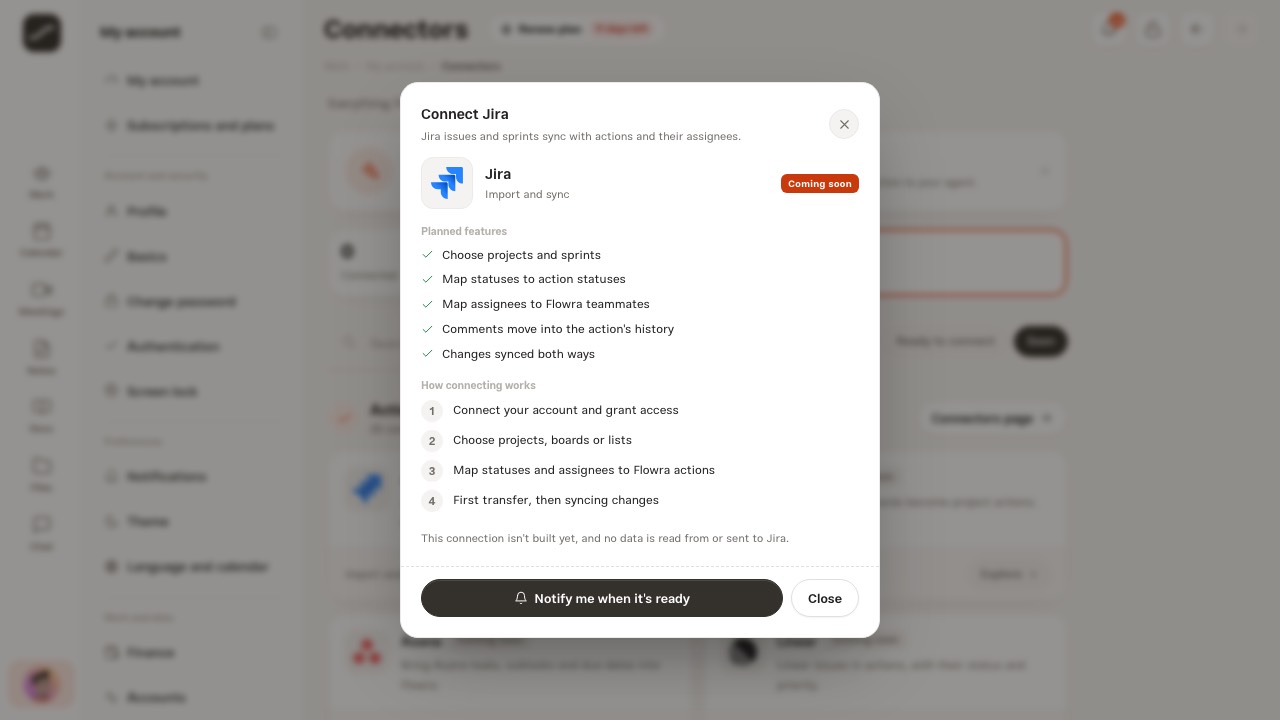
Tap any card and that service's sheet opens (from the bottom of the screen on a phone): the service's mark and name, the kind of work it does (such as one-time import, two-way sync, creating meeting links, receiving and replying to messages, or automatic intake), Connection status for a live connector, What it does or Planned capabilities, How connecting works as numbered steps, and one plain sentence about what is not read or sent.
If a connector is unavailable, the sheet says why: the operator has switched it off, has not registered its OAuth keys, or has not enabled the Telegram bot.
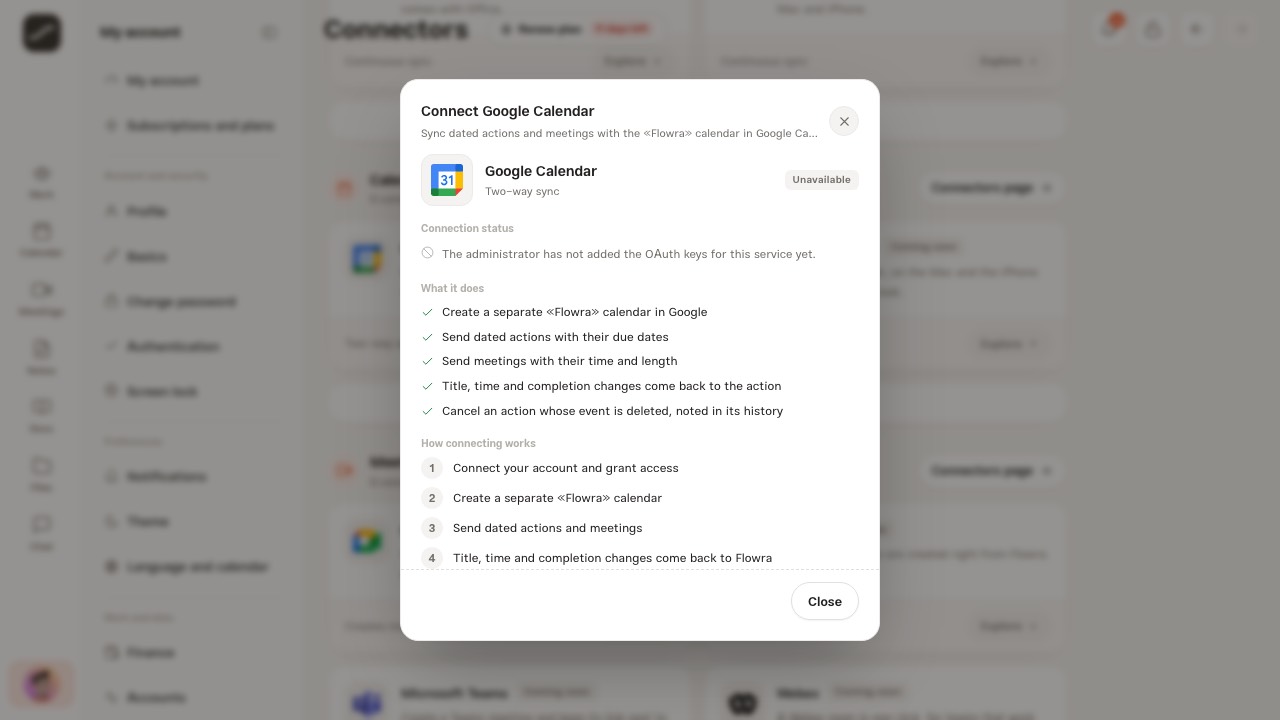
Connecting, disconnecting and where data goes
For Drive, Dropbox, Google Calendar and Zoom, Connect is an OAuth round trip: you go to the service's own consent screen, approve the access and come back. Flowra does not see your account password; the connection keys are kept encrypted and no route ever returns them. Telegram connects through a sign-in link into the bot.
A connected connector has the buttons its state allows: Sync now, The Flowra folder in My Files for files, Manage and Disconnect. Disconnecting only removes the link and deletes nothing on either side. Each service also has its own boundary: files see only the «Flowra» folder, the calendar only the separate «Flowra» calendar, Zoom only creates new meetings, and Telegram only sees the messages that reach the Flowra bot.
- In the connectors hub or an area's page, tap the service's card
- In the sheet, press Connect
- Sign in on the service's own page and approve the access
- You come back to Flowra and the card turns Connected
- Whenever you like, press Disconnect in the same sheet
“Coming soon” and “Notify me”
A connector that is not built yet has no Connect button; it says Soon, and its sheet lists the planned capabilities and the future steps of connecting, with the sentence that no data is read from or sent to that service.
Notify me when it's ready creates no connection; it only records on your account that you want that service, and the card turns into We'll let you know. This list is the same in the connectors hub and on every area's page, and the operator sees how many people are waiting for each service.
Each area's connectors page
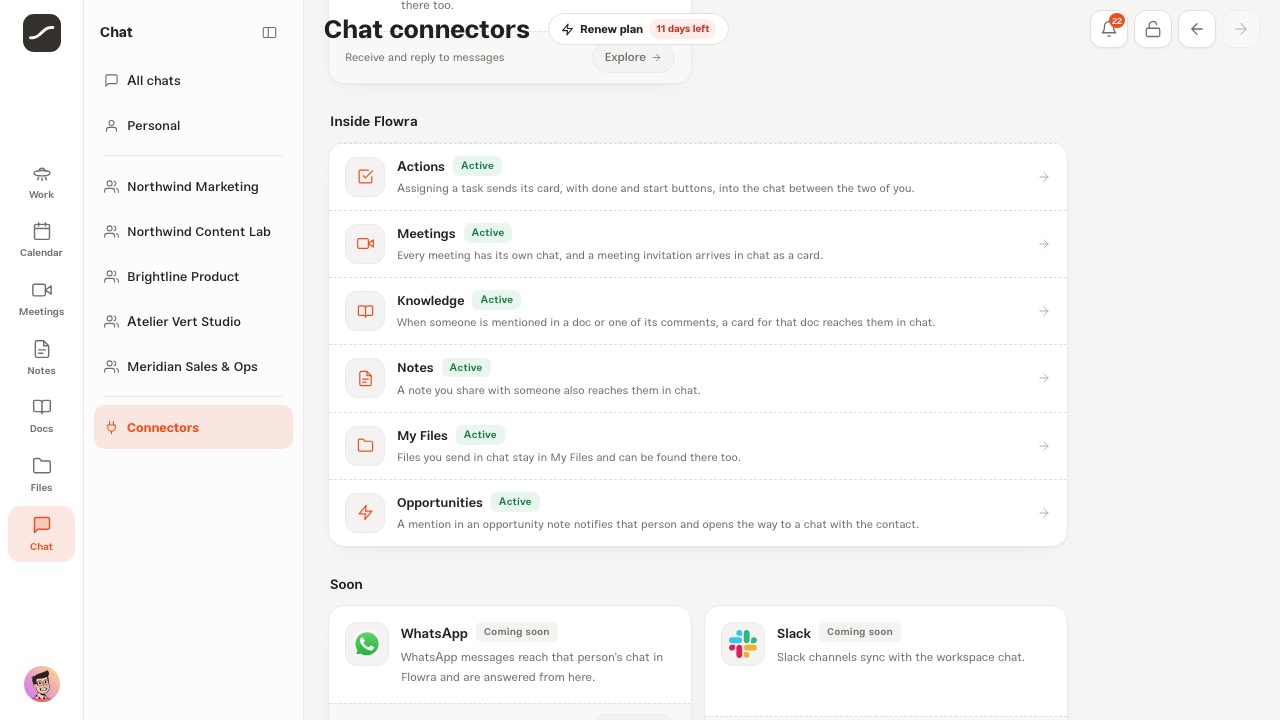
Every area has its own connectors page, opened from that area's side column. Each page has a banner stating that area's rule, the area's small MCP card (which tools your AI has there), and then Available and Soon.
The chat connectors also have a section called Inside Flowra: links that are always on because both ends are inside Flowra itself, such as actions, meetings, knowledge, notes, My Files and opportunities, all reachable from inside a chat.
How the operator switches it on
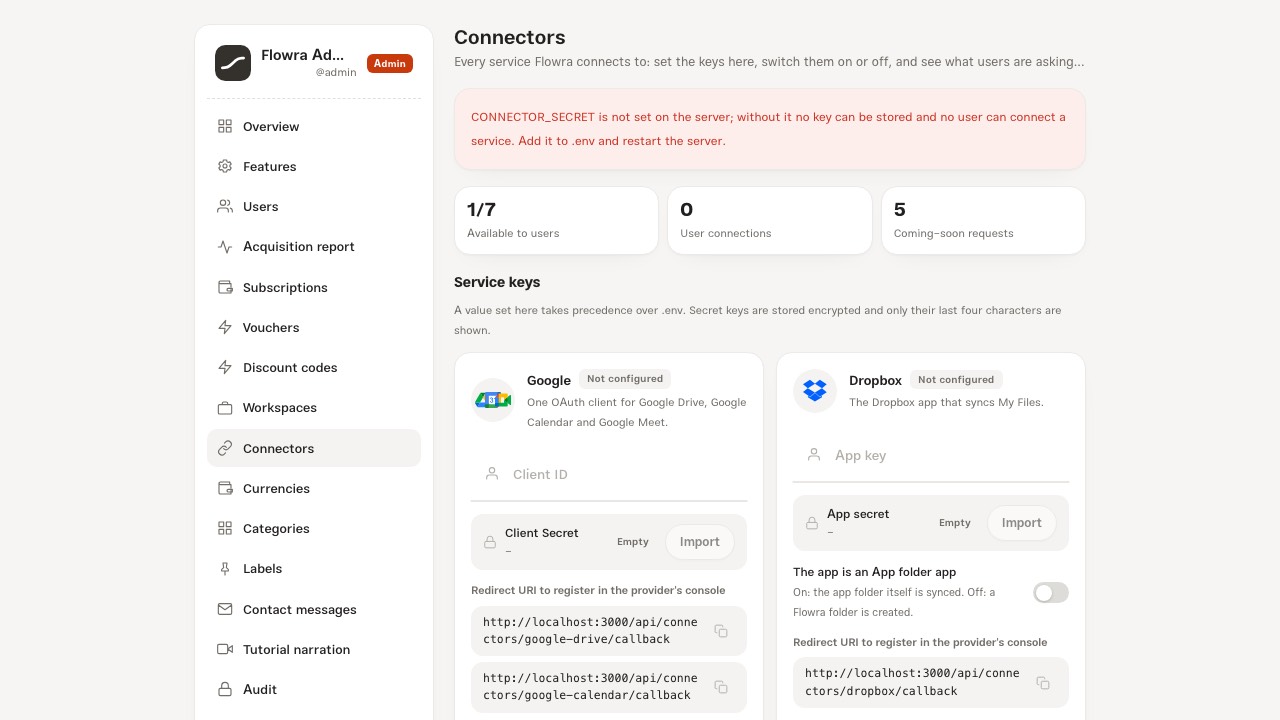
In the admin panel, Connectors does three jobs. Service keys takes each service's keys: one Google OAuth client for Drive, Calendar and Meet, a Dropbox app, a Zoom OAuth app and the Telegram bot. A value set here beats .env, secrets are stored encrypted, and after saving only their last four characters are shown. Test connection checks the keys against the service itself, and the Redirect URI to register in the service's console can be copied. Without CONNECTOR_SECRET on the server, no key is stored and no user can connect.
Available to users gives every live connector an on-off switch, with the number of connected accounts and the latest sync errors; switching it off makes the card Unavailable for everyone. Coming-soon requests shows, for every coming-soon card, how many people are waiting, and a switch hides it from users or shows it. The Drive access is chosen here too: limited, or full for two-way sync. Every change is recorded in the audit log.
Official logos
Every service is shown with its own official mark, the very file that company published, not a redrawing, so the card shows what you see in that service. Service names also stay as their brand writes them and are never translated, in any language.
MCP and other AIs
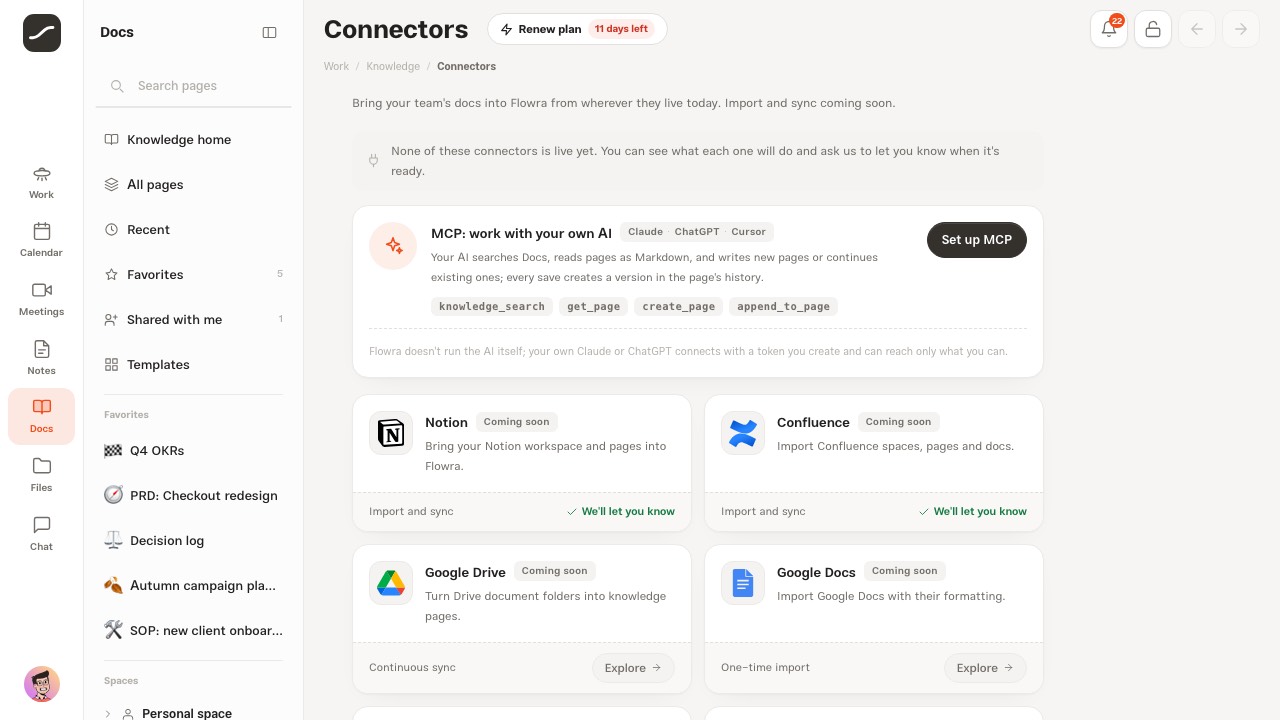
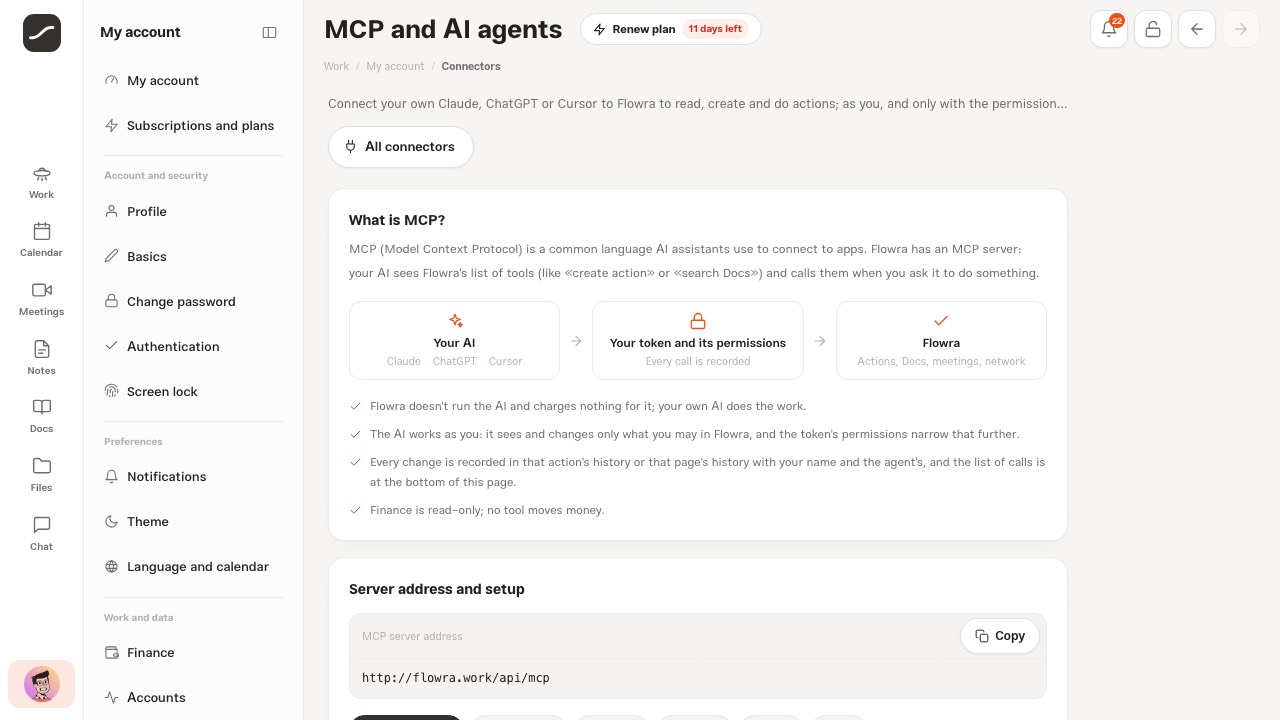
The MCP and AI agents card at the top of the connectors hub is another way to connect: your own Claude, ChatGPT or Cursor connects to Flowra with a token or through OAuth, reaches only what you can reach yourself, and Flowra itself runs no AI at all. The details are in the MCP guide.
For files, the «Flowra» folder, syncing, the trash and the storage quota, see the cloud connectors guide.
On a phone
On a phone all these pages are complete: the tiles stay three in a row, the filter buttons turn into the Show list, and the cards go to one column. Each connector's sheet rises from the bottom of the screen with finger-sized buttons. The OAuth round trip is the same on a phone: the service's consent screen opens and you come back to Flowra.