Flowra Assistant: one button on every page
On the pages where work gets made there's an “Assistant” button: you say what you want, it asks for whatever is missing, shows you a draft and builds only when you confirm. Another assistant is always pinned at the top of your chats and shows you Flowra step by step.
Open in Flowra/calendarAssistant
ButtonAssistant, at the top of the pageQuestionsOptions, dates, peopleDraftEditable before you confirmAttachmentA file or pasted textAIWith Prime; it works without it tooUntil you press the confirm button, nothing is made.
What this is wired to
One button, on every page
The assistant is on six pages and looks the same everywhere: an “Assistant” button with a sparkle at the top of the page. On a project's actions board, on the Knowledge home, in the designer of a Folio sheet, in the calendar toolbar, on the page for creating a project or company, and on the page of every project and company. No separate card sits on the page; press the button and the conversation opens in a popup while the page stays put.
Escape, a click outside the popup or its close button closes it, and while the page is open the conversation waits right there; while the assistant is working, a small dot shows on the button. “New conversation” at the top of the popup starts everything over. The button is only there for someone who can do that job: on the board and the project page, a workspace viewer doesn't see it.
- On one of these pages, press the “Assistant” button
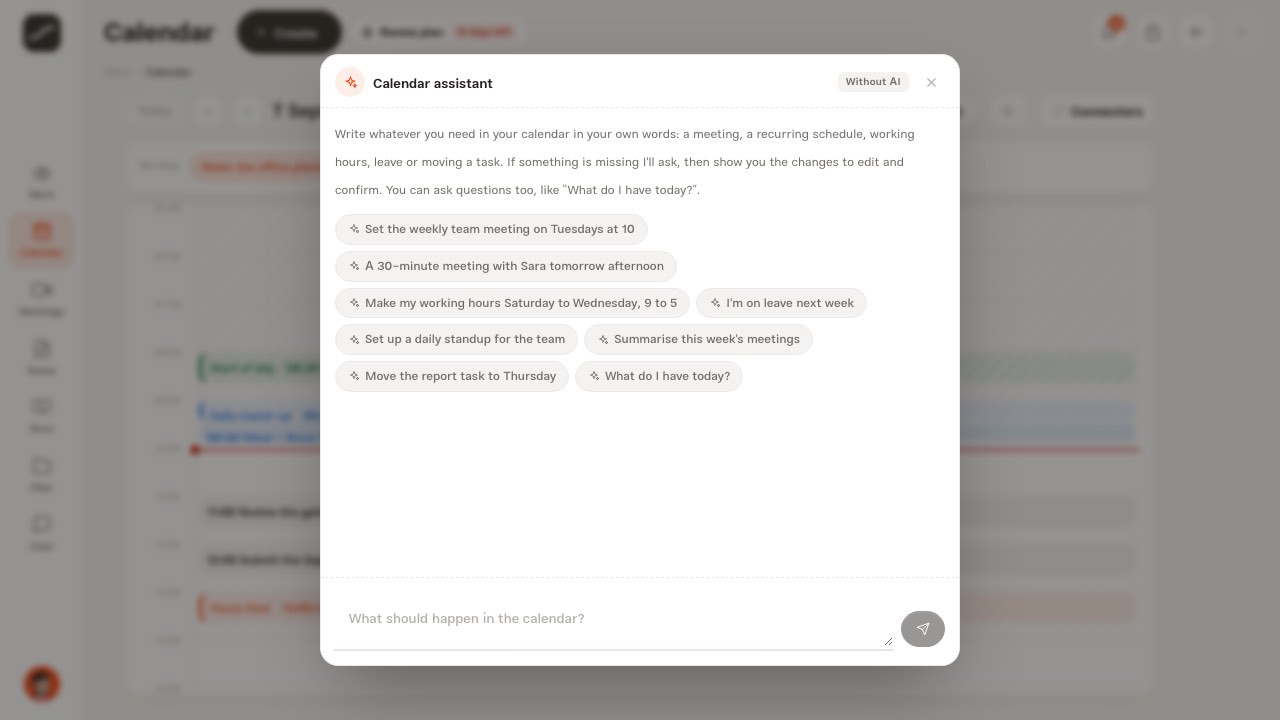
- Pick a ready-made suggestion or type your request
- Answer the questions and look at the draft
- Edit it and press the confirm button
It asks first, then drafts
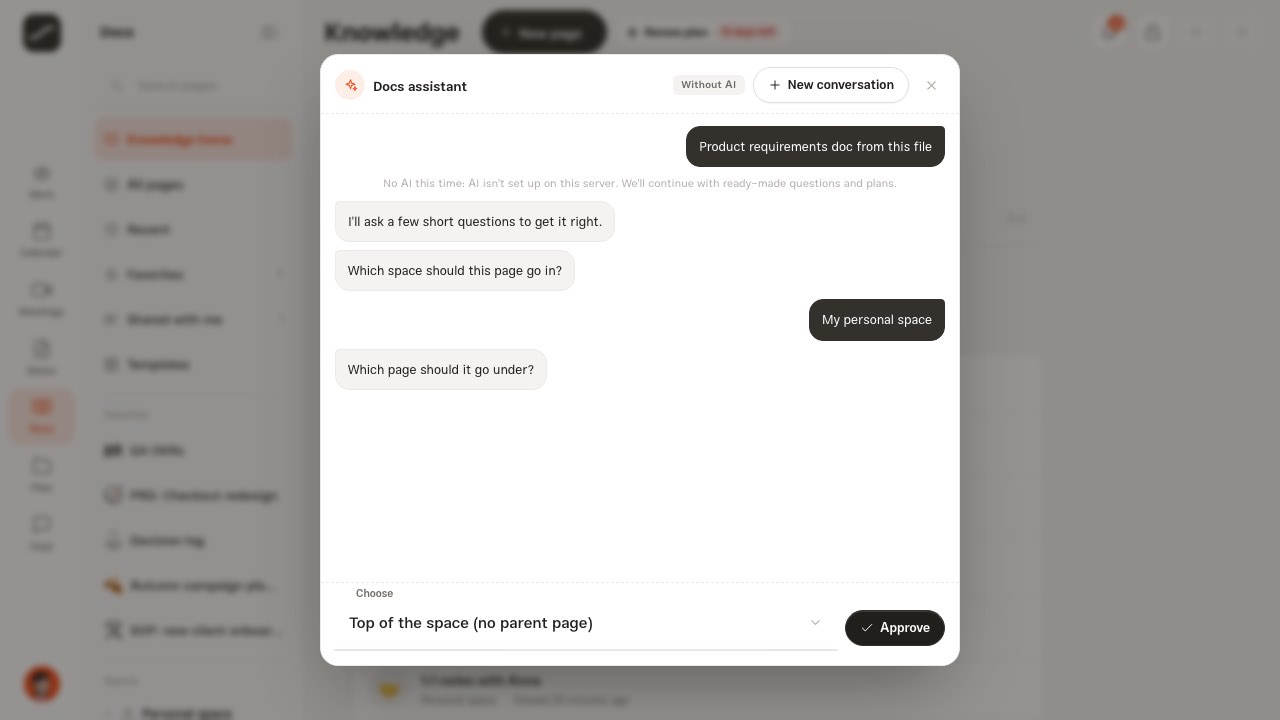
Type what you want in your own words and name teammates with @, or tap one of the ready-made suggestions. The assistant asks a few short questions, and the answer to each sits right under it: a few options, “Pick a date” with a calendar, a list of people with their open-task counts and a “Confirm” button, or a dropdown. Wherever the text box is open, you can also type your own answer.
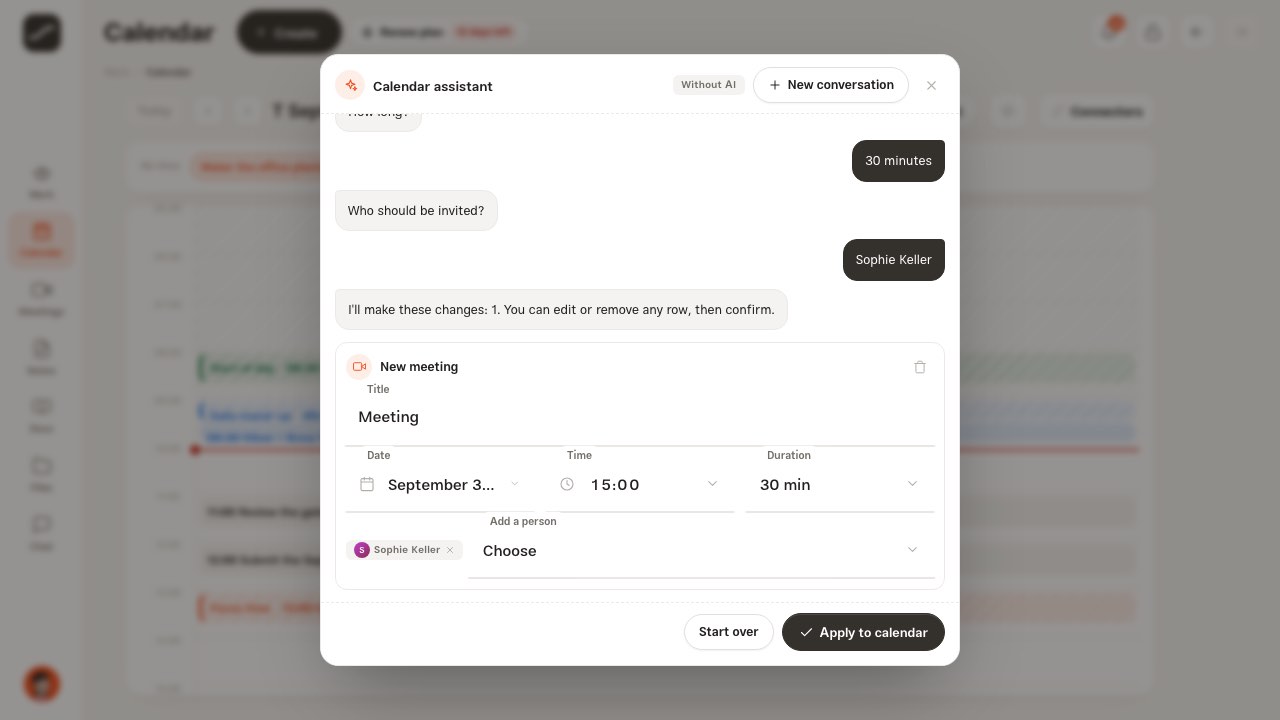
Once the answers are complete, the draft appears right in the conversation: action rows, pages, calendar operations or a project structure, all editable. “Start over” clears the conversation, and the confirm button, which carries the name of its own job on each page, builds the draft. After building, the assistant says what was made and often leaves a button to open the result, next to “New conversation” and “Close”.
Actions and Knowledge
On a project's actions board, the planning assistant turns one goal into up to fifteen actions with subtasks, due dates, priorities and owners, and “Create and assign tasks” makes them and assigns them to members. All the details are in the planning assistant guide.
On the Knowledge home, the Docs assistant builds pages from a request, an attached file or text you've pasted. It asks in which space, under which page, with which template, for whom and about which project, then drafts the page and its sub-pages; you can edit any page or remove it from the draft. “Create pages” goes through the same path as creating any other page: access, a first version, history, links and mention notifications.
Folio, Calendar, Projects and Companies
In the designer of a Folio sheet, say which sheet you need, and if you have base text, attach or paste it. The assistant asks about the other party and what they fill in, signatures, dates, amounts, page count and the sheet's language, and lays out the whole design with this designer's own elements. “Place on the sheet” runs through the sheet's normal save, so whatever was on the sheet before stays in the change history.
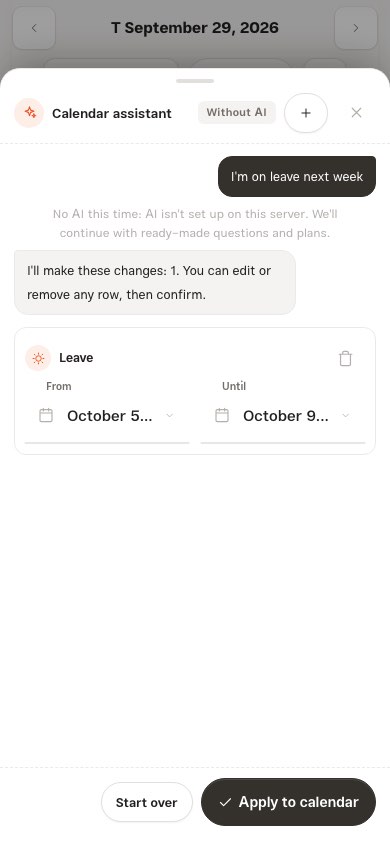
In the calendar, write what you want: a meeting, a recurring schedule, working hours, leave or moving an action. “Apply to calendar” makes each row through its own usual path, so clash checks, working hours and approvals all still apply; if several days are crowded, the assistant offers ways out such as “Create it without the clashing days” or “I'll edit it myself”. A question like “What do I have today?” just gets an answer and changes nothing.
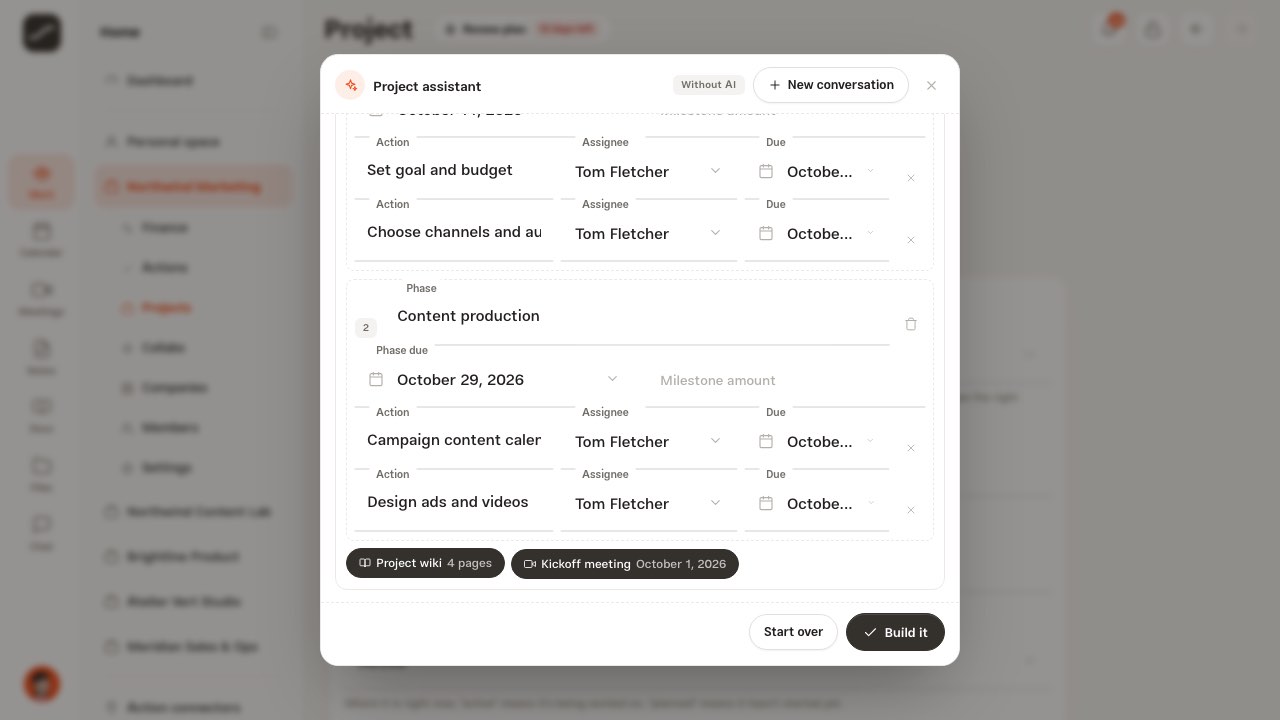
On the page for creating a project or company, describe it or attach the brief, proposal or contract. The draft is the whole structure: the company, the project, members, the contract and its milestones, phases with their first tasks and owners, a wiki page with sub-pages, collaborators as collaboration opportunities, contacts, a kickoff meeting and a follow-up. On the page of an existing project or company, the same assistant adds a new phase and members and spreads the work. “Build it” makes everything through the app's own paths.
Attachments, long text and sending
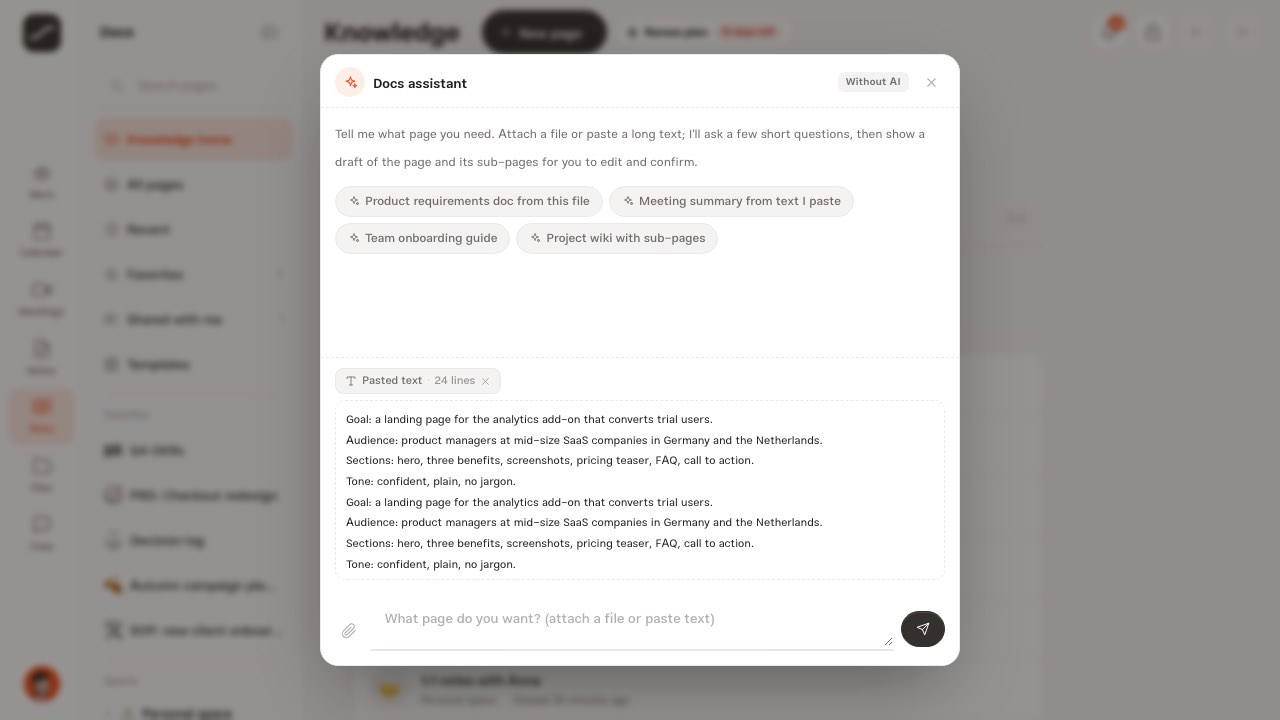
The paperclip's “Upload from device” sends up to six files at once, each up to 25 MB; these files are saved in your files under the usual quota. “Pick from the library” takes a file you already have. Text longer than a thousand characters or fifteen lines that you paste doesn't fill the box; it becomes a “Pasted text” chip with its line count. Tap it to open it and use the cross to remove it. An attachment on its own is also a request.
Enter or the send button sends, and Shift with Enter starts a new line; while the @ list is open, Enter picks the person. Each message carries up to eight attachments. The assistant reads the text of text files (such as txt, md, csv and json) and Word; PDF and other formats go by their name only, and a file larger than 5 MB isn't read. In the Docs and Folio assistants, each attachment shows by name next to the draft, and if it wasn't read, so does the reason.
- Tap the paperclip and choose “Upload from device” or “Pick from the library”
- Or paste long text into the box
- Type your request next to it
- Press Enter or the send button
The pinned chat assistant and the step-by-step guide
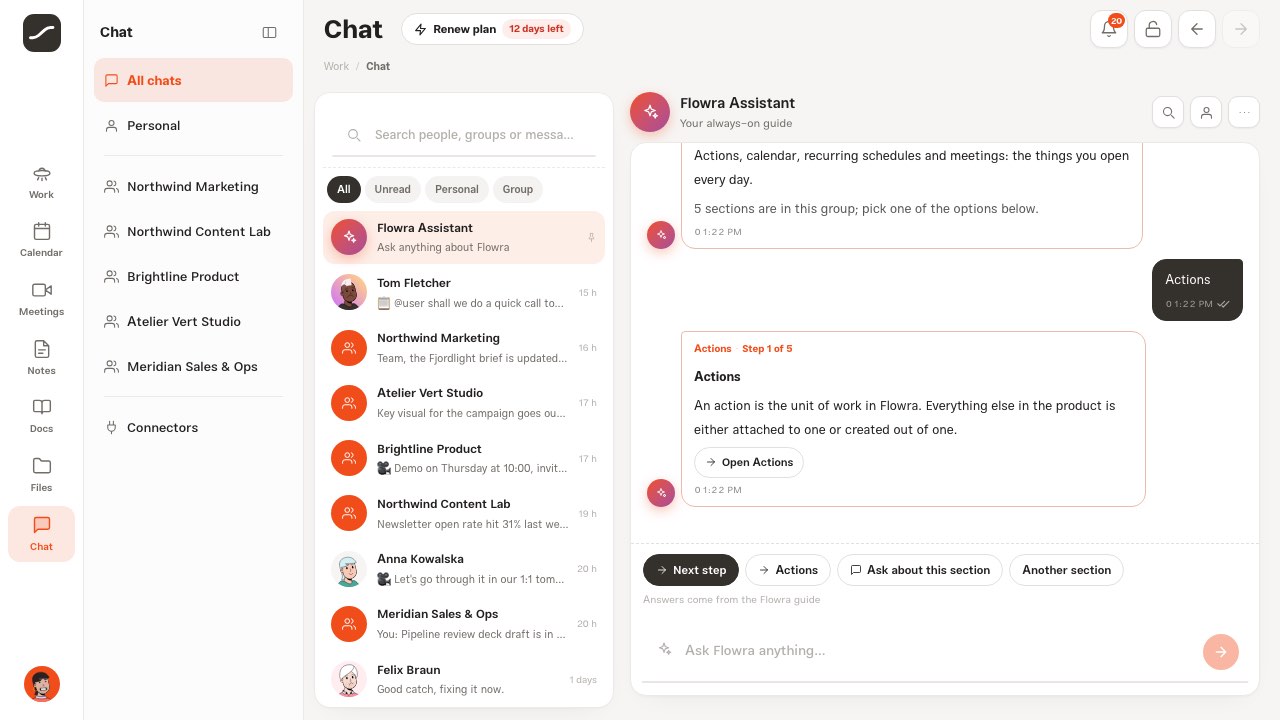
Flowra Assistant is a private conversation that is always pinned at the top of your chat list. Under each of its messages come suggestions for the next step: “Start the step-by-step tour”, “I have a question” or “Later”; then the docs groups, then the sections of each group. Every section has an intro and a few steps, with “Next step”, a button that opens that section's real page, “Ask about this section” and “Another section”.
Finished sections get a tick, and “Tour progress” shows under the suggestions. Your tour status is saved on your account, so on another device you carry on from the same spot. Any free question gets its answer from these very docs, with buttons to open the page and “Full guide for this section”.
The answer sound
Every time an assistant answers, in the assistant popup or in chat, a soft three-note sound rises, different from the two-note chime of a new message. Several answers in a row make just one sound, and the browser plays nothing until you've clicked or typed on the page. “Notification sound” in Settings, under Notifications, turns both sounds off or on and stays on your account.
Prime, and carrying on without AI
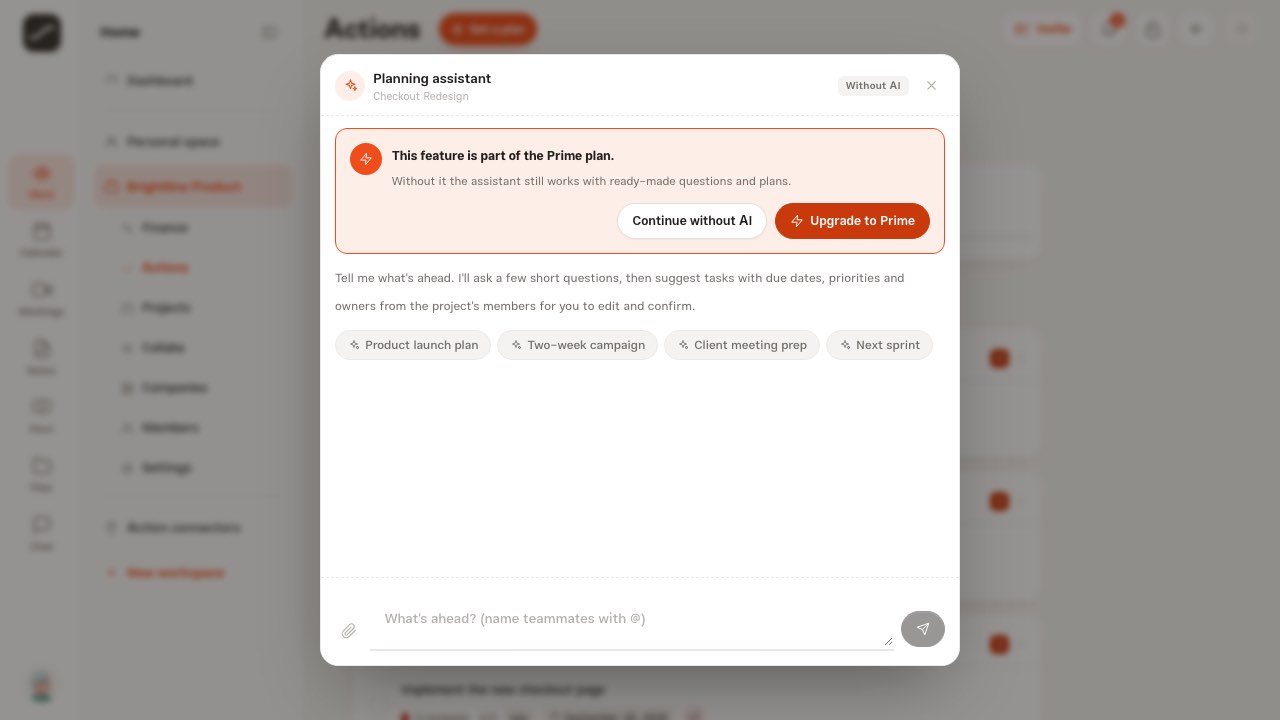
The AI answers of the page assistants are part of the Prime plan. On another plan, the popup first shows the “This feature is part of the Prime plan” card with “Upgrade to Prime”, which goes to the subscription page, and “Continue without AI”. The assistant works without AI too: ready-made questions and templates, and a “Without AI” label at the top of the popup. If AI is unavailable for some other reason, say the service doesn't respond, a short line gives the reason.
The chat assistant has smart answers for everyone, with a daily allowance: a hundred a day on Prime and ten on the other plans. What's left for today is shown under the suggestions; once it runs out, the answer comes from the Flowra guide, the reason is given and an upgrade is offered. The step-by-step tour and answers from the guide are always free and unlimited.
What it does and doesn't do
The assistant only does what you yourself are allowed to do, and makes everything through the same paths as the page's own buttons: access, member quotas, history and notifications are all the same. It makes nothing without your confirmation, and confirming the same draft again never makes an action twice.
Things it doesn't do: it doesn't read PDF text yet, it doesn't read a file you can't open yourself and says nothing about it, and it doesn't get around the calendar's rules. The conversation in the assistant popup only lasts while the page is open; what lasts is what you've made. Review an AI answer before you confirm.
Privacy
When AI is on, for each answer these go to the AI service (today OpenAI): your request and answers, the text of attachments you can open, and the context that job needs, such as the names and roles of project members and their open-task counts for planning, or the names of your people and the titles of your open actions for the calendar. Of each call only the type, model, token counts and error are recorded, not the text.
The Flowra Assistant conversation is yours alone: it has no other members and is never sent to Telegram. A file you attach to the assistant stays in your own files, and you delete it like any other file.
On phones
On a phone, the same button sits at the top of the page, and the conversation becomes a full-height sheet from the bottom of the screen. Questions, answers, the draft and the confirm button are all in that sheet; tap outside it or its close button to put it away. The chat assistant sits at the top of the phone's chat list too.