My Files
Flowra's file library: folders, real uploads, preview and comments, controlled sharing, a clear storage amount per plan, a trash with a grace period, and a link to your own cloud storage.
Open in Flowra/settings/mediaMy Files
Filecampaign-brief.pdfSharewith 2 peopleTrash21 days to purgespaces2 to 200 GB, depending on the planConnectFlowra · Google DriveA file's address is same-origin, and access is checked first.
What this is wired to
Where My Files is and what it holds
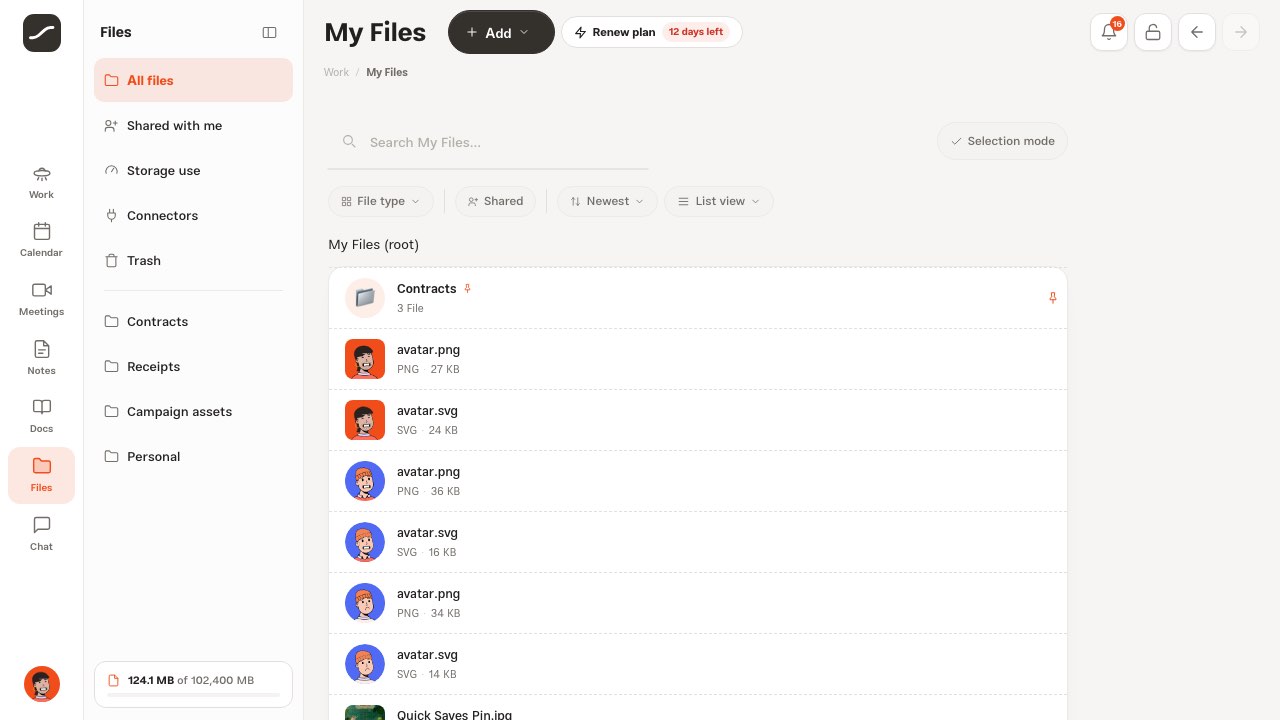
“My Files” is every account's file library, opened from “Files” in the sidebar. The column beside the page has five places: “All files”, “Shared with me”, “Storage use”, “Connectors” and “Trash”. Your top-level folders come below them, one click away each, and the storage card at the foot of the column shows how much of your plan's allowance is used.
The list shows folders and files in one sorted stream: a file created after a folder comes above it, and anything pinned always comes first. If you prefer, “Folders first” lifts every folder above the files. The list loads twenty at a time and continues as you scroll.
Folders
A folder is made with “Add” and “New folder”. If you're inside a folder, the new one is made inside it, and you can nest as deep as you need. The path above the list shows where you are, and “Up one level” takes you back.
Any folder can be pinned to stay on top, shared or deleted. Deleting a folder never destroys a file: its files and subfolders first move up one level, then the folder itself is removed. Folders don't go to the trash; only files do.
Some folders are made by Flowra itself, and their names are deliberately English so they don't change with the app's language: “Chat” for conversation attachments, “Telegram” for files you send to the bot, and “Flowra · Google Drive” and “Flowra · Dropbox” for each cloud connection.
Upload a file
Each file can be up to 100 MB, and it's checked against your remaining storage before it's saved.
- In the folder you want, press “Add” and choose “Upload a file”; you can pick several files at once
- Or drag files from your computer onto the page; the “Drop to upload” box shows where they'll go
- You can drop a whole folder too; it's rebuilt with all its subfolders and the same structure
- The “Uploads” panel shows each file's progress as a percentage, and moving to another page doesn't interrupt the upload
- If there isn't enough room, that row says “Storage is full” and suggests a bigger plan
The viewer and previews
Clicking any file opens the full-screen viewer. Images, video, PDF, Word documents (docx) and text files such as md, csv, json and html are read inside the app itself. The previous and next buttons move between the files of the same folder, a counter says which file you're on, and the download button is always there.
An audio file plays in the player at the top of the page, and the folder's other audio files queue up behind it. A video can be shrunk to a corner of the screen and watched while you work on something else.
Every file has its own address: when you open a file, the page address changes to that file, so you can send the link to anyone who has access to it.
What has a preview and what does not
Images, video, audio, PDFs and text open inside the app. Office formats have no in-app reader and honestly show a download instead, because the third-party viewer that used to be wired up could not fetch a permission-checked private file and was blocked by the security policy anyway.
Where a file's type comes from
Its MIME type first, its filename second, and the URL only as a last resort. Reading a type off the URL is what turned every PDF and text file in the viewer into a download button, because a file's address in Flowra carries no extension.
Comments and mentions on a file
In the viewer, “Comments” is that file's own conversation. Comments are stored on the account, not in the browser, so everyone who sees the file sees the same comments.
Mention a teammate with @. Flowra sends them the file in chat together with your comment and a link to that file's comments, and if the file wasn't shared with them yet, it shares it first. On a video, each comment keeps its own second, and “Jump to this moment” takes playback right there.
Sharing and access
Both files and folders can be shared. From the share button on a row, or from “Share with someone else” in the viewer, type a teammate's username or email. When you pick the teammate from the suggestions in the viewer, the file is also sent in your private chat. Either way, they get a notification.
The “Shared with” list in the viewer shows who has the file, and “Unshare” takes access back. In the file list, the avatars of the people who have a file appear beside its name, and “Shared” shows only the files you've shared.
A shared folder means every file directly inside it is visible, so a file you put in it later reaches the same people the moment you add it.
Who besides you can open a file
A file belongs to whoever uploaded it. Others can open it only in these cases, and anyone else holding the address gets “not found”:
- Someone the file itself, or its folder, is shared with
- The members of a conversation the file was sent in
- The host and participants of a meeting the file is the recording of
- The members of a finance account the file is a receipt for
- Everyone, when the file is someone's profile photo
Access and the signed address
Objects are stored private. A file's address is always a same-origin address inside Flowra, and that route checks first whether this person is allowed: are they the owner, was it shared with them, is its folder shared, is it attached to a conversation they belong to. Only then does it redirect to a five-minute signed address.
A refusal is a 404 rather than a 403. Whether an id exists at all is itself information.
Shared with me
“Shared with me” brings together the files and folders others have shared with you, with the name of whoever sent them. Open a file or download it. It stays its owner's: it doesn't use your storage, and you can't delete or move it. On a phone, the same list appears at the bottom of the My Files root.
Search, filter and sort
Search and the filters always sit above the list and work together:
- Tap “Search My Files...”; the search opens in its own window
- Type a file name or extension; up to six suggestions appear right there, each with its folder
- Choose between “All folders” and “Only” the current folder
- Enter lists every result on the page itself
- “File type” (images, video, audio, documents) and “Shared” narrow the list, and “Clear filter” removes the tag
- Sort by newest, oldest, name or size, and choose the list or grid view; the view is remembered in this browser
Selecting, moving, renaming and pinning
In “Selection mode”, clicking a row ticks it. “Move to folder” opens a list of folders you can step down into, make a new folder in, or choose “Root (no folder)”; “Trash” takes them all at once.
On a desktop there's a faster way: Ctrl- or Command-click files so they travel with the pointer, then click the target folder; the bar that appears also offers “Root”, “Trash” and “Drop”. One click shows a file and a double-click makes its name editable. Pinning a file or folder keeps it at the top of the list.
Trash
Deleting a file first moves it to the trash and keeps it for twenty-one days. Each row in the trash says how many days are left before permanent deletion; “Restore” puts the file back in its folder and “Delete forever” erases it on the spot. After twenty-one days, the next time My Files opens, both the entry and the file itself are erased.
A file in the trash still takes up room and counts toward your storage. To free space right away, delete it forever from the trash.
Storage per plan, and the storage bar
File storage is always a clear number, per account: Free 2 GB, Plus 50 GB and Prime 200 GB. If you're a member of a workspace on a better plan, the best plan paid for you is what counts. The administrator can also set a different ceiling for an account.
The storage card (at the foot of the side column on a desktop, above the list on a phone) shows usage against the ceiling and turns red above 85 percent. Clicking it opens “Storage use”: every format with its size and share, the largest first. Open a format to see its files by size, and “Delete permanently” frees the space right there; this deletion skips the trash.
When storage is full, existing files stay where they are and only new uploads are refused, with a suggestion of a plan that has more room. The same rule holds if the ceiling is lowered: nothing is deleted.
Where files come from
Most files don't need uploading by hand; wherever Flowra receives a file, it stores it right here:
- Chat: an attachment you send in a conversation is saved in “Chat”, in a subfolder named after that conversation; a voice message is a file too
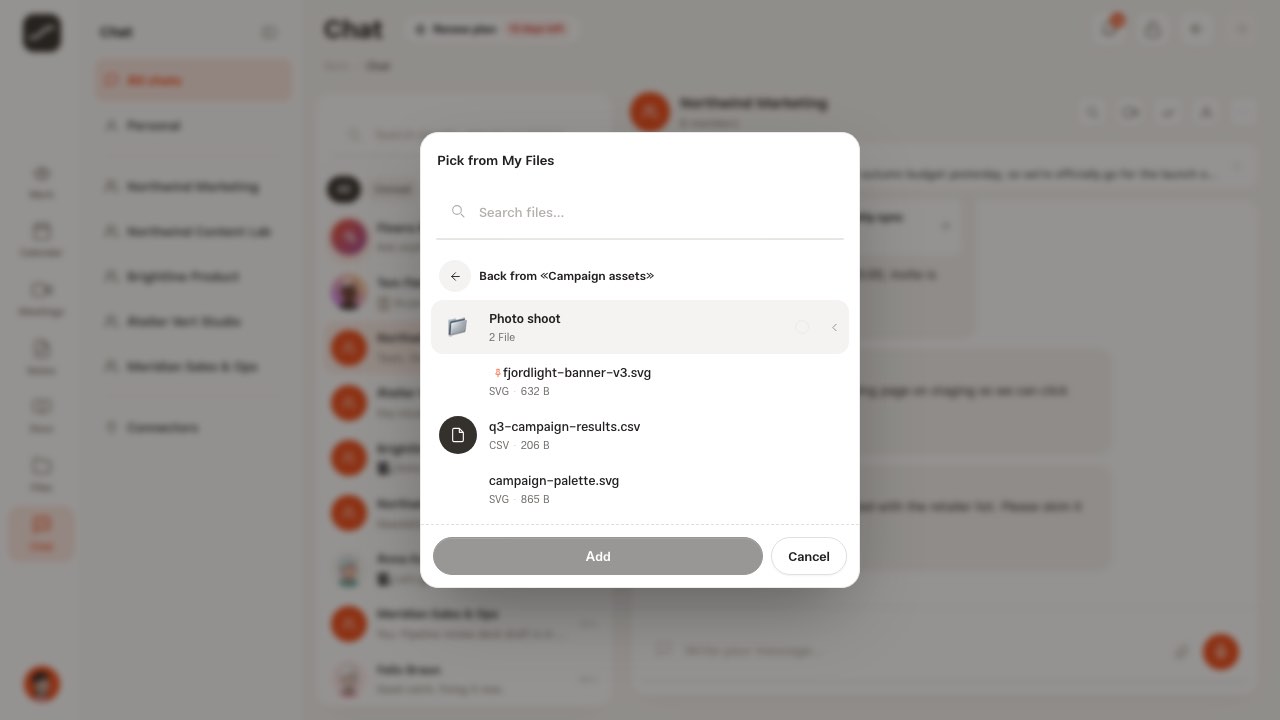
- Actions: every action attachment is a file, and “Pick from My Files” gives an action a file or even a whole folder
- Transactions: a transaction's receipt and attachments are shared with the members of that account
- Docs: the images, files and covers of knowledge pages are stored right here
- Folio: each sheet's export is an HTML file in a folder named after the sheet, or “Docs” plus the name of the project or company the sheet is assigned to
- Meetings: a meeting's recording is the host's file and is shared with the participants
- Telegram: a photo, document or voice note you send to the bot lands in the “Telegram” folder
- Cloud: the files in the “Flowra” folder of Google Drive or Dropbox arrive in that connection's folder
Cloud storage connectors
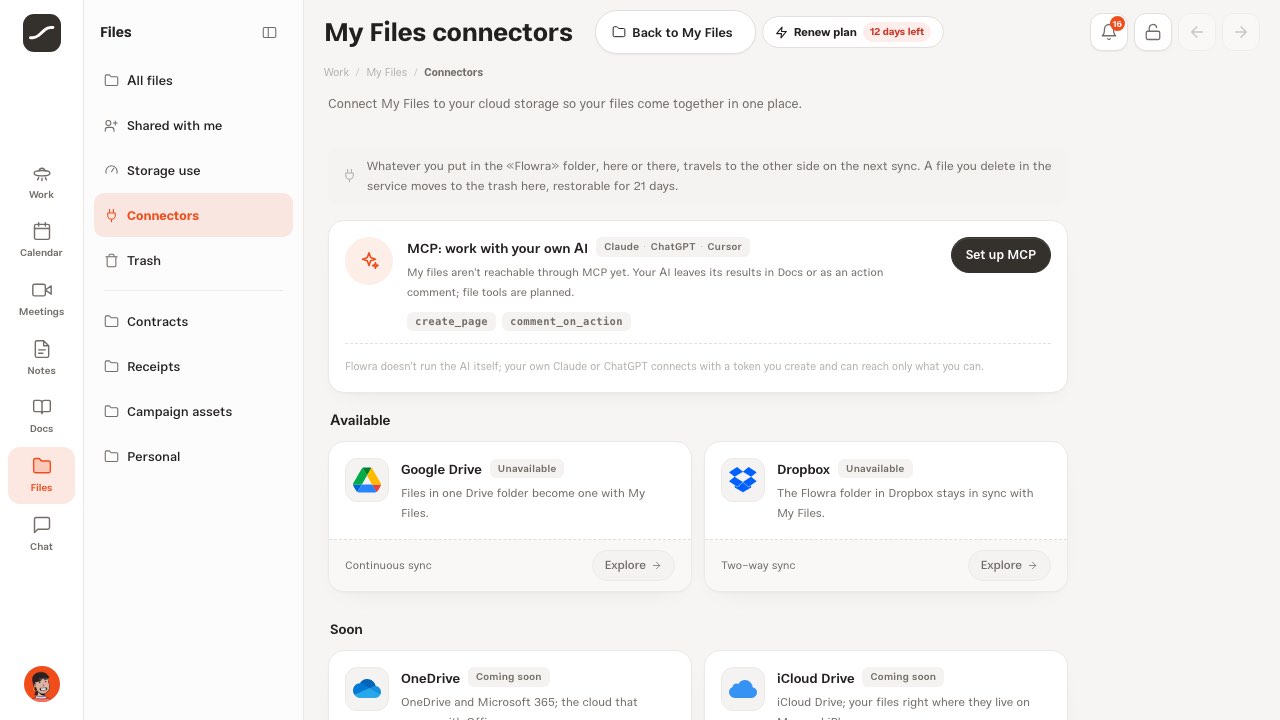
In “Connectors”, connect Google Drive or Dropbox. Connecting is a real round trip to that service's own consent screen; after it, a “Flowra” folder is created in the service and a “Flowra · Google Drive” or “Flowra · Dropbox” folder in My Files, and the first sync runs. If the system administrator hasn't set up a service's keys, it shows as “Unavailable”.
Syncing has no background job: it runs each time My Files opens (at most once a minute) or when you press the sync button, and the connection card shows the time of the last sync. A file deleted in the service moves to the trash here and can be restored for 21 days; Flowra never deletes a file from your Drive or Dropbox. If one file can't be transferred, the rest still are.
Dropbox syncs everything in its app folder both ways. In Google Drive, with the default access, Flowra sees only the files it created itself; so sending to Drive works, while bringing in a file someone put into Drive by hand needs full access. The connection card says which one yours is, with “Two-way” or “Upload only”. Disconnecting leaves the files where they are. OneDrive, iCloud Drive and Nextcloud are on the “Coming soon” list, and My Files isn't reachable through MCP yet.
On phones
On a phone all of this is there, just arranged for one hand. The top of the page says “My Files”, with an “Add” button holding “Upload a file” and “New folder”. The storage card is a full-width row, and tapping it opens “Storage use”. Search has its own line and opens full screen, and the filters are one row you swipe sideways.
There's no side column on a phone, so “Trash” is a button beside “Selection mode”, “Shared with me” comes at the bottom of the root list, and the pin, download, share and delete buttons are always visible under each row. The viewer is full screen, and the comments and share panels open over it.
A complete path
This is the path most work with files follows, and each step is explained in one of the sections above.
- Make a folder for the work, for example for a campaign
- Upload files, or take them from chat, Folio and Telegram
- Look at each file in the viewer and ask a teammate's opinion with @
- Share the folder with your team so every new file reaches them automatically
- Send the file you need from chat or an action with “Pick from My Files”
- Check “Storage use” now and then and delete big files you no longer need
- If you use Drive or Dropbox, connect it so the “Flowra” folder stays the same on both sides