Telegram: notifications, replies and work from outside Flowra
Flowra's Telegram bot brings notifications and reminders with buttons, delivers chat messages and brings your replies back, and a Telegram group can serve as a workspace's chat.
Open in Flowra/chat/telegramTelegram
AccountConnectedChatReplies come back from TelegramGroupFor 1 workspaceMorning digest8:00Quiet hours11 pm to 8 amThe connection link is valid for ten minutes and only works once.
What this is wired to
What Telegram does in Flowra
Flowra's Telegram bot works both ways. It brings notifications, reminders and chat messages to your Telegram, and whatever you tap or type there comes back into Flowra under Flowra's own rules and permissions: a button on an action card is that very status change, a reply to a message is that message in the chat, and a file you send lands in My Files.
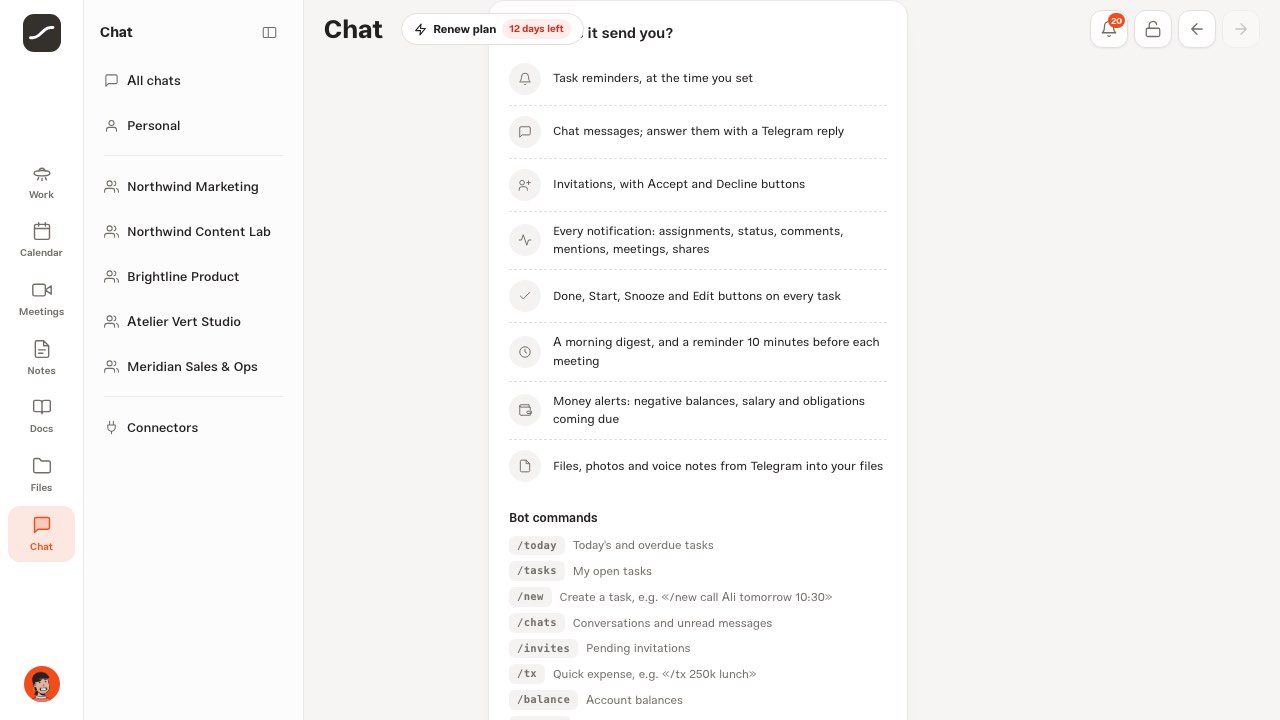
Once you're connected, the bot page shows this same list in the “What does it send you?” card:
- Task reminders, at the time you set
- Chat messages; answer them with a Telegram reply
- Invitations, with Accept and Decline buttons
- Every notification: assignments, status, comments, mentions, meetings, shares
- Done, Start, Snooze and Edit buttons on every task
- A morning digest, and a reminder 10 minutes before each meeting
- Money alerts: negative balances, salary and obligations coming due
- Files, photos and voice notes from Telegram into your files
The Telegram card in Connectors
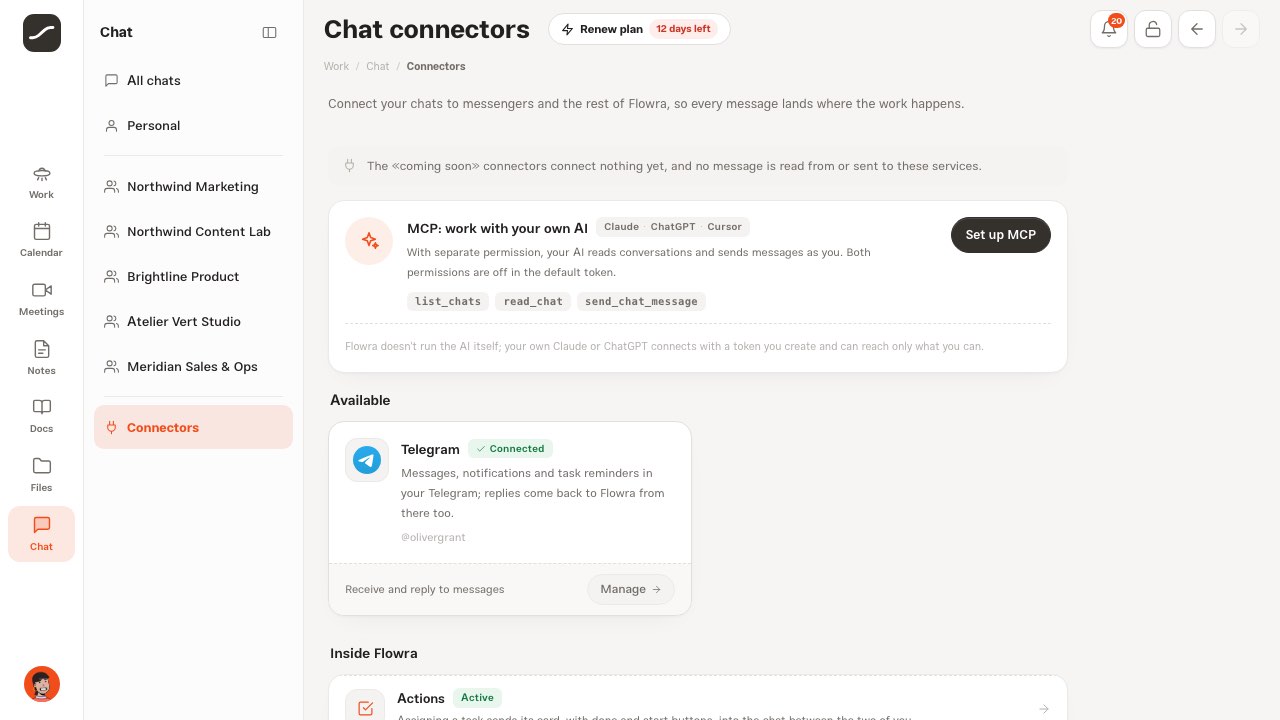
Telegram sits under “Connectors” in the chat column and is the only live connector for chat; the other services on that page are still coming soon. Its card shows one of three badges: “Connected”, “Ready to connect” or “Unavailable”. When you're connected, the card also shows your Telegram username and that messages and replies travel both ways.
The same card is in the settings connectors (the chat section) and the action connectors too, and a small card at the bottom of the chat list says whether Telegram is connected. They all lead to one page: the Telegram bot page.
Connecting your account, step by step
Connecting is a deep link, not a password or code you type by hand. “Connect to Telegram” makes a random single-use code that's valid for ten minutes and opens the bot with it; making a new link cancels the previous one. The page checks back every few seconds, but only while it's in front of you; come back and it looks again right away.
After Start, the bot says hello and sends the list of commands. Each Flowra account is connected to just one Telegram chat, and each chat to just one account: connecting again replaces the previous link.
- Open “Connectors” in the chat column and press “Connect” on the Telegram card
- On the bot page, press “Connect to Telegram” to open the bot in Telegram
- In Telegram, tap Start
- The page turns green on its own and shows your Telegram username
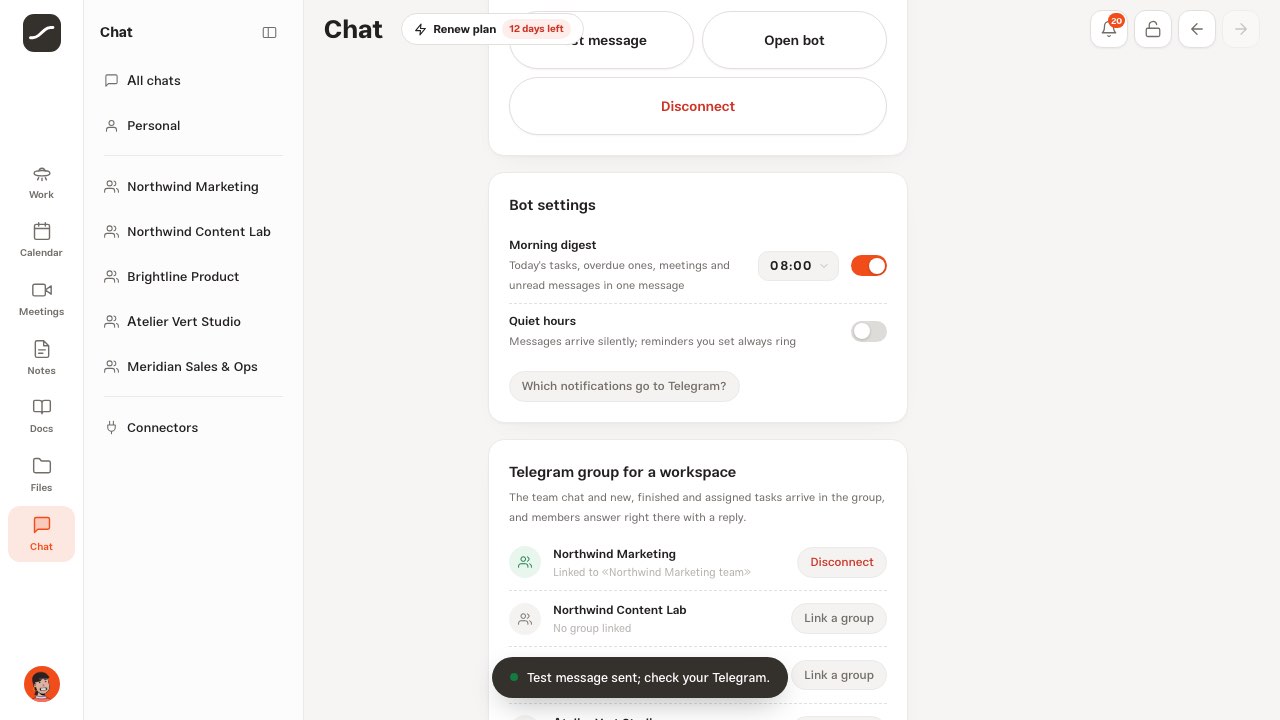
- Press “Test message” to make sure messages arrive
The action card and its buttons
Every notification about an action, such as an assignment, a status change, a new comment or a reminder, arrives as a card: title, status, priority, due date and any pending reminder, with a line on top saying what happened. Under the card are “Done”, “Start” (while it hasn't started), “In 1 hour”, “Tomorrow” and “Edit”; a closed action only has “Reopen”.
“In 1 hour” and “Tomorrow” only move the reminder, not the due date. “Edit” swaps the buttons for menus for due date, priority, assignee, subtasks and reminder; for the due time, type it like 14:30. Every button is the same change as in Flowra, made as you and with your permissions, and it's recorded in the “Action story” too. After each tap, the card is redrawn in place with its new state.
The “Open in Flowra” button only appears when Flowra runs on a public https address, because Telegram doesn't accept links to a local address.
Invitations, meetings, money alerts and mentions
An invitation to a workspace comes with “Accept” and “Decline” buttons, and the message changes once you answer. Ten minutes before every meeting, the host and every participant get a reminder with a “Join meeting” button for Google Meet, Zoom or Flowra's own room.
Money alerts, like an account going negative or salary and obligations coming due, reach Telegram too. A mention in chat arrives with the sentence itself and a “Reply” button. Action reminders and a meeting starting are “urgent” and ring even during quiet hours.
Chat in both directions
A message sent in a chat goes, seven seconds later, to the Telegram of members who haven't read it in Flowra in the meantime. The sender, anyone mentioned in that message (they get the mention itself), anyone who switched “Chat messages” off for Telegram, and anyone who muted that chat in Telegram don't get it. If the workspace has a Telegram group, that workspace's chat goes to the group once, not to each member.
Reply to the message in Telegram and your answer lands in the same chat under your name; a reply to an action card becomes a comment on that action. The “Reply” button opens a reply box too, and a plain message you send within fifteen minutes counts as the answer to that chat; /cancel drops it. “Read” marks the message read in Flowra, and “Recent messages” brings the last few messages of that chat.
Not every message can be answered: plain notices, the morning digest and lists aren't tied to any chat or action, and the bot tells you so.
Files, photos and voice from Telegram
Photos, documents, voice notes, audio and video you send to the bot are saved in the “Telegram” folder of My Files and count against your usual storage. If you send the file as a reply to a chat message or an action card, it goes to that chat with its caption or is attached to that action. Telegram only hands files up to twenty megabytes to a bot; send bigger ones from Flowra itself.
Bot commands
The bot doesn't just notify you; these commands are also in Telegram's command menu, and they're listed on the bot page:
/new understands a title with a day and a time: “today”, “tomorrow” or “day after tomorrow” and a time like 10:30, in Latin or Persian digits. A time you write also sets the reminder right there; it doesn't understand weekdays or dates. /tx is an expense by default; a + or a word like “income” makes it income, k is thousand and m is million, and if you have several accounts it asks which one. Every entry has an “Undo” button that voids the transaction rather than deleting it.
- /today: today's and overdue actions
- /tasks: your open actions
- /new: create an action; e.g. “/new call Anna tomorrow 10:30”
- /chats: your ten latest chats with their unread counts
- /invites: pending invitations, with accept and decline
- /tx: quickly log an expense or income; e.g. “/tx 12 lunch”
- /balance: account balances
- /digest: today's digest, right now
- /settings: bot settings from inside Telegram
- /stop: disconnect from inside Telegram
Choosing what gets sent
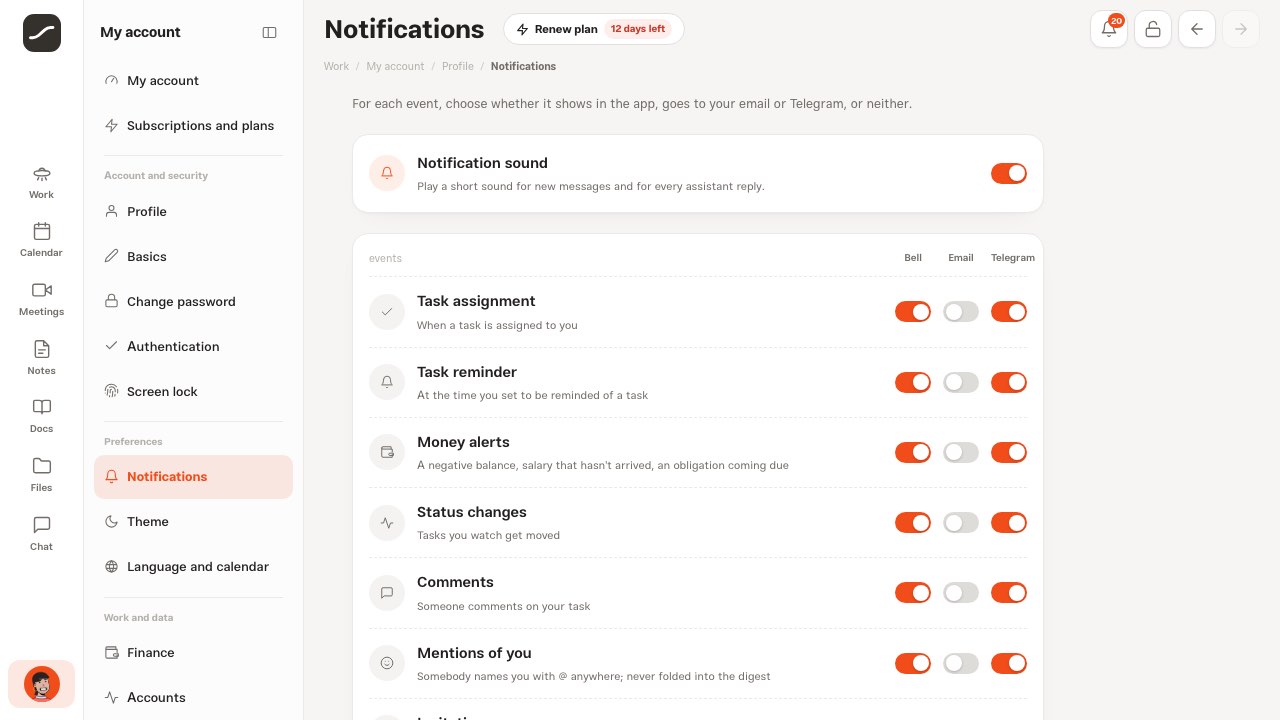
Telegram is the third notification channel, next to the bell and email, and once connected it's on for every event. In “Notifications”, a Telegram column appears while you're connected and each event has its own Telegram switch: task assignment, task reminder, money alerts, status changes, comments, mentions of you, invitations, meetings, sharing and subscription.
The three channels are independent: turning off the bell, or the bell's daily digest, takes nothing away from Telegram. The “Chat messages in Telegram” card right there tells you how many chats are muted in Telegram and brings them all back with “Unmute all”.
Morning digest and quiet hours
The “Bot settings” card on the bot page has two things. The “Morning digest” brings today's actions, overdue ones, today's meetings, unread messages, invitations and money follow-ups in one message, once a day at the hour you pick (8 am by default, in your own time zone), with buttons to today's actions, chats and invitations.
“Quiet hours” are off by default, and when you turn them on (11 pm to 8 am by default) messages aren't held back, just delivered silently; reminders you set yourself and a meeting starting always ring. /settings in Telegram has these two plus four switches for chat messages, money alerts, meetings and status changes; every other event is changed only from Flowra itself.
Muting one chat
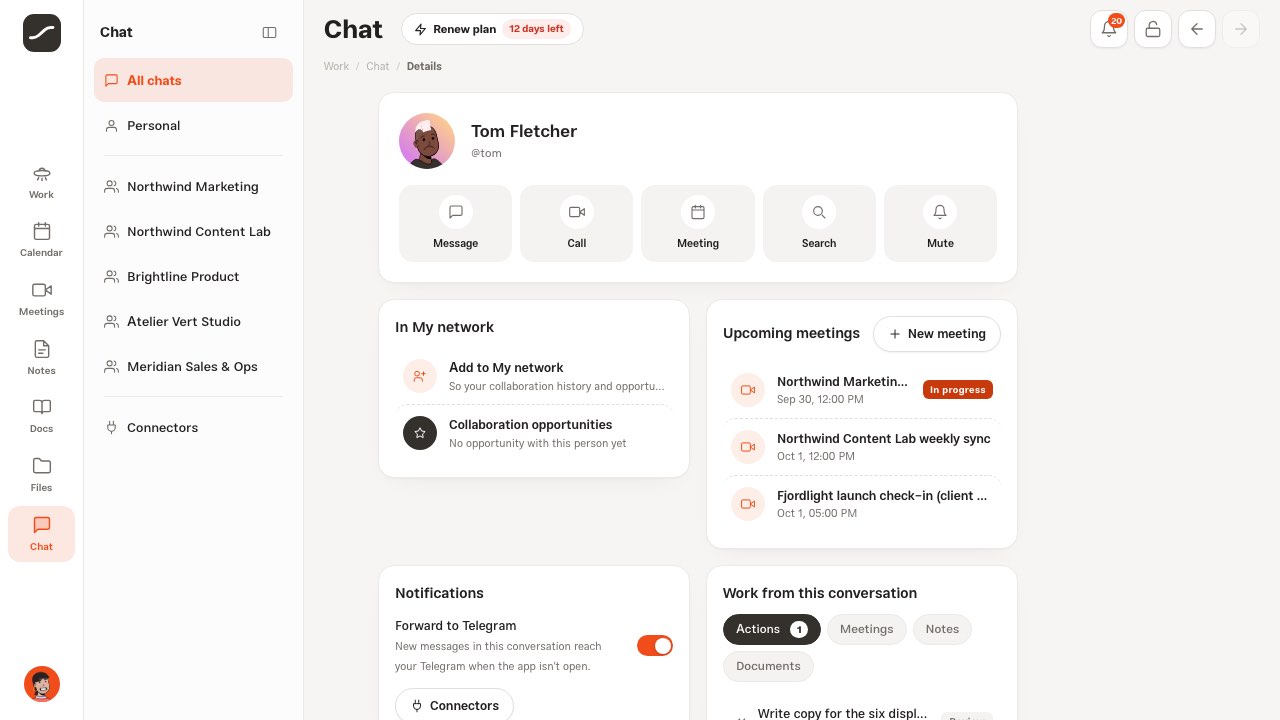
You can mute a chat in Telegram only, without changing anything in Flowra. There are three ways: the “Forward to Telegram” switch on that chat's info page, “Mute in Telegram” in its row menu in the chat list (with the “Muted in Telegram” filter to see them all), or the “Mute” button under a message in Telegram itself.
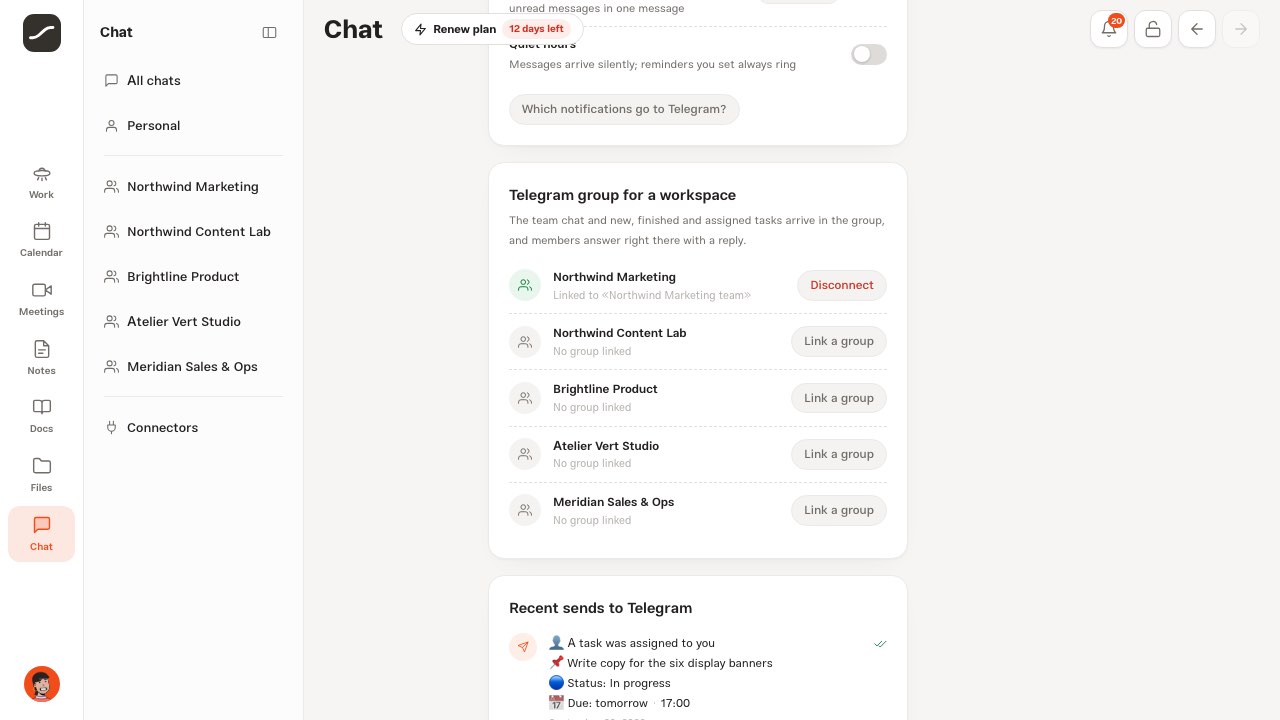
Telegram group for a workspace
An owner or editor of a workspace can link a Telegram group to it, from the “Telegram group for a workspace” card on the bot page or the “Telegram group” card in that workspace's settings. From then on, the workspace chat goes to the group instead of members' private chats, and actions being created, assigned and completed are announced there with their cards and buttons. Group messages are always in Persian, because a group has no single reader.
Every button in the group acts as whoever pressed it, so each member needs to have connected their own Telegram to their account to press buttons or answer with a reply. In a group, the bot only listens to replies to its own posts.
- On the Telegram group card, press “Link a group” next to the workspace
- Choose the group in Telegram; the bot links it on its own
- To unlink, press “Disconnect” or send /unlink in the group
Privacy: what the bot sees
The bot only sees messages sent to the bot itself; the rest of your Telegram chats are never read. In a group, it only reads the link start, /unlink and replies to its own posts. Anything done from Telegram goes through the same permission checks as Flowra; a reply to a chat you're not a member of is refused.
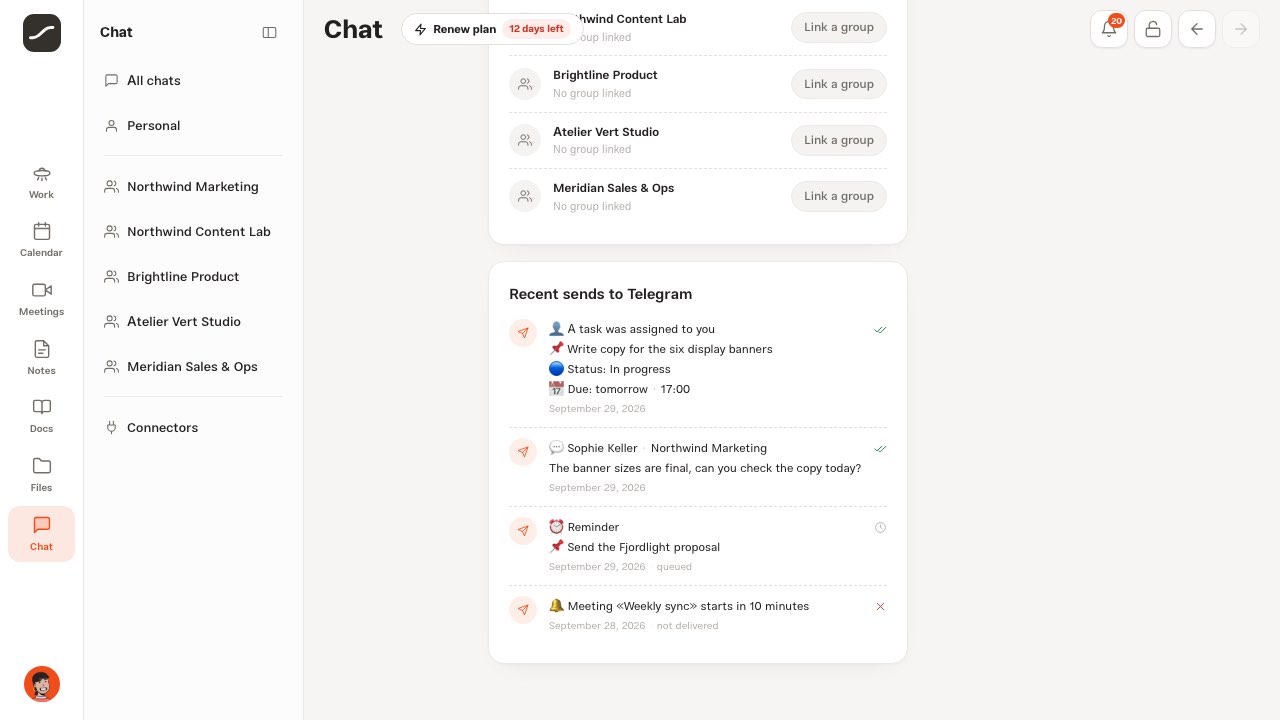
For the link, Flowra keeps your Telegram chat id, username and first name, and every message it sends to your Telegram; the “Recent sends to Telegram” card shows the last twenty with their status. The bot token lives only on the server and never reaches the browser. Remember that a group you link to a workspace may include people outside Flowra, and they'll see that workspace's chat.
Disconnect
Press “Disconnect” on the bot page; the bot sends a goodbye message and the link is removed. In Telegram itself, /stop does the same. Your settings, that is the switch for each event, muted chats, the morning digest and quiet hours, are kept for the next time you connect, and workspace groups are separate from your personal link.
If you block the bot in Telegram or delete the chat, the first message that fails removes the link by itself, and the bot page offers “Connect” again. A group the bot was removed from is unlinked the same way.
Troubleshooting
Most snags are one of these, and the bot page or the bot itself says which:
- “The operator has not enabled the Telegram bot yet”: the bot isn't set up on this server; the operator needs to add the bot token in the connectors panel
- Telegram didn't open: “Telegram didn't open? Tap here” under the button opens the same link again
- The bot says the link is expired or invalid: a link is valid for ten minutes and works once; press “Connect to Telegram” again
- “Telegram is unreachable”: the server can't reach api.telegram.org; the operator needs to set up a proxy for the Bot API
- A message is stuck “queued” in “Recent sends”: it's retried several times for up to an hour, and becomes “not delivered” if it still fails
- No “Open in Flowra” or “Join meeting” button: these links are only made when Flowra runs on a public https address
- A message didn't reach Telegram: check that event's Telegram switch in “Notifications”, whether the chat is muted, and whether you read it in Flowra within seven seconds
Telegram on your phone
On a phone, the bot page is the same single column. “Connect to Telegram” opens the Telegram app; press Start and come back to Flowra. The page doesn't check while it's hidden, and as soon as you're back it looks again and turns green. If the browser blocked the new window, tap the fallback link under the button.
On a phone, connectors are one column and each connector's window opens from the bottom of the screen. The “Forward to Telegram” switch on a chat's info page is right there on a phone too.
A full run: from connecting to working from Telegram
This is the path most people who connect Telegram take, and each step is explained in one of the sections above.
- Connect Telegram from “Connectors” and send a “Test message”
- In “Notifications”, choose which events come to Telegram
- Set up the morning digest and quiet hours
- Move action cards forward with the buttons and answer messages with a reply
- Create actions and transactions from Telegram itself with /new and /tx
- Link your team's Telegram group to the workspace